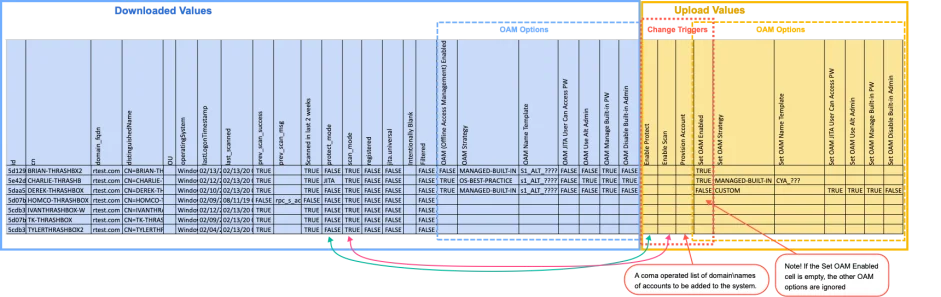
QuickStart Advanced Fields
This page covers advanced usage of the QuickStart script: bulk reporting, making changes to systems, and managing EDR and Offline Access Management (OAM) policies.
Before using these features, complete the installation steps in QuickStart Script.
Installation
Change to the directory where you extracted QuickStart and install the required modules:
pip install --trusted-host pypi.org --trusted-host files.pythonhosted.org -r requirements.txt
Edit reports.py and update the configuration block:
config = {
    'baseUrl': 'https://localhost:3000/api/v1',  # URL of NPS-D API
    'userId': '59057412c4e92dccc356552c',         # NPS-D superadmin account
    'provisionUser': 'jita.universal'              # Account to filter in report
}
Reporting
Single Report
Create a report for a single OU by passing the --ou flag:
reports.py --ou "OU=ReportTEST,DC=rtest,DC=com"
Example output:
[+] API key loaded from secure storage
Processing 16 of 16 systems
File successfully saved to s1_report.xlsx
Available Arguments
reports.py --help
usage: reports.py [-h] [--ou OU] [--file XLS_OUT] [--input-file COMPUTERS_FILE]
                  [--protect-mode-file PROTECT_FILE] [--linux-reg-file LINUX_FILE]
                  [--dry-run] [--ou-file OU_FILE] [--rm-api-key] [--no-save-api]
                  [--insecure] [--max-worksheet-rows]

Generates Privilege Secure reports based on OU.

optional arguments:
  -h, --help                        Show this help message and exit
  --ou OU                           Specify the OU DN to filter on
                                    (OU=Computers,OU=Bulk,DC=rtest,DC=com)
  --file XLS_OUT                    Filename to save output (Default: s1_report.xlsx)
  --input-file COMPUTERS_FILE       Use a file containing a list of computers in
                                    "DOMAIN\Computer" format instead of OU filtering
  --protect-mode-file PROTECT_FILE  Make changes to systems/admins from an updated
                                    report file
  --linux-reg-file LINUX_FILE       Register an Excel list of Linux systems with
                                    required registration parameters
  --dry-run                         Display changes but don't make them
  --ou-file OU_FILE                 File containing list of OUs to process
  --rm-api-key                      Remove the securely stored API key
  --no-save-api                     Don't save API key locally
  --insecure                        Ignore certificate checks
  --max-worksheet-rows INTEGER_VALUE
                                    Limit number of admins per worksheet before
                                    rolling over to a new worksheet
Bulk Reports
Create reports for multiple OUs by passing the --ou-file flag with a line-delimited text file:
OUs.txt example:
OU=ReportTEST,DC=rtest,DC=com
OU=NonExistantSubOU1,OU=ReportTEST,DC=rtest,DC=com
OU=SubOU2,OU=SubOU1,OU=ReportTEST,DC=rtest,DC=com
OU=SubOU1,OU=ReportTEST,DC=rtest,DC=com
Run the report:
reports.py --ou-file OUs.txt
Example output:
[+] API key loaded from secure storage
Processing OU: OU=ReportTEST,DC=rtest,DC=com
Processing 16 of 16 systems
Processing OU: OU=NonExistantSubOU1,OU=ReportTEST,DC=rtest,DC=com
Processing 0 of 0 systems
Processing OU: OU=SubOU1,OU=ReportTEST,DC=rtest,DC=com
Processing 3 of 3 systems
File successfully saved to s1_report.xlsx
Supplying a List of Systems
Instead of OUs, specify a file containing a list of systems in DOMAIN\Computer format using
the --input-file flag.
target_computers.txt example:
RTEST\BulkComp1012
RTEST\BulkComp1013
RTEST\BulkComp1014
RTEST\HORIZON
RTEST\SRV-0
Run the report:
reports.py --input-file target_computers.txt
Example output:
[+] API key loaded from secure storage
Processing 13 systems
File successfully saved to s1_report.xlsx
Making Changes to Systems
Use the --protect-mode-file flag to push changes to systems specified in a spreadsheet
generated by the reports script.
Applying Changes Immediately
By default, NPS-D applies changes to the target host the next time it scans the host — either
during the normal scan process or when you manually rescan the system in the UI or via the API.
To trigger an immediate scan of each system that had a protect mode change, add the --scan
flag:
reports.py --protect-mode-file OU=ReportTEST,DC=rtest,DC=com.xlsx --insecure --scan
Using --scan causes the script to run more slowly.
Managing the System's EDR Policy
As of version 2.17, NPS-D supports multiple integrations to one or many EDR providers. The current EDR configuration is visible in column O of the report spreadsheet. Modify it using field AC (Set EDR Integration).
The value in the AC field must match the naming convention used when creating the EDR integration in NPS-D.
Example dry run showing EDR changes:
python3 reports_2.18.py --insecure --dry-run --protect-mode-file s1_report.xlsx

[+] API key loaded from secure storage
[!] DRY RUN ONLY - displaying proposed changes only.
[*] Updating EDR Integration on 3 systems:
[+] System: ip-10-100-11-100  EDR Integration: Carbon Black Cloud 1
[+] System: ip-10-100-11-101  EDR Integration: CrowdStrike Falcon 1
[+] System: ip-10-100-11-102  EDR Integration: SentinelOne 1
Managing the System's Offline Access Management (OAM) Policy
The Computer Data sheet contains columns reporting the system's OAM policy:
| Column Name | Values |
|---|---|
| OAM Enabled | TRUE, FALSE |
| OAM Strategy | OS-BEST-PRACTICE, MANAGED-BUILT-IN, CUSTOM |
| OAM Name Template | Alphanumeric with ? wildcards (example: S1_ALT_??????) |
| OAM JITA User Can Access PW | TRUE, FALSE |
| OAM Use Alt Admin | TRUE, FALSE |
| OAM Manage Built-in PW | TRUE, FALSE |
| OAM Disable Built-in Admin | TRUE, FALSE |
To change policy options, set Set OAM Enabled to TRUE or FALSE as appropriate.
If you leave OAM Strategy blank, it defaults to the current value or to OS-BEST-PRACTICE if
no previous policy exists. If you leave OAM Name Template blank, it defaults to the current
value or to S1_ALT_ADMIN.
Default Settings by Strategy
| Option | OS-BEST-PRACTICE | MANAGED-BUILT-IN | CUSTOM |
|---|---|---|---|
| JITA User Can Access PW | FALSE | FALSE | FALSE |
| Use Alt Admin | TRUE | FALSE | required |
| OAM Manage Built-in PW | TRUE | TRUE | required |
| Disable Built-in Admin | TRUE | FALSE | required |
Linux Bridging Strategies
Set the directory bridging strategy for Linux systems using these columns in the report spreadsheet:
| Column Name | Values |
|---|---|
| Set Directory Bridging Strategy | secureone, centrify, powerbroker |
| Set Directory Bridging Domain | Domain name. Required for centrify and powerbroker strategies. |
Setting Linux Sudoers Representation
An NPS-D admin can assign a specific sudoers representation to a set of systems using the
Set Sudoers Representation column. Supply the id value of an existing sudoers
representation to apply it to the system.
The export process doesn't retrieve or display the current sudoers representation value.
Dry Run
Use --dry-run to preview proposed changes without applying them.
reports.py --protect-mode-file OU=ReportTEST,DC=rtest,DC=com.xlsx --insecure --dry-run
Example output:
[+] API key loaded from secure storage
[!] DRY RUN ONLY - displaying proposed changes only.
[*] Setting Users Persistent:
[+] User: VMTEMP2\privilegesecure  System: VMTEMP2
[*] Adding Users to Inventory:
[+] User: RTEST\jbax  System: VMTEMP1
[*] Enabling Protect Mode:
[+] System: VMTEMP1
[+] System: VMTEMP2
Processing Changes
When you're ready to apply changes, run without --dry-run:
reports.py --protect-mode-file OU=ReportTEST,DC=rtest,DC=com.xlsx --insecure
The output displays any failures with the HTTP response code and message.
Registering Linux Computers
Linux registration prerequisites:
You can register Linux systems from an Excel file using the --linux-reg-file flag. You can add
the --dry-run flag to preview changes before committing them.
reports.py --linux-reg-file linux_register.xlsx --insecure --dry-run
See the example template: linux_register.xlsx
| Column | Description |
|---|---|
system | DNS hostname of the Linux system to register |
username / password | Credentials used to log in and create the default service account |
admins[0] | Object ID of an AD user to add as an admin. Add more admins with admins[1], admins[2], and so on |
persistent | Comma-separated list of account names to mark as persistent |
scan | TRUE or FALSE — whether to periodically scan this system |
secure | TRUE or FALSE — whether to place this system in Protect:JITA mode |
nondomain | TRUE or FALSE — whether this system is already directory-bridged and part of the AD domain |
directory_bridging | Directory bridging strategy: secureone (default), centrify, or powerbroker |
Example linux_register.xlsx:
| system | username | password | admins[0] | persistent | scan | secure | nondomain | directory_bridging |
|---|---|---|---|---|---|---|---|---|
| ip-10-30-1-247.us-west-2.compute.internal | registerAcct | welcome | 5b64514ec181fa007780acdd | alice,bob | TRUE | FALSE | TRUE | |
| ip-10-30-1-249.us-west-2.compute.internal | registerAcct | welcome | 5b64514ec181fa007780acdd | bishop | TRUE | FALSE | TRUE | |
| ip-10-30-1-172.us-west-2.compute.internal | ubuntu | welcome | 5b64514ec181fa007780acdd | vasquez | TRUE | FALSE | TRUE | |
| ip-10-30-1-222.us-west-2.compute.internal | ubuntu | welcome | 5b64514ec181fa007780acdd | ferro | TRUE | FALSE | TRUE | secureone |
| ip-10-30-1-111.us-west-2.compute.internal | xxxxxx | yyyyyyy | TRUE | FALSE | FALSE | centrify |
Full QuickStart Excel File Layout