Setting Up the AutoSpider and Alerts
After you run your initial spider, the AutoSpider monitors your account on an ongoing basis to detect customization changes. It performs a light scan of the data to determine if there were any changes. If it detects changes, it reminds you to ReSpider your account.
Best practice is to run the AutoSpider regularly. If the AutoSpider isn't run, your Change Logs are missing the Changed by and Actual Change Date fields. When the Change Log is newly created, the fields contain Pending AutoSpider. If too many days go by, the fields change to Couldn't be determined.
Set Up the AutoSpider
Install the AutoSpider portlet on all Administrator homepages. The AutoSpider triggers when the Administrator logs in. Ideally daily or every other day. Best practice is to wait for the portlet to load and see the Spider Triggered message before continuing.
The AutoSpider Portlet is required to update certain object types in NetSuite. After it is triggered through the dashboard portlet, it picks up all changes on custom objects and triggers the scheduled scripts to reflect them in the Customization records, going back two days. The AutoSpider portlet is required to update these object types:
- Bundle
- Custom Report
- Entry Form
- Mass Update
- Online Customer Form
- Record
- Transaction Form
- Custom Advanced PDF/HTML Template
To add the auto spider portlet:
- Log in to NetSuite with an Administrator role.
- Click Personalize on your home page.
- Click Custom Portlet.
- Click the menu icon for the Custom Portlet and select Set Up
- Select Strongpoint AutoSpider Portlet (Realtime) from the Source list.
- Click Save
Any objects not captured by the AutoSpider are picked up by the Customizations to ReSpider alert.
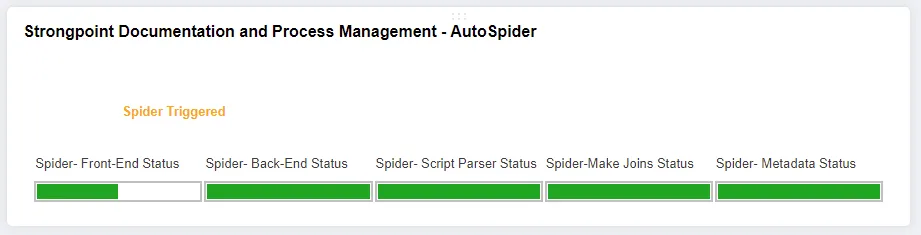
Stay on your Home page until you see Spider Triggered to ensure the spider starts.
Set up Customizations to ReSpider Alerts
A series of Workflows are used to review system notes, audit logs and object history. These workflows identify when the Customization Records have not been updated. To ensure the objects in your account are updating, set up the Customizations to ReSpider search to provide alerts to the appropriate people in your company.
Next Step: Managing Users