Clean Up Overview
Clean up involves some or all of the following steps:
-
Identify and remove unused customizations (searches, records, fields, and scripts):
- Completely unused
- Useless or inefficient
-
Identify and fix improperly set-up customizations (for example, fields with generic script ids or fields with no help).
-
Describe each object (search, field, script,workflow).
-
Assign true and meaningful owners.
-
Assign customizations to high-level processes.
-
Optimize scripts, workflows, and processes.
Clean Up Tools
Platform Governance for NetSuite has a series of built in Clean Up Tools to enable Administrators to clean up their NetSuite account in an organized and efficient manner. The tools can be accessed from Strongpoint> Clean Up or from Strongpoint > Strongpoint Overview.
There are many types of clean up, but they generally follow the same process:
- Select the Approach and Tools
- Analyze the Results
- Organize the Results
- Create Change Requests (if required)
- Manage the Change or Clean Up as Appropriate
- ReSpider
Always check the Last Date Spidered on any object and re-spider that object if necessary to ensure the information about that object is up to date.
Select the Approach and Tools
There are many clean up and documentation tools available such as:
- Unused Customizations
- Unused Scripts
- Inactive Owner
- Default ID
Unused fields and unused fields by form don't include fields that don't store a value since there is no Date Last Used for those objects.
All the “Unused” tools with the exception of Unused Bundles don't include customizations from bundles. For example, even if a field isn't used, it is highly unlikely that you will delete a field from a bundle. You would likely want to analyze the bundle usage as a whole when cleaning up.
Consider deleting unused customizations, such as fields that haven't been used in years and aren't used by any other customization, before moving onto other clean up activities.
Analyze the Results
Most of the tools have the following columns. They might be in slightly different orders or omitted based on the type of clean up.
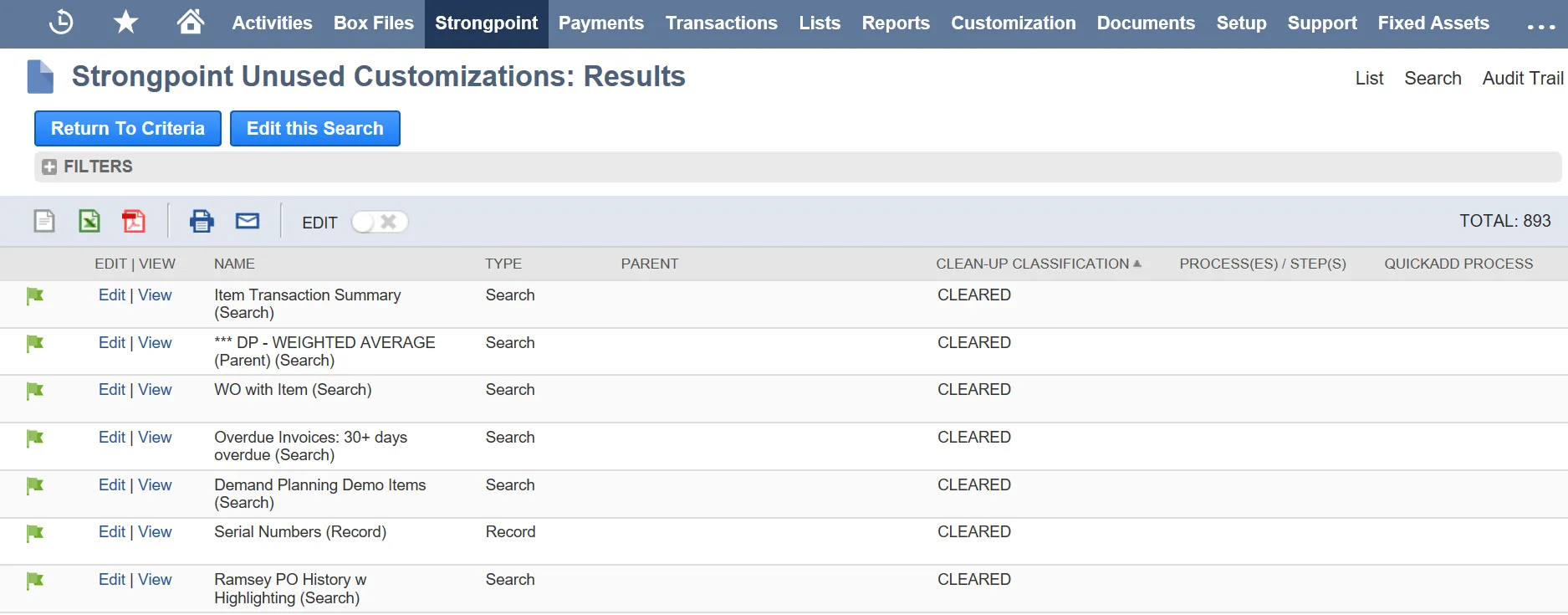
Sample Result:
- Edit/View: Use this to edit or view the Customization Record for that customization.
- Name: the name of the customization.
- Type: type of customization if showing multiple types.
- Parent: the parent of the customization if applicable.
- Clean Up Classification: The clean up status.
- Process/Steps: processes or steps linked to the customization.
- Quick Add Process: Use this to link the customization to a process through direct list editing. Multiple customizations can be added to processes in bulk.
Other columns may include:
- Owner: owner of that customization. If the owner is “Default Strongpoint User,” this means that the owner is no longer active in the NetSuite account, so couldn't be linked to that customization.
- Link: takes you to the actual customization.
- ScriptID: shows you the Script ID.
- Description: the customization description.
The next three items are critical for understanding what impact changes to the customization may have throughout the system. Being able to quickly and holistically see the impacted customizations greatly reduces the risk of things breaking as a result of your changes.
- Scripts: displays the scripts that use that customization.
- Searches/Mass Updates: displays the searches/ mass updates that use that customization.
- Workflows: displays the workflows that use that customization.
Change Requests can be created and managed through:
- Create Change Request: Use this to create a new change request with a link to the customization or customization selected.
- Related Change Requests: displays the change requests that the customization is linked to.
Organize the Results
The results can be sorted and filtered to group and manage the output for subsequent steps. Choose to clean up based on process or record type.
Every Customization record has a Clean-Up Status field to track the status of the clean-up process for that object.
The statuses are:
- To Be Cleaned Up: Planned for cleanup, but not yet in progress.
- Send Request Info Emails: This status triggers an email warning that the customization is about to be deleted.
- Under Investigation: A holding status while deciding what to do.
- Disabled/Hidden:Tracks that the customization has been disabled.
- Archive: Tracks that the data / set-up was archived.
- Deleted: Tracks that the customization has been deleted. The doc is inactivated.
- Ignore: Removes it from the searches.
- Specific tasks: Fix Script Id and Reassign Owner.
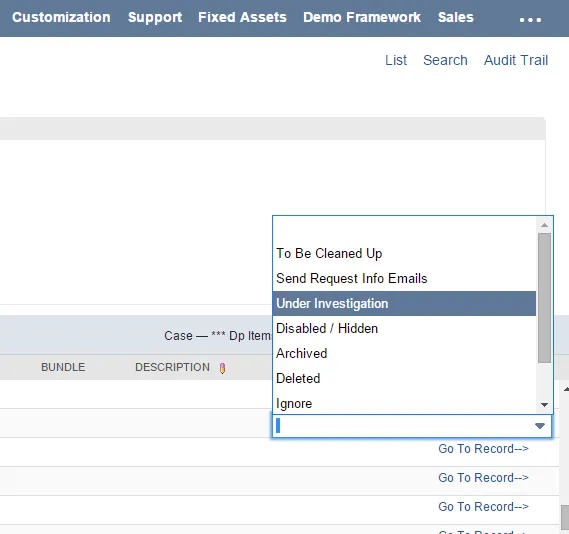
You can report on these statuses to organize your work.
Create Change Requests (if required)
Some changes such as deletion, changes to scriptID, and Help impact the customization itself. For these types of changes, create a Change Request.
For Clean Up, create new change requests and assign them to the customizations. In the results view, “Create Change Request” creates a new change request. After it is added to that customization, it appears under “Related Change Requests”. You can assign multiple customizations to multiple change requests as appropriate.

Manage the Change or Clean Up as Appropriate
See Change Management for information about creating and managing change requests. After the appropriate investigations are conducted and approvals are obtained, the customization can be changed based on company policies and procedures.
Some of the items being changed, such as the description or owner, can be direct list edited or bulk edited like any other NetSuite data directly in a view such as Unused Fields.
The Change Request has archiving and deletion tools to help clean up the account, for example, deleting unused customizations.
ReSpider
At the end of the process of updating the customization record, re-spider the account to update the Customization Records that document the changed customizations. Re-spider just for a particular record type if that is all that was changed.