PingCastle Standard and Basic User Guide
About PingCastle
PingCastle is a security assessment and auditing tool for CISOs, Security Auditors, and IT Professionals working with Active Directory and Entra ID.
Netwrix offers various products to help protect your network infrastructure. PingCastle focuses specifically on assessment. It collects comprehensive information from your Active Directory and Entra ID environments, analyzes this data for security risks and misconfigurations, and generates detailed reports with actionable findings.
These reports help you identify and prioritize security issues that need remediation, giving you clear visibility into your security posture and enabling data-driven decisions to improve your environment's security.
License
The source code of the program is licensed to the Non-Profit Open Software License ("Non-Profit OSL") 3.0.
Binary License and Usage
You can't include the binary code as part of a commercial package unless you purchase a license. Visit the Services section on https://www.pingcastle.com for licensing options.
License Expiration
PingCastle only runs until the built-in license expiration date. After this date, the program stops functioning.
The tool surfaces this date as the End of Support date.
Licensing Options
To continue using PingCastle after the built-in license expires, you must purchase one of the following:
- PingCastle Standard: Traditional licensing model for ongoing use
- PingCastle for Service Providers: Per-assessment licensing where each license is valid for 2 weeks for specific Active Directory domains and forests. You can perform forest-level assessments using wildcard notation (e.g.,
*.domain.localto scan all subdomains within a forest)
Methodology
The PingCastle tool is one part of a global methodology for securing Active Directories.
For details on how the tool fits into the broader process of securing Active Directory, see the PingCastle methodology page.
Requirements
Active Directory Account
PingCastle requires an Active Directory account to connect and perform audits. In most cases, a standard user account with no special privileges is sufficient—the account can even be from a trusted domain and doesn't need to be part of the local administrators group.
Privileged Mode
PingCastle offers a privileged mode that enhances the reliability and accuracy of specific security checks. While non-privileged mode works for basic operations and many checks, privileged mode provides higher confidence results for certain assessments.
Running as Administrator: Most operations don't require running PingCastle as an administrator, though certain checks (such as DNS-related checks) may have limited functionality without administrator privileges.
Privileged Mode Command:
PingCastle.exe --healthcheck --privileged --server domain.local
Privileged Mode Checks:
The following table shows which rules benefit from privileged mode and the permissions they require:
| Rule | Description | Permission Required |
|---|---|---|
| A-CertTempCustomSubject (ESC1) | Certificate template vulnerability check | Gets and checks CA Enrollment ACL |
| A-CertTempAnyPurpose (ESC2) | Certificate template any purpose check | Gets and checks CA Enrollment ACL |
| S-Vuln-MS14-068 | Kerberos vulnerability check | Checks installed hotfixes on the domain controller |
| S-Vuln-MS17_010 | EternalBlue/SMB vulnerability check | Checks installed hotfixes on the domain controller |
Server Side
PingCastle has no specific server-side requirements.
For optimal performance, install Active Directory Web Services (ADWS) on your domain controllers. Windows Server 2008 R2 and later install ADWS by default. When available, ADWS can significantly reduce scan times—often by a factor of 10 or more.
Client Side
Starting with PingCastle 3.5, PingCastle bundles the .NET runtime directly with the application, eliminating the need for any prerequisites or manual .NET framework installation.
System Requirements:
- PingCastle runs on any system that supports .NET 8
- No local administrator privileges required
- No need to install additional components or frameworks
Previous Versions: PingCastle versions before 3.5 required a separate installation of .NET Framework 4.7.2.
How it works
PingCastle is a standalone executable that runs on .NET 8. It analyzes Active Directory and Entra ID environments and produces HTML healthcheck reports with detailed security findings.
PingCastle can also read its own machine-readable report files to build consolidated analysis and dashboard views.
Getting Started
PingCastle ships as a zip file. Extract the zip file and run PingCastle.exe—no installation required.
Running PingCastle
Interactive Mode
Double-click PingCastle.exe to launch the program in interactive mode, which provides a menu-driven interface for selecting scan options.
Command Line Mode
For automation or advanced usage, PingCastle supports command line options. To view all available options:
PingCastle.exe --help
Quick Start Commands
Basic scan of a domain:
PingCastle.exe --healthcheck --server domain.local
Detailed scan with full findings (includes each finding in each risk):
PingCastle.exe --healthcheck --server domain.local --level Full
Privileged scan of a domain:
PingCastle.exe --healthcheck --server domain.local --privileged
Scheduling PingCastle Scans
You can automate PingCastle using Windows Task Scheduler to run regular security assessments. The tool supports Managed Service Accounts (available since Windows Server 2008 R2).
Quick Setup
- Create a scheduled task in Task Scheduler
- Configure account settings:
- Select "Run whether user is logged on or not"
- Use a domain service account (not a local account)
- Set the schedule (e.g., daily, weekly)
- Configure the action:
- Program:
C:\Path\To\PingCastle.exe - Arguments:
--healthcheck --server domain.local --sendAllTo security@company.com - Start in:
C:\Path\To\PingCastle
- Program:
Required Permissions
The service account requires:
- Read access to Active Directory (standard domain user is sufficient for basic scans)
- Write access to the PingCastle directory for report output
- "Log on as batch job" user right
Troubleshooting: Log on as Batch Job
If the scheduled task fails to run, verify the service account has the "Log on as batch job" right:
- Open Local Security Policy (
secpol.msc) or Group Policy Management - Navigate to: Local Policies → User Rights Assignment
- Open "Log on as batch job" and add the service account
If "Add User or Group" is grayed out, a Group Policy Object (typically the Default Domain Controllers Policy) controls the setting. Use rsop.msc to identify the controlling GPO and modify it accordingly.
Example Command for Scheduled Scans
PingCastle.exe --healthcheck --server * --reachable --sendAllTo security@company.com --encrypt --datefile
This scans all reachable domains, encrypts the reports, adds dates to filenames, and emails results to the security team.
Generating Logs for Support
To enable detailed logging for troubleshooting or support requests, use the --log switch.
When you use command line arguments, PingCastle automatically disables interactive mode. To enable logging while keeping interactive mode active:
PingCastle.exe --log --interactive
Performing an Active Directory Healthcheck
Using Interactive Mode
Launch PingCastle and select "healthcheck" from the menu.
Using Command Line
PingCastle.exe --healthcheck --server mydomain.com
Understanding Healthcheck Output
When a healthcheck scan completes, PingCastle generates two files:
- HTML Report: Designed for human review, containing visualizations, detailed findings, and remediation guidance
- XML Report: Machine-readable format used for consolidation of multiple reports, automation, and integration with other tools
Risk Scoring
PingCastle calculates an overall security score based on four categories. The maximum score across these categories determines the overall score (maximum 100 points per category):
| Category | Description |
|---|---|
| Privileged Accounts | Security issues related to administrator accounts and privileged access |
| Trusts | Risks associated with trust relationships between Active Directory domains (one AD can compromise another via trusts) |
| Stale Objects | Issues with AD object lifecycle management, including inactive computers, users, and delegations |
| Security Anomalies | Additional security checks that don't fit into the other categories |
Each triggered rule displays its severity level and point value. Clicking on a rule reveals a detailed explanation of the issue and remediation steps.
Report Structure
PingCastle organizes the healthcheck report into the following sections:
1. Overview
- Overall security score
- Score breakdown across the four categories
- High-level summary of findings
2. Maturity Level and MITRE Scoring (paid editions only)
- Security maturity assessment
- Mapping of identified risks to MITRE ATT&CK framework
3. Risk Details by Category
- Detailed information for each identified risk
- Remediation guidance
- Tables with affected objects or links to relevant inventory sections
4. Reporting and Inventory
- Comprehensive domain data including:
- User and computer account details
- Trust relationships
- Attack path analysis
- SCCM configuration
- Group Policy Objects (GPOs)
- Password policies
- And more
Domain Discovery and Consolidation
PingCastle provides three methods for discovering and mapping domains in your environment:
Option 1: Automatic Domain Discovery (Recommended)
Scan all reachable domains and automatically generate a consolidated report with cartography.
Interactive Mode: Run PingCastle in healthcheck mode and enter * when prompted for the domain.
Command Line:
PingCastle.exe --healthcheck --server *
This scans all reachable domains, enables reachable mode, and automatically creates a consolidation report. The process typically takes a few minutes to an hour depending on your environment size.
Option 2: Report Consolidation
If you already have multiple XML healthcheck reports, you can consolidate them to generate overview reports and trust maps.
Prerequisites: All XML report files must be in the current directory (or subdirectories). If duplicate reports exist, PingCastle uses only the most recent.
Interactive Mode: Select "conso" from the menu.
Command Line:
PingCastle.exe --hc-conso
This consolidates all available XML reports and generates summary reports with trust relationship maps. You can combine XML reports generated from multiple locations to create a comprehensive view of your infrastructure.
PingCastle performs consolidation automatically when using --server * for automatic domain discovery.
Output Files
Consolidation generates three HTML files:
- ad_hc_summary.html: Summary of all reports with the same structure as detailed reports but at a higher level. See an example summary report.
- ad_hc_summary_full_node_map.html: Complete trust relationship map showing all discovered domains and trusts.
- ad_hc_summary_simple_node_map.html: Simplified trust relationship map for easier visualization.
Option 3: Quick Domain Cartography
For a fast network map without full healthcheck scores (under 5 minutes), use the cartography mode.
Interactive Mode: Select "carto" from the menu.
Command Line:
PingCastle.exe --carto
This option discovers all reachable domains, performs a lightweight scan, and generates trust relationship maps. The SID Filtering status is accurate, but individual domain scores aren't available. Scans run in parallel for speed.
You can't combine cartography reports run from multiple locations. For comprehensive multi-location data, use Option 1 or Option 2 instead.
Trust Relationship Maps
PingCastle generates interactive HTML maps visualizing trust relationships between domains. These maps use color coding to display healthcheck scores and SID Filtering status.
Full Domain Map
File: xxx_full_node_map.html
The full domain map displays all trust relationships between discovered domains. With this dynamic, interactive map, you can:
- Drag and reposition nodes for better visualization
- View domain names by hovering over nodes
- See trust details in a popup by hovering over trust connections
- Identify scanned domains (colored by score) versus discovered domains (purple border)
Simplified Domain Map
File: xxx_simple_node_map.html
The simplified map presents a cleaner, hierarchical view where each domain appears only once, connected by a single trust relationship. PingCastle automatically places the domain with the most trusts at the center, though you can specify this manually if needed.
Hilbert Map
File: xxx_hilbert_map.html
The Hilbert map provides a visual representation of network IP address space using fractal functions to compress IP addresses into a 2D visualization. Each square represents a network, so you can identify unused address space or overlapping networks.
Report Layout:
- Network Overview: High-level view of all networks
- Zoom View: Detailed view of a selected network
- Network List: Complete list of discovered networks
- Domain Controller List: All identified domain controllers
Interactive Features:
- Filter by source to avoid overlapping visualizations
- Hover over IP addresses to see network details
- Search function to locate specific IP addresses
Deployment Strategies
PingCastle supports scalable deployment in enterprise environments. For comprehensive security coverage, run healthchecks on all domains in your infrastructure. Since PingCastle doesn't require domain-specific accounts, you can use trust relationships to scan multiple domains efficiently.
Decentralized Deployment
Run PingCastle locally on each domain and consolidate the reports centrally.
Command:
PingCastle.exe --healthcheck
After collecting XML reports from all locations, use the consolidation features (encryption, email transfer, or centralized file sharing) to aggregate results into a unified view.
Centralized Deployment
Run PingCastle from a single location (such as a bastion host or admin workstation) to scan multiple domains.
Scan all reachable domains:
PingCastle.exe --healthcheck --server *
Scan all domains in a specific forest:
PingCastle.exe --healthcheck --server *.forest.root
Scan a child domain and its trusted domains (excludes forest root):
PingCastle.exe --healthcheck --explore-trust --server child.forest.root
Scan all domains in trusted forests:
PingCastle.exe --healthcheck --explore-forest-trust --server anotherforest.root
Exclude specific domains from scanning:
PingCastle.exe --healthcheck --server * --explore-exception bastion.domain.local,test.domain.local
Use --explore-exception with comma-separated domain names to skip domains (e.g., to avoid scanning a bastion domain multiple times).
Updating PingCastle
PingCastle includes PingCastleAutoUpdater.exe, which automatically downloads the latest release from GitHub releases.
Available Options:
| Option | Description |
|---|---|
--api-url <url> | Specify a PingCastle Enterprise instance URL to download updates directly from your Enterprise installation instead of GitHub |
--use-preview | Download the latest beta release from GitHub (if available) |
--force-download | Force download of the latest release even if it's not newer than the current version. Useful for testing |
--wait-for-days <number> | Only download releases that have been publicly available for at least the specified number of days (e.g., --wait-for-days 30) |
Centralizing reports
Report Encryption
For environments where you must transfer reports over unsecured channels, PingCastle supports RSA encryption.
If you're sending reports to PingCastle Enterprise, configure the matching private key in Enterprise so it can decrypt them. See Decryption keys.
Generate an RSA Key Pair:
PingCastle.exe --generate-key
This generates a public/private key pair. The command outputs both keys that you'll add to your configuration.
Configuration:
Add the generated keys to appsettings.console.json:
Public Key (for encryption - distribute to scanning locations):
{
  "encryptionSettings": {
    "encryptionKey": "default",
    "RSAKeys": [
      {
        "name": "default",
        "publicKey": "<RSAKeyValue><Modulus>YOUR_PUBLIC_KEY_HERE</Modulus><Exponent>AQAB</Exponent></RSAKeyValue>"
      }
    ]
  }
}
Private Key (for decryption - keep secure at consolidation location):
{
  "encryptionSettings": {
    "encryptionKey": "default",
    "RSAKeys": [
      {
        "name": "default",
        "privateKey": "<RSAKeyValue><Modulus>YOUR_PRIVATE_KEY_HERE</Modulus><Exponent>AQAB</Exponent><P>...</P><Q>...</Q><DP>...</DP><DQ>...</DQ><InverseQ>...</InverseQ><D>...</D></RSAKeyValue>"
      }
    ]
  }
}
Encrypt or Decrypt Reports Manually:
# Encrypt a report
PingCastle.exe --reload-report report.xml --encrypt

# Decrypt a report
PingCastle.exe --reload-report encrypted-report.xml
You can specify only one key for encryption, but you can use multiple keys for decryption. Key selection is automatic.
Email Delivery
PingCastle can automatically send reports via SMTP. If you enable encryption, PingCastle encrypts reports before sending.
SMTP Configuration:
Configure SMTP settings in appsettings.console.json:
{
  "Smtp": {
    "From": "pingcastle@your.domain",
    "DeliveryMethod": "Network",
    "Host": "localhost",
    "Port": 25,
    "UserName": null,
    "Password": null
  }
}
For authenticated SMTP, provide values for UserName and Password. For TLS/SSL connections, use the --smtptls command line flag.
Command Line Options:
| Option | Description |
|---|---|
--sendXmlTo <emails> | Send only the XML report. Accepts comma-separated email addresses |
--sendHtmlTo <emails> | Send only the HTML report. Accepts comma-separated email addresses |
--sendAllTo <emails> | Send both HTML and XML reports. Accepts comma-separated email addresses |
--notifyMail <emails> | Send notification when reports are received |
--smtplogin <user> | Specify SMTP username via command line (overrides config) |
--smtppass <password> | Specify SMTP password via command line (overrides config) |
--smtptls | Enable TLS/SSL for SMTP (for ports other than 465 and 587) |
If you're using PingCastle Enterprise or Pro, sending reports this way (via PingCastle.exe) produces a report without exclusions applied, since exclusions run server-side. Scores in the emailed report likely differ from scores in the web UI.
Example:
.\PingCastle.exe --healthcheck --server domain.local --sendAllTo admin@company.com,security@company.com
API
PingCastle can send reports in XML format (encrypted or not) to an API endpoint using the --api-endpoint and --api-key command line options. You primarily use this with PingCastle Enterprise, where PingCastle.exe runs in "agent" mode to automatically perform scans and send reports to the Enterprise web UI. You typically schedule scans using Windows Task Scheduler.
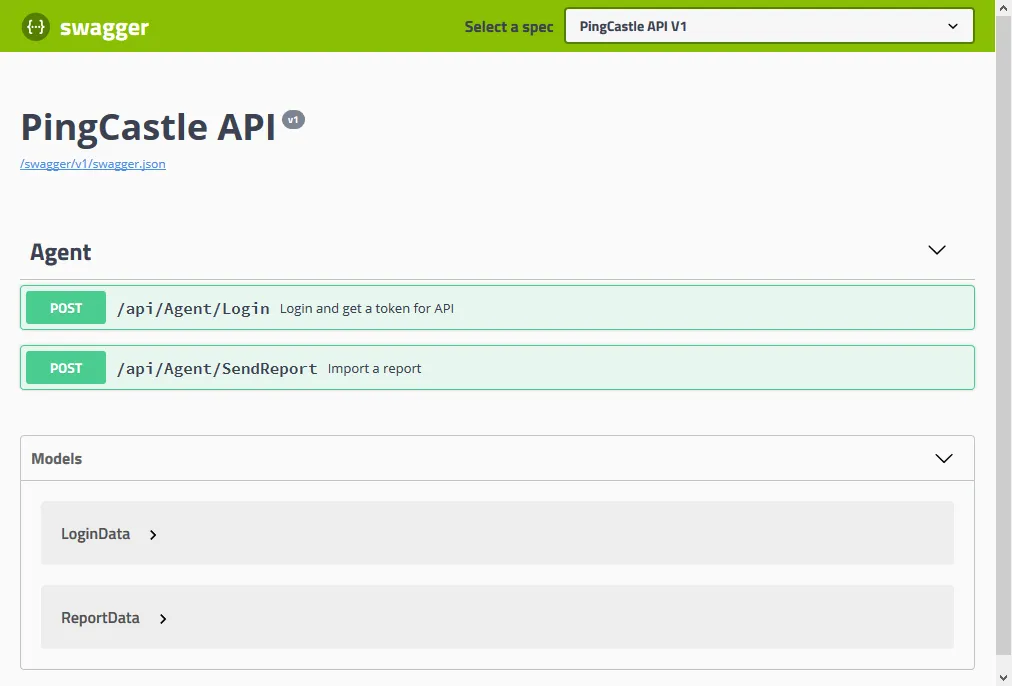
For custom integrations, the API specification is available in Swagger format via the Swagger Editor or as a direct download.
Scanners
PingCastle includes built-in scanners to check for specific security configurations and vulnerabilities across domain computers. Scanners are accessible from the interactive menu or via command line.
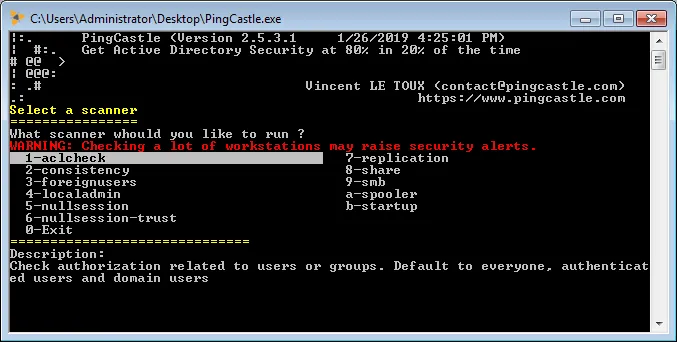
Scanning large numbers of workstations may trigger security alerts.
Available Scanners
| Scanner | Description | Command |
|---|---|---|
| aclcheck | Check authorization related to users or groups against Active Directory ACLs (default: Everyone, Authenticated Users, Domain Users) | PingCastle.exe --scanner aclcheck --server <domain> |
| antivirus | Check for computers without known antivirus installed | PingCastle.exe --scanner antivirus --server <domain> |
| computerversion | Get the version of computers to detect obsolete operating systems | PingCastle.exe --scanner computerversion --server <domain> |
| foreignusers | Enumerate users in denied domains (e.g., bastions) via trusts using MS-LSAT | PingCastle.exe --scanner foreignusers --foreigndomain <domain|sid> --server domain controller |
| kerberoschecksumhotfix | Check MS14-068 vulnerability by analyzing KB3011780 installation status | PingCastle.exe --scanner kerberoschecksumhotfix --server <domain> |
| laps_bitlocker | Check if LAPS and/or BitLocker has been enabled for domain computers | PingCastle.exe --scanner laps_bitlocker --server <domain> |
| localadmin | Enumerate local administrators on computers | PingCastle.exe --scanner localadmin --server <domain> |
| nullsession | Check if null sessions are enabled and provide examples | PingCastle.exe --scanner nullsession --server <server> |
| nullsession-trust | Dump domain trusts via null session if possible | PingCastle.exe --scanner nullsession-trust --server <domain> |
| oxidbindings | List all IPs via OXID Resolver (DCOM) to find admin networks. No auth required | PingCastle.exe --scanner oxidbindings --server <domain> |
| remote | Check if remote desktop solutions are installed | PingCastle.exe --scanner remote --server <domain> |
| share | List all shares and determine if accessible by anyone | PingCastle.exe --scanner share --server <domain> |
| smb | Scan for SMB versions available and check if SMB signing is active | PingCastle.exe --scanner smb --server <domain> |
| smb3querynetwork | List all IPs and interface speeds using SMB3 (auth required) | PingCastle.exe --scanner smb3querynetwork --server <domain> |
| smbhotfix | Check MS17-010 (EternalBlue/WannaCry) vulnerability status | PingCastle.exe --scanner smbhotfix --server <domain> |
| spooler | Check if the spooler service is remotely active (exploitable with unconstrained delegation) | PingCastle.exe --scanner spooler --server <domain> |
| startup | Get last startup date to determine if patches have been applied (Legacy) | PingCastle.exe --scanner startup --server <domain> |
| zerologon | Test for ZeroLogon vulnerability (must be run from inside the domain). Note: This only performs the check and has no destructive actions | PingCastle.exe --scanner zerologon --server <domain> |
Scanner Options
Use these additional options to control scanner behavior:
--scmode-all- Scan all computers (default)--scmode-single- Check one single computer--scmode-workstation- Check workstations only--scmode-server- Check servers only--scmode-dc- Check domain controllers only--scmode-file <file>- Use computers listed in a file--nslimit <number>- Limit number of users to enumerate (default: unlimited)--services <names>- For antivirus scan, include these service names as antivirus services (comma-separated)
Command Reference
Core Operations
| Operation | Command | Description |
|---|---|---|
| Healthcheck | PingCastle.exe --healthcheck --server <domain> | Perform security assessment of a single domain |
| All Domains | PingCastle.exe --healthcheck --server * | Scan all reachable domains in the forest |
| Consolidation | PingCastle.exe --hc-conso | Consolidate multiple XML reports into summary reports |
| Cartography | PingCastle.exe --carto | Quick trust mapping without full healthcheck scores |
| Scanner | PingCastle.exe --scanner <type> --server <domain> | Run specific scanner (see Scanners section) |
| Graph Analysis | PingCastle.exe --graph --server <domain> | Compute compromise graph for a domain |
| Regenerate Report | PingCastle.exe --regen-report <xml> | Regenerate HTML report from XML file |
| Reload Report | PingCastle.exe --reload-report <xml> | Regenerate XML report from existing XML (useful for decryption) |
| Export Rules | PingCastle.exe --rules | Generate HTML documentation of all PingCastle rules |
| Generate Keys | PingCastle.exe --generate-key | Generate new RSA key pair for report encryption |
| Upload Reports | PingCastle.exe --upload-all-reports --api-endpoint <url> --api-key <key> | Upload all reports in current directory to API |
Common Workflows
Single Domain Healthcheck
PingCastle.exe --healthcheck --server domain.local
Full Forest Assessment with Consolidation
PingCastle.exe --healthcheck --server * --reachable --hc-conso
This scans all reachable domains and automatically generates consolidated reports.
Encrypted Reports with Email Delivery
PingCastle.exe --healthcheck --server domain.local --encrypt --sendAllTo security@company.com
Privileged Mode with Full Details
PingCastle.exe --healthcheck --server domain.local --privileged --level Full --datefile
The --privileged flag enables checks requiring elevated AD permissions. The --datefile option adds the date to the filename.
Trust Exploration
# Explore all trusted domains
PingCastle.exe --healthcheck --server domain.local --explore-trust

# Explore forest trusts from root domain
PingCastle.exe --healthcheck --server forest.root --explore-forest-trust

# Combine both with exceptions
PingCastle.exe --healthcheck --server domain.local --explore-trust --explore-forest-trust --explore-exception bastion.local,dmz.local
Automated Enterprise Scanning
PingCastle.exe --healthcheck --server domain.local --api-endpoint https://enterprise.local --api-key <your-key> --encrypt --level Full
Use this with PingCastle Enterprise to send encrypted reports to the centralized web UI.
Consolidation with Date Filtering
PingCastle.exe --hc-conso --filter-date 2024-01-01 --center-on primary.local --xmls C:\Reports
Common Connection Options
| Option | Description |
|---|---|
--server <server> | Target DC/domain/forest (dc01.domain.local, domain.local, *, *.domain.local) |
--port <port> | Port for ADWS or LDAP (default: 9389 or 389) |
--user <user> | Username (default: integrated authentication) |
--password <pass> | Password (default: secure prompt) |
--protocol <proto> | Protocol selection: ADWSThenLDAP (default), ADWSOnly, LDAPOnly, LDAPThenADWS |
--pagesize <size> | LDAP page size (default: 500) |
--quota <num> | LDAP items per second to process (default: unlimited) |
Report Options
| Option | Description |
|---|---|
--level <level> | XML detail level: Full, Normal (default), Light |
--datefile | Add date to report filename |
--encrypt | Encrypt XML report using RSA key from appsettings.console.json |
--no-enum-limit | Remove max 100 users limitation in HTML report |
--privileged | Enable checks requiring elevated AD permissions |
--no-csp-header | Disable Content Security Policy header (enables styles/js on web servers) |
Exit Codes
| Code | Description |
|---|---|
| 0 | Success - operation completed successfully |
| 1 | InvalidLicenseDomainPattern - license contains invalid domain limitation pattern |
| 2 | DomainNotAllowed - specified domain not allowed by license restrictions |
| 3 | MissingApiEndpointArgument - --api-endpoint requires a URL argument |
| 4 | InvalidApiEndpointArgument - --api-endpoint URL isn't valid |
| 5 | MissingApiKeyArgument - --api-key requires a key argument |
| 6 | InvalidLicense - license validation failed or expired |
| 7 | InvalidCommandLineArguments - command line parsing failed |
| 8 | UnknownErrorSeeConsole - an error occurred, check console output or logs if logging enabled |
Getting Help
For complete command-line documentation:
PingCastle.exe --help
Frequently Asked Questions (FAQ)
PingCastle.exe Size Increase
The file size has grown significantly across recent versions due to enhanced capabilities and runtime dependencies:
- Version 3.3 - Approx 2MB - Original codebase
- Version 3.4 - Approx 20MB - Includes Microsoft Graph API DLLs for Entra ID integration
- Version 3.5 - Approx 250MB - Includes Microsoft Graph API DLLs plus embedded ASP.NET 8 Runtime
The version 3.5 size increase is due to the migration from .NET Framework 4.7.2 to ASP.NET 8 with native packaging. This change eliminates the need for custom packaging tools (Fody Costura) and allows PingCastle to run without requiring users to install ASP.NET 8 prerequisites on their systems, providing a better deployment experience.
pingcastle.exe.config File Location
The configuration file format changed in version 3.5 due to the ASP.NET 8 upgrade. The appsettings.console.json file, which uses JSON format, replaces the legacy PingCastle.exe.config XML file.
Settings Migration from pingcastle.exe.config
This migration happened in version 3.5 and applies only if you're upgrading from an earlier version. The PingCastleAutoUpdater.exe includes an automatic migration process:
- Run PingCastleAutoUpdater.exe to download the update
- Verify the version of PingCastle.exe matches the expected version
- Check the readme files added or updated by the update
- Run PingCastleAutoUpdater.exe a second time to trigger automatic migration
During migration:
- The updater automatically converts settings from
PingCastle.exe.config(XML) toappsettings.console.json(JSON) - The updater renames the original
PingCastle.exe.configtoPingCastle.exe.config.bakas a backup - The updater generates a Configuration Migration Report detailing which sections it migrated
Visually review the migrated settings in appsettings.console.json to ensure they are correct. You don't lose any configuration context if the upgrade fails.
PingCastle AntiVirus Detections
Attackers have used PingCastle as a reconnaissance tool in some high-profile attacks, leading some AntiVirus and EDR products to flag it as malicious.
Recommended Action: Whitelist PingCastle.exe on the specific systems and users your organization authorizes for security assessments. Normal end users shouldn't be running PingCastle.
Changes Made to Reduce False Positives
Netwrix is actively working to reduce false positive detections:
Packaging Changes:
- Removed
changelog.txtfrom .zip packages, which some AV engines misinterpret - Netwrix now documents release notes on GitHub, with detailed changelogs at community.netwrix.com
Auto-Updater Improvements:
- Previously made two network calls on first run (GitHub API and
release-assets.githubusercontent.com), which triggered AV detections - Now uses only the GitHub API to check versions and downloads updates only when necessary
Executable Changes:
- Migrated from Fody Costura (v3.4 and earlier) to ASP.NET 8 native packaging (v3.5+)
Netwrix Statement on PingCastle and the AntiVirus detections
About Antivirus Detections and PingCastle
PingCastle is a trusted security assessment tool designed to help organizations evaluate the health and security posture of their Active Directory environments.
Some antivirus or endpoint protection solutions may flag PingCastle as "hacktool" or a "potentially unwanted program (PUP)". The flag reflects PingCastle's dual-use potential rather than malicious behavior: the same in-depth techniques it uses to audit and test security can also be misused by attackers. PingCastle doesn't itself attack AD, but attackers could use it during reconnaissance to enumerate risks they could exploit. Security vendors often classify such advanced administrative and diagnostic tools conservatively to avoid underestimating risk.
The following applies:
- PingCastle is safe to use when obtained from the official source.
- It doesn't exploit or attack Active Directory.
- No malicious payloads or hidden behavior are present in the software.
- The detections occur only because its ability to enumerate security risks and misconfigurations could provide information an attacker might misuse.
In short, PingCastle belongs in the same category as other professional penetration-testing or red-team tools: safe and valuable when used by administrators and security professionals, but flagged by antivirus products due to its capabilities.
List of open source software used
PingCastle uses a set of open source components to perform its job.
The list of components used by PingCastle, but not limited to, is:
-
Bootstrap licensed under the MIT license
-
Bootstrap Table licensed under the MIT license
-
Bootstrap Table Export licensed under the MIT license
-
Table Export licensed under the MIT license
-
Popper.js licensed under the MIT license
-
Vis.js licensed under the MIT license
-
jQuery licensed under the MIT license
-
Font-Awesome licensed under the MIT license