Create a New Entry
Create a new entry.
Step 1 – First, click Create new password on the upper left in Netwrix Password Secure.

Step 2 – A form opens. Now choose the form you need, such as "Website," on the upper right. See the form dropdown list in the following screenshot.
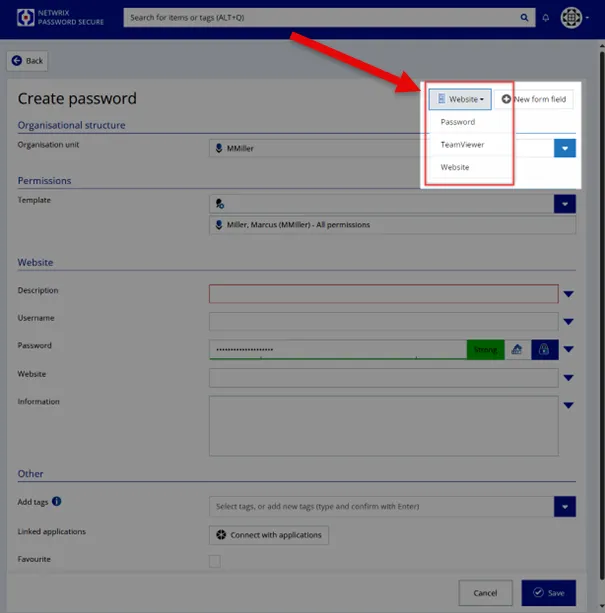
Step 3 – Let`s fill out the website form in this example.
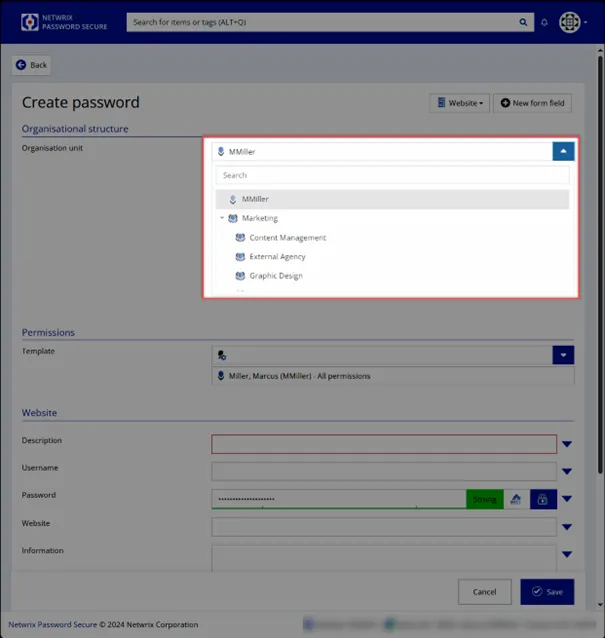
- Choose the organization unit you want to save the password in like the department.
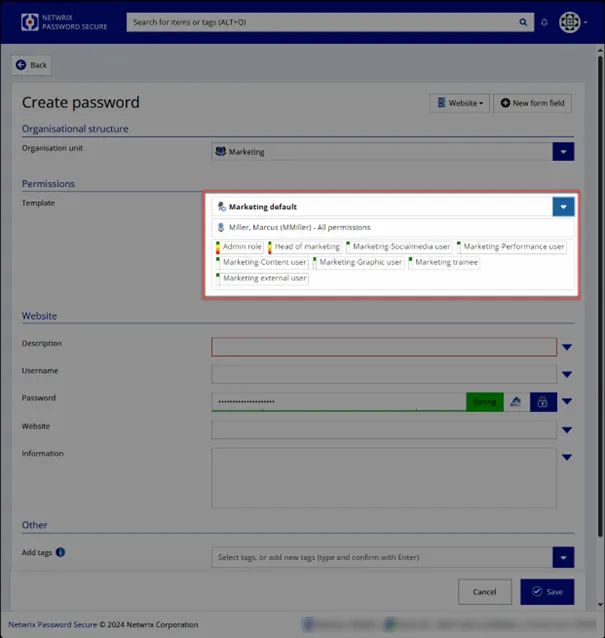
- Choose a permission template to define who else can see your password.
- Set a description for your stored password.
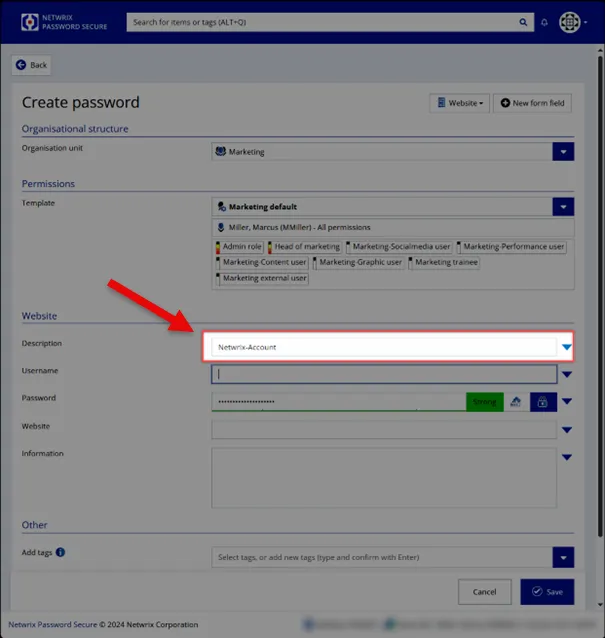
- Enter the username or email address needed for login.
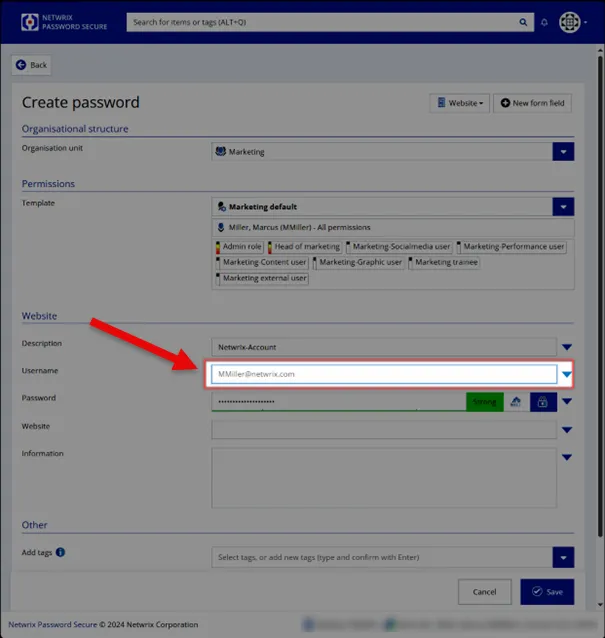
- Enter the password manually or use the password generator by clicking on the button in the middle (high number). The password generator opens.
note
For details about generating passwords, see Clean up Your Passwords.
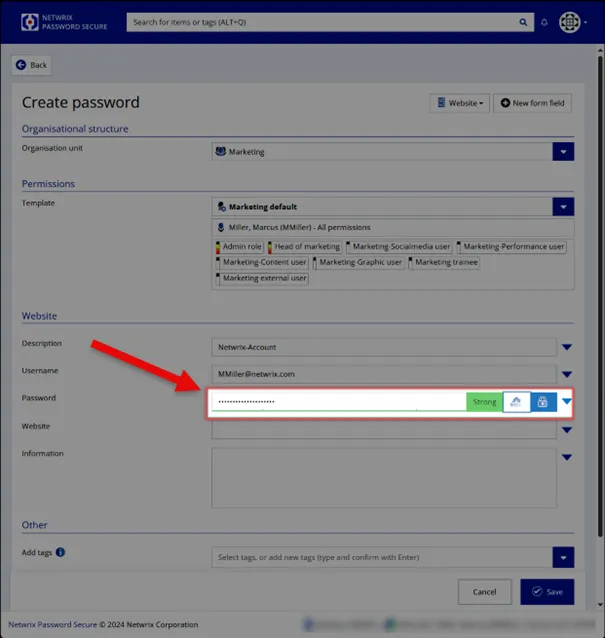
note
By clicking on the lock icon right to the password generator, you can mask and unmask your password.
- Enter the website URL that leads to the login.
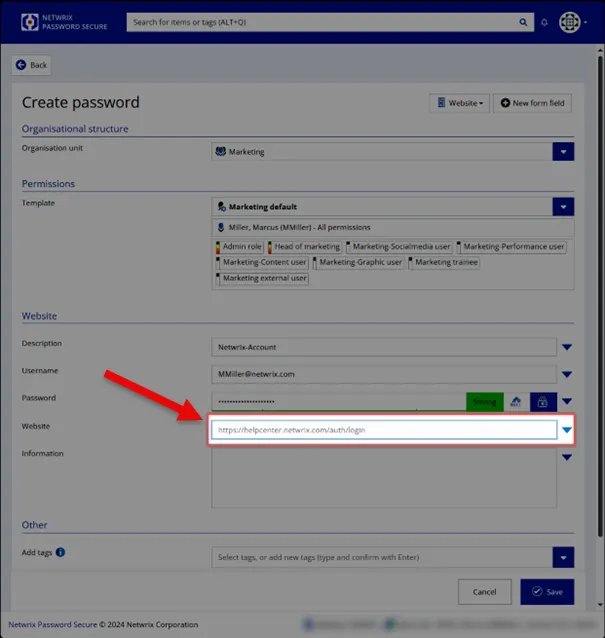
- Add one or more tags to categorize your password and find it easier (i.e., "HR" or "Internet").
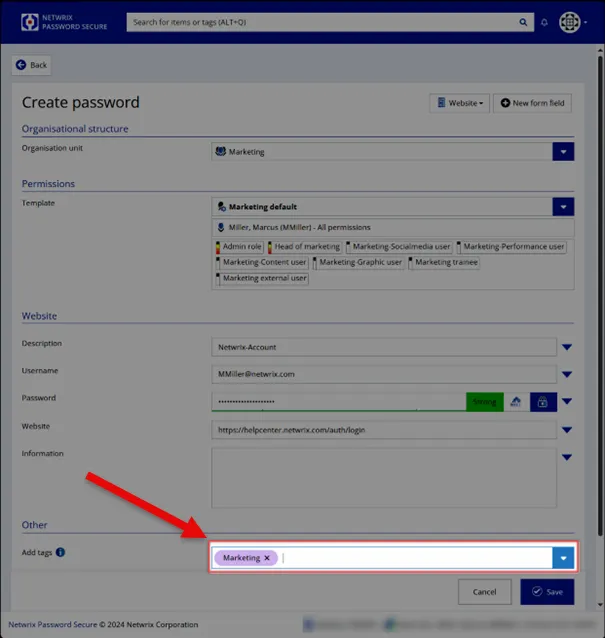
Step 4 – Click Save, and you are done.