Get the Browser Extension
First, Netwrix Password Secure is designed to make and keep your passwords more secure. But this also means that managing - and logging in with them - is easier and saves time! That's why you need the browser extension to save yourself the hassle of typing in passwords in future and to be logged in to all your website accesses with just one click.
Step 1 – Is your browser extension already installed? You can find out by:
- Looking for this icon next to the URL input field in your browser. See the icon in the top bar of the following screenshot.
- Opening the Password Secure Web App, logging in and scrolling down: If not installed yet, you can find the download link in the footer. See the Download Edge Extension link in the bottom center of the following screenshot.
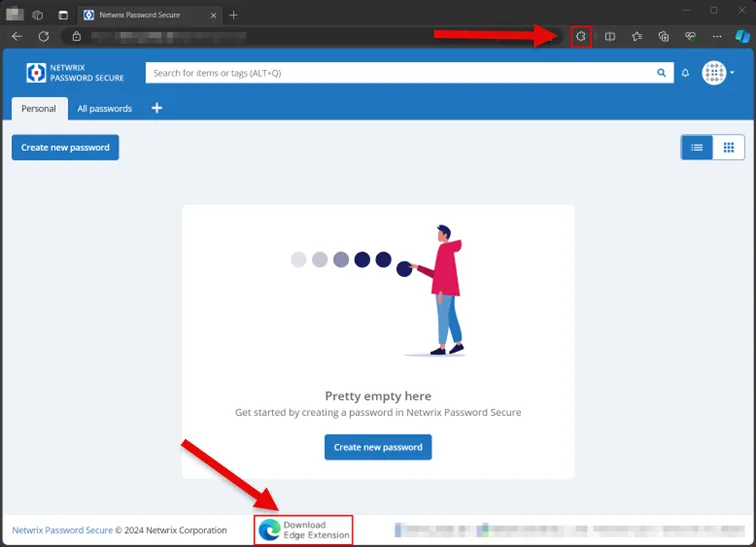
If you need more information about installing the browser extension, visit the following topic in the documentation: Installation Browser Extension
Step 2 – After downloading, the browser extension is dragged and dropped into the browser. See the Get button in the upper-right section of the following screenshot.
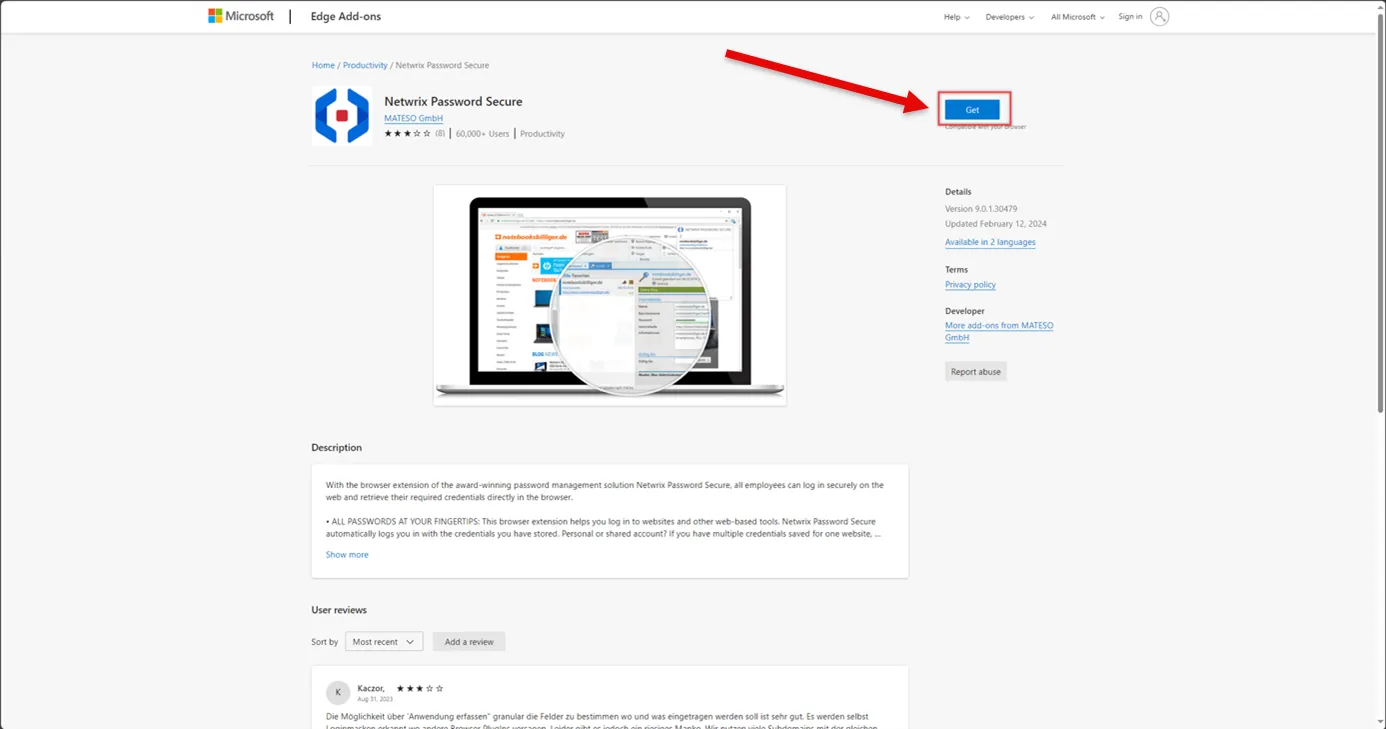
Step 3 – After confirming a security question, it is installed, and an icon appears in the menu bar to "add the extension".
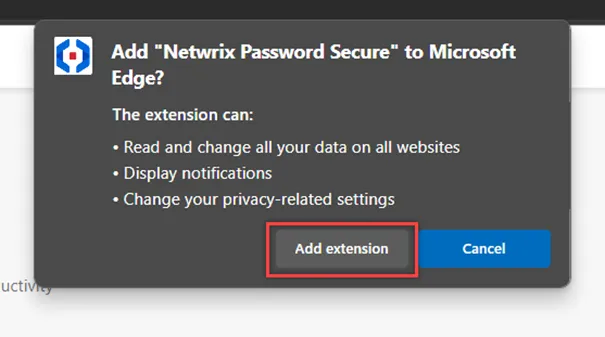
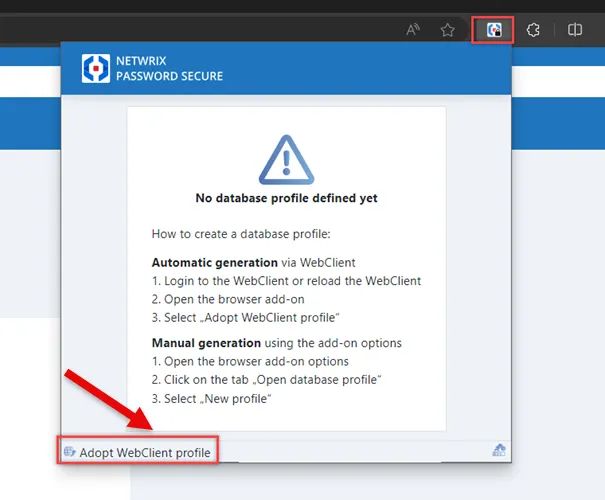
Step 4 – open or reload the web application of Netwrix Password Secure (see link in email from your administrator) to connect your user profile with the extension. See the lock icon in the following screenshot.
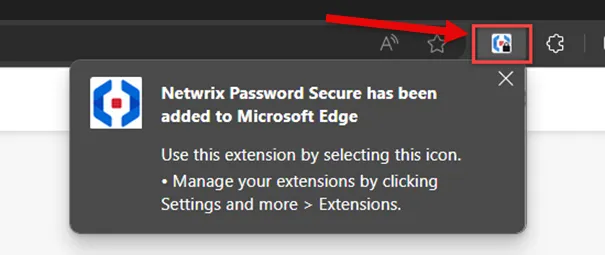
Step 5 – Now click this icon in your browser to open the browser extension. See the Adopt Select Adopt Web Application profile. Done.
RECOMMENDED: If not done yet, bookmark this page to have it quickly at hand.