License settings
License settings overview
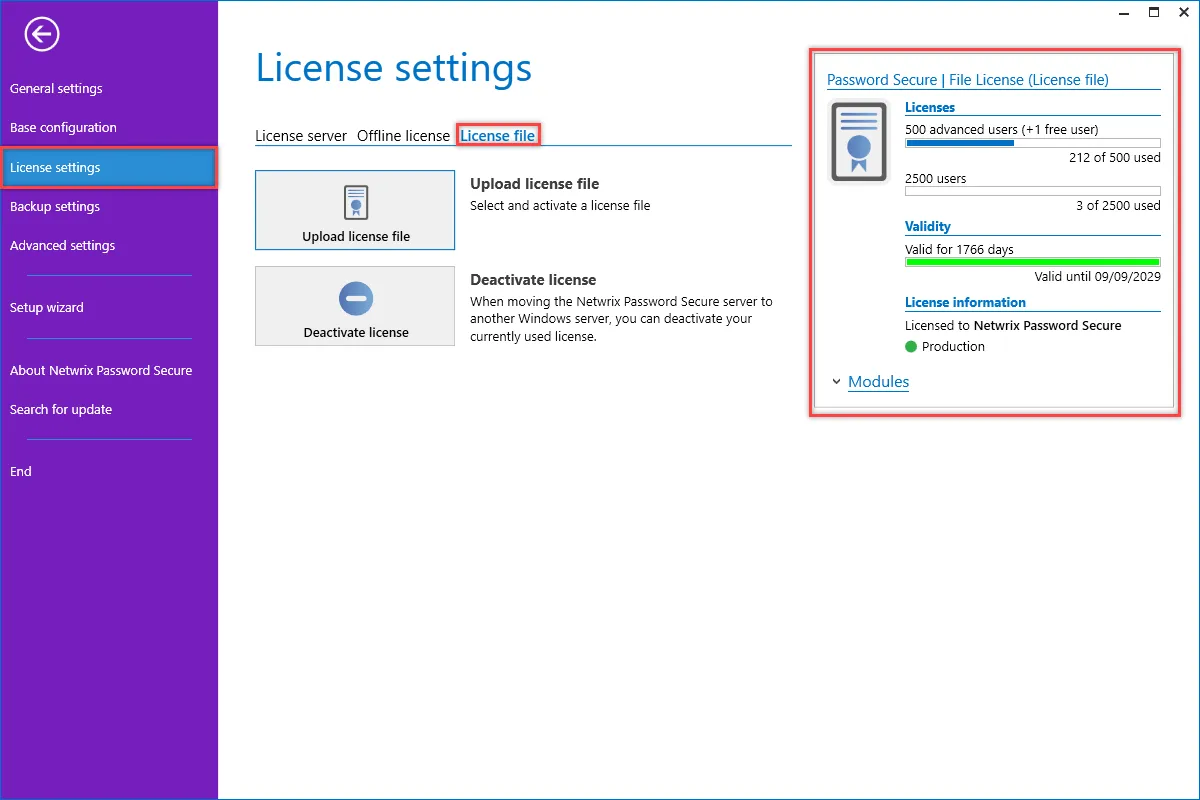
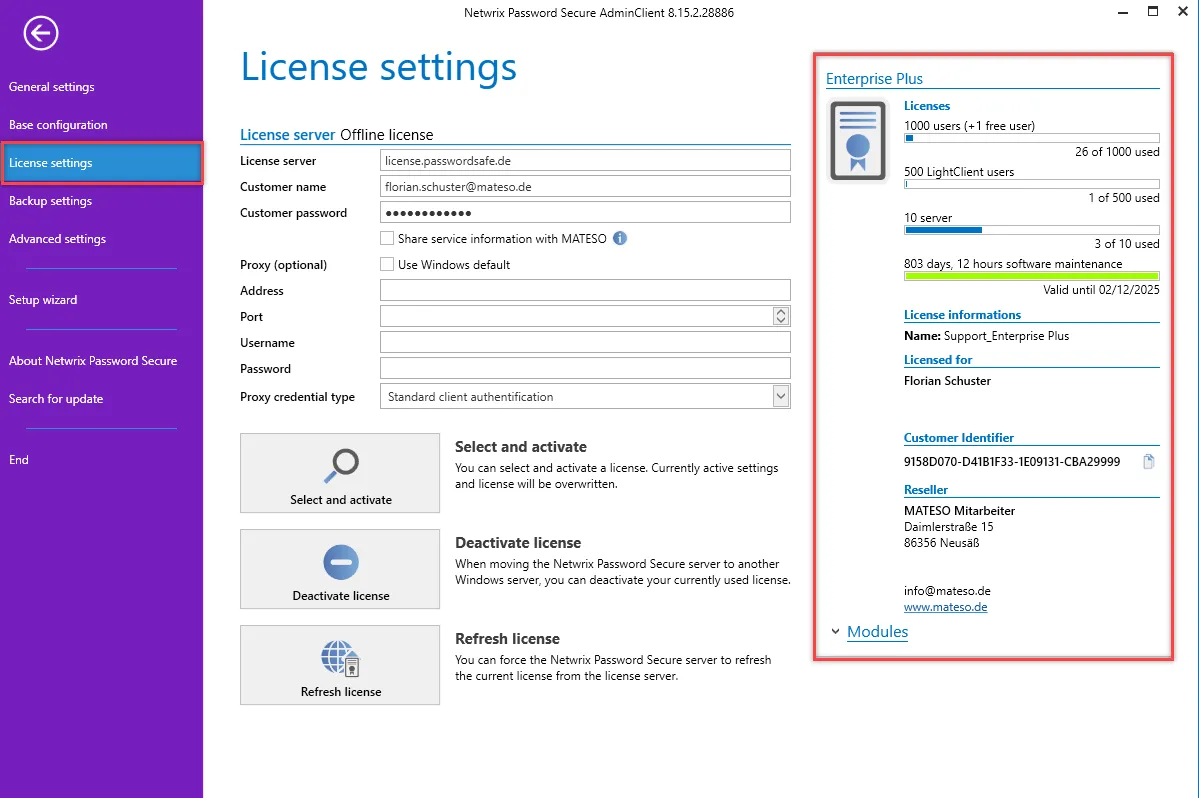
Licenses for the Netwrix Password Secure are managed within the license settings. In addition, all current license details are displayed in the window provided for this purpose.
Licenses
CAUTION: Version 7 licenses can't be used for Netwrix Password Secure version 9. “ contact Netwrix support”: http: //www.passwordsafe.de to obtain a version 9 license.
Licenses are linked via the Netwrix license server. Here are the details:
- license.passwordsafe.de
- IP: 13.74.32.103
- Port 443 TCP (standard HTTPS port)
Ensure that this server is accessible. You may also use Proxy servers. The license is retrieved from the server and stored in the server configuration. The license is checked every hour and updated as required. The retention time is 30 days. If there is no internet connection, you can continue to work for 30 days. If this period should cause problems, contact Netwrix support.
Integrating and managing licenses
After purchase, you receive the required license information in the form of “customer name” and “password”. Enter this information directly into the License Server Access area. Use the Select and Activate button to establish a connection to the license server. You can select the acquired licenses from a list. The license can be now used.
Optionally, you may specify a proxy. By default, the proxy stored in the operating system is used.
CAUTION: The licence is opened in the context of the service user. If you experience connection problems, the firewall and, if relevant, the proxy should be checked.
How to activate the license via license file
- Transition the file attached to this email to the Netwrix Password Secure Servers.
- Open the Netwrix Password Secure Server Manager.
- Open the main menu and select the License settings area.
- Open the License file tab.
- Click Upload license file.
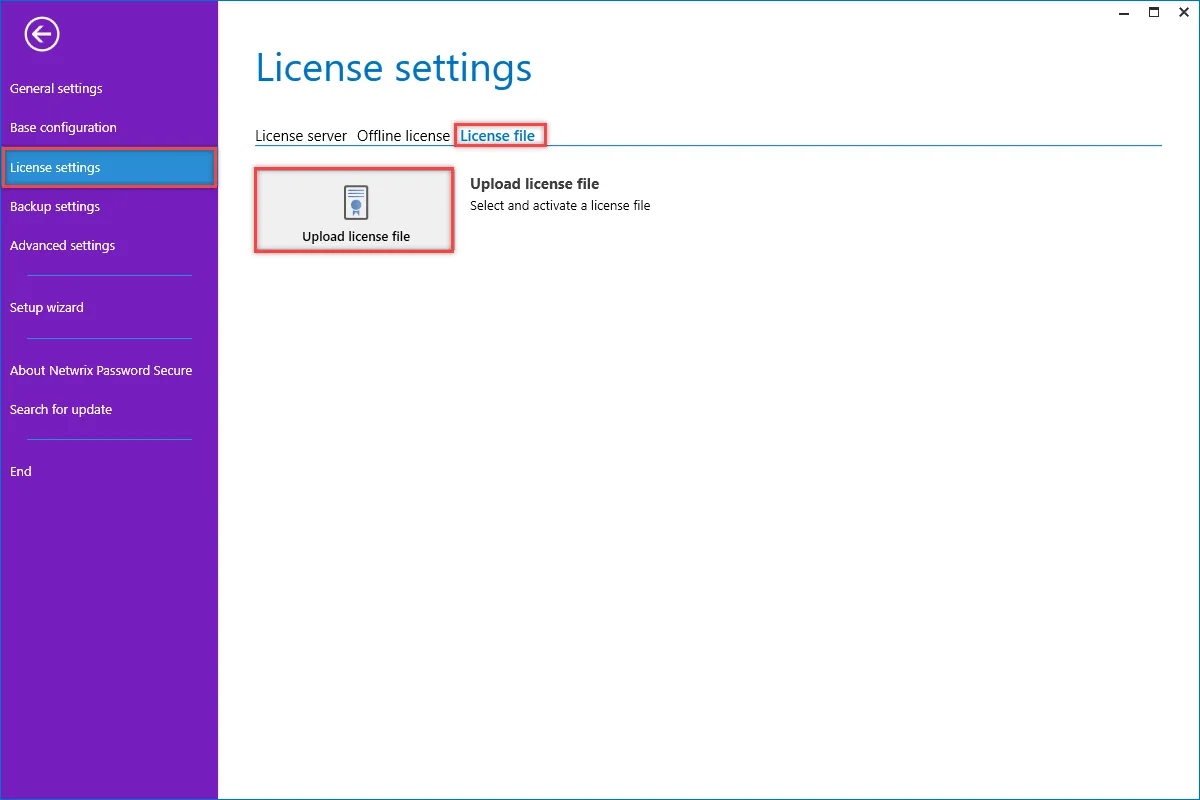
- Select the file from this email and then click Open.