Multiple editing of permissions
Edit multiple permissions
As part of the manual modification of permissions, it is also possible to edit multiple records at the same time. Use various mechanisms to select the records to be edited. You can select the records in List view or you can use the filter as part of the multiple editing function. Both scenarios are described in the following sections.
User permissions for batch processing
This mode is inactive by default and needs to be activated in the user rights.
- Can carry out batch processing for permissions based on a filter
Multiple editing via list view
Individual permissions can be added or remove via Multiple editing within list view. The existing permissions will not be overwritten.
Selecting the records
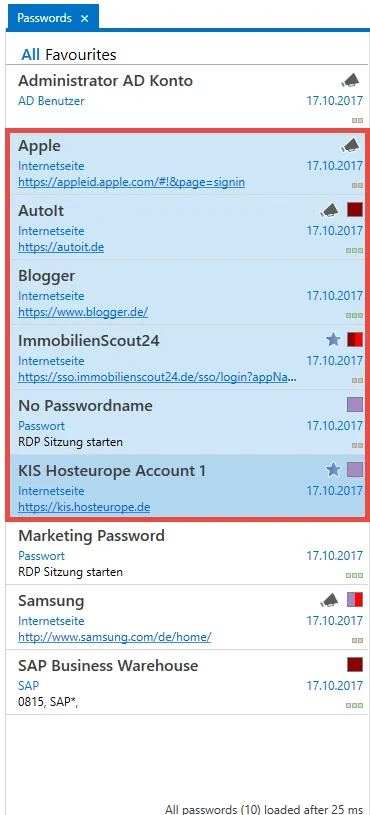
In list view, Shift, or Ctrl + mouse click lets you select multiple records. Permissions can also be granted for these records via the selection. The marked records are displayed in a different color. 6 records are marked in the following image.
Dialogue for configuring the permissions
A new tab will be opened in the ribbon above the "Permissions" button in which the permissions can be configured. The tab will display the number of records that will be affected by the defined changes.
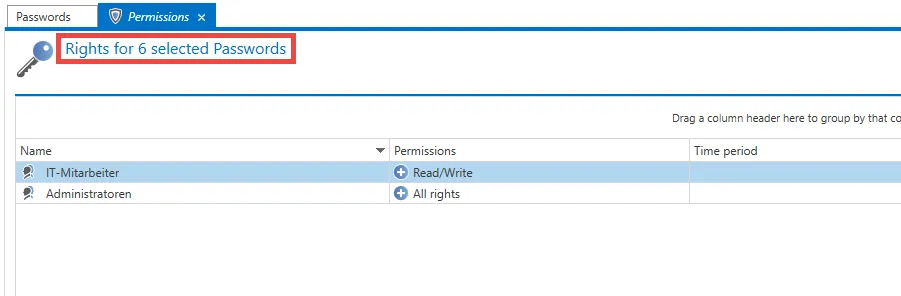
As the already granted permissions for the selected records may differ, it isn't possible to display the permissions here.
Adding permissions
To add a permission, a user or role is selected first in the ribbon under Search and add or Search. The permissions are then selected as usual in the ribbon. The :material-plus-circle-outline: symbol indicates that permissions will be added. In the following example, Mr. Steiner receives read permission to all selected records. In contrast, Mr. Brewery receives all permissions.
Reducing permissions / removing users and roles from the permissions
To remove permissions, add the user or the desired role to be edited. Clicking on Reduce permissions removes the selected permissions. This is indicated by the :material-minus-circle-outline: symbol. The selected permissions will be removed.
If the read permission is to be removed for a user or role, the user will be completely removed from the permissions.
Examples
In the following example, Mr. Steiner receives read permissions to all selected records. In contrast, Mr. Brewery receives all permissions:

The read permission will be removed for Mr. Steiner. As removing the read permissions means that no other permissions exist for the record, Mr. Steiner is completely removed from the permissions. The authorize, move, export, and print permissions are being removed from Mr. Brewery. Assuming that he previously had all permissions, he will then have read, write, and delete permissions remaining:

Batch processing using a filter
In some cases you must edit the permissions for a very large number of records. On the one hand, a maximum limit of 1000 records exists and on the other hand, handling a very large number of records via list view isn't always the best solution. The Batch processing using a filter mode has been developed for this purpose. This is directly initiated via the ribbon.

In the subsequent dialogue, you define whether you want to expand, reduce, or completely overwrite existing permissions. If you select expand or reduce at this stage, the same logic as for editing via list view is used. No permissions will thus be overwritten.
In the option overwrite permissions, the existing permissions are removed and then replaced by the newly defined permissions.
CAUTION: You must proceed with great caution when overwriting permissions because this function can quickly lead to a large number of records becoming unusable.

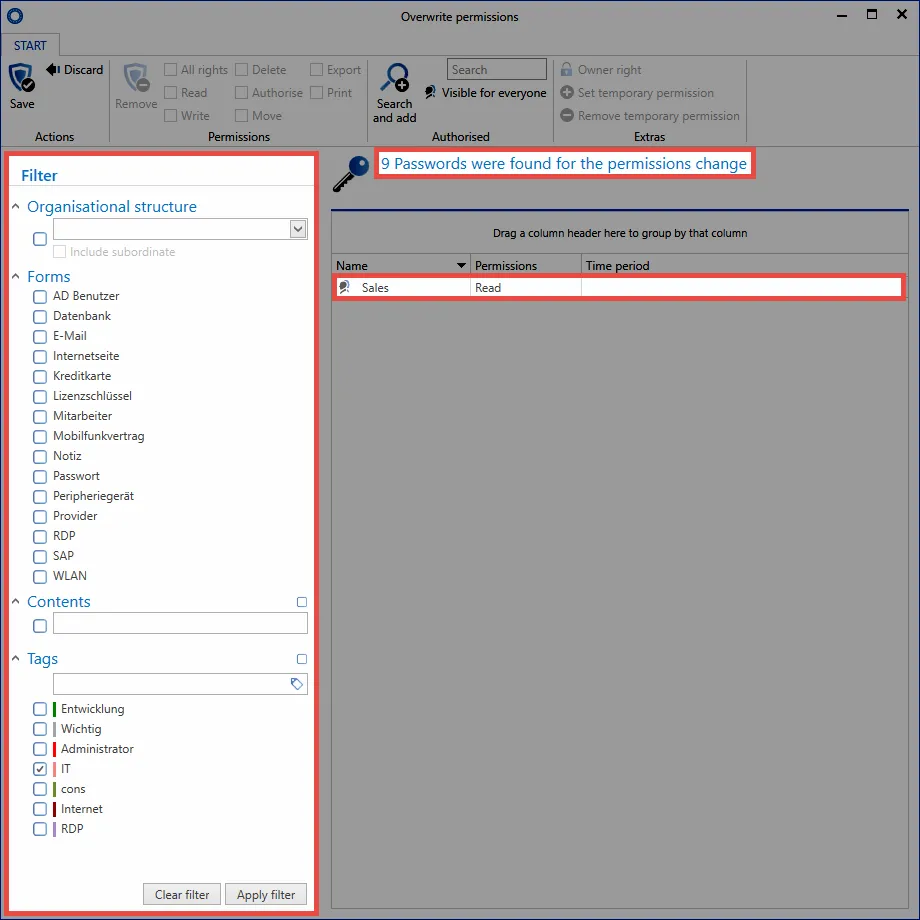
The filter itself defines the selection criteria for the records to be edited. The configured filter will be used as default. The records that will be affected by the changes are also not displayed in this view. Only the number of records is displayed. In the following example, 9 passwords are being edited to add the read permission the role "Sales".
Seals and password masking
Sealed or masked records can't be edited using batch processing. If these types of passwords are selected, a dialogue will be displayed when carrying out batch processing to inquire how these records should be handled.
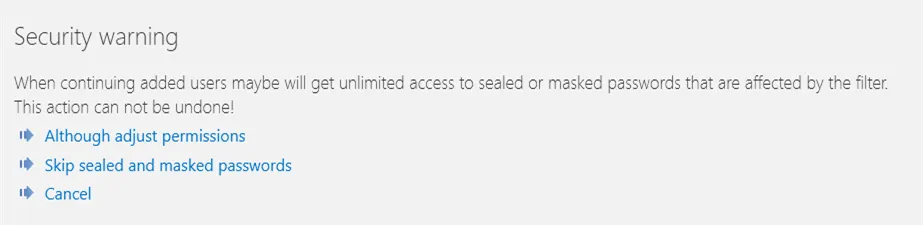
You can select whether the affected records are skipped or whether the seal or password masking should be removed. If the remove option is selected, the process needs to be confirmed again by entering a PIN.

CAUTION: The removal of seals and password masking can't be reversed.
Depending on the number of records, editing records may take a long time. This process is performed in the background for this reason. A hint will indicate that the permissions process has been completed.