Installation Client
Guide
The MSI installation files and the associated Client configuration can be found in the corresponding sections. The following step-by-step guide walks you through the wizards.
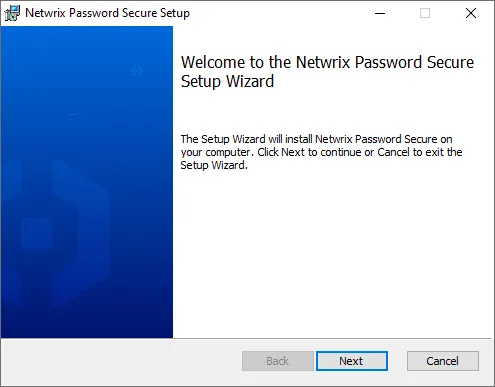
You are required to read and accept the terms of service. These can also be printed.
The next step is to define the location of the client. The suggested location can be retained.You can also define whether additional components should be installed.
Only install the Terminal Server Service (for Autofill Add-on) if terminal server operation is intended.
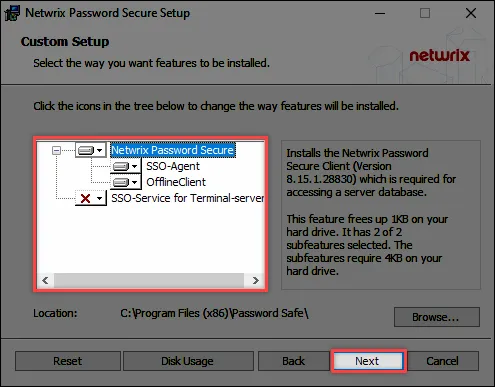
The actual installation starts in the next step.

The last step closes the setup and opens (if desired) the Client.

Installed applications
There are always several applications installed.

This is the regular Client.

The Offline Add-on allows access to the data without connection to Server Manager.

The Autofill Add-on is used for SSO applications.
Integrating a database
For connection to the database, the creation of a database profile is obligatory. The following information is required:
- Profile name: The name of the profile. This name is displayed on the client
- IP address: The IP address of the Netwrix Password Secure V8 server is stored here
- Database name: Specifies the name of the database
Distributing database profiles via the registry
There is also an option to distribute database profiles. The profiles are specified via a corresponding registry entry. The next time Netwrix Password Secure starts, the profiles are saved in the local configuration file. The database connection can be made with the following keys:
HKEY_CURRENT_USER\SOFTWARE\MATESO\Password Safe and Repository 8\DatabaseProfiles
HKEY_LOCAL_MACHINE\SOFTWARE\MATESO\Password Safe and Repository 8\DatabaseProfiles
These keys are structured like this:
- HostIP: Server IP address
- DatabaseName: Name of the database
- LastUserName: The field for the user name can be specified here
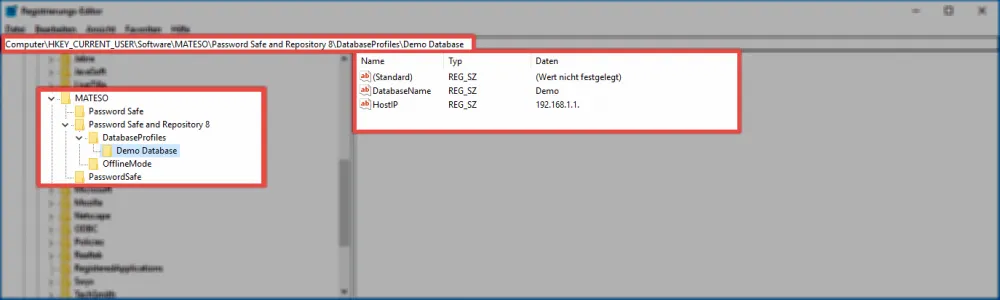
Is the profile set with the following entries?
HKEY_LOCAL_MACHINE\SOFTWARE\MATESO\Password Safe and Repository 8\DatabaseProfiles
Then the last used date base as well as the last registered user are created with the following ID, when you log in for the first time:
HKEY_CURRENT_USER\SOFTWARE\MATESO\Password Safe and Repository 8\DatabaseProfiles
When the corresponding registry entry is set and no related database profile exists, the profile is created at the next start-up. Profiles created like this can't be edited or deleted in the client.