Clean up Your Passwords
For a clean relocation of passwords, clean up all your passwords beforehand. This means to check which secrets are still up-to-date or if there are any duplicates you can remove first.
Transer Data from Your Browser
Netwrix Password Secure provides a secure alternative to browser-saved passwords. To import your existing credentials:
Step 1 – Every time you log in to a website now and your browser wants to autofill, this Password Secure Pop-up will appear, asking you if you would like to save your secret in Netwrix Password Secure. Click Create new. See the following screenshot.

Step 2 – The Web Application opens and automatically transfers the recognized login data, including URL to a new data set.
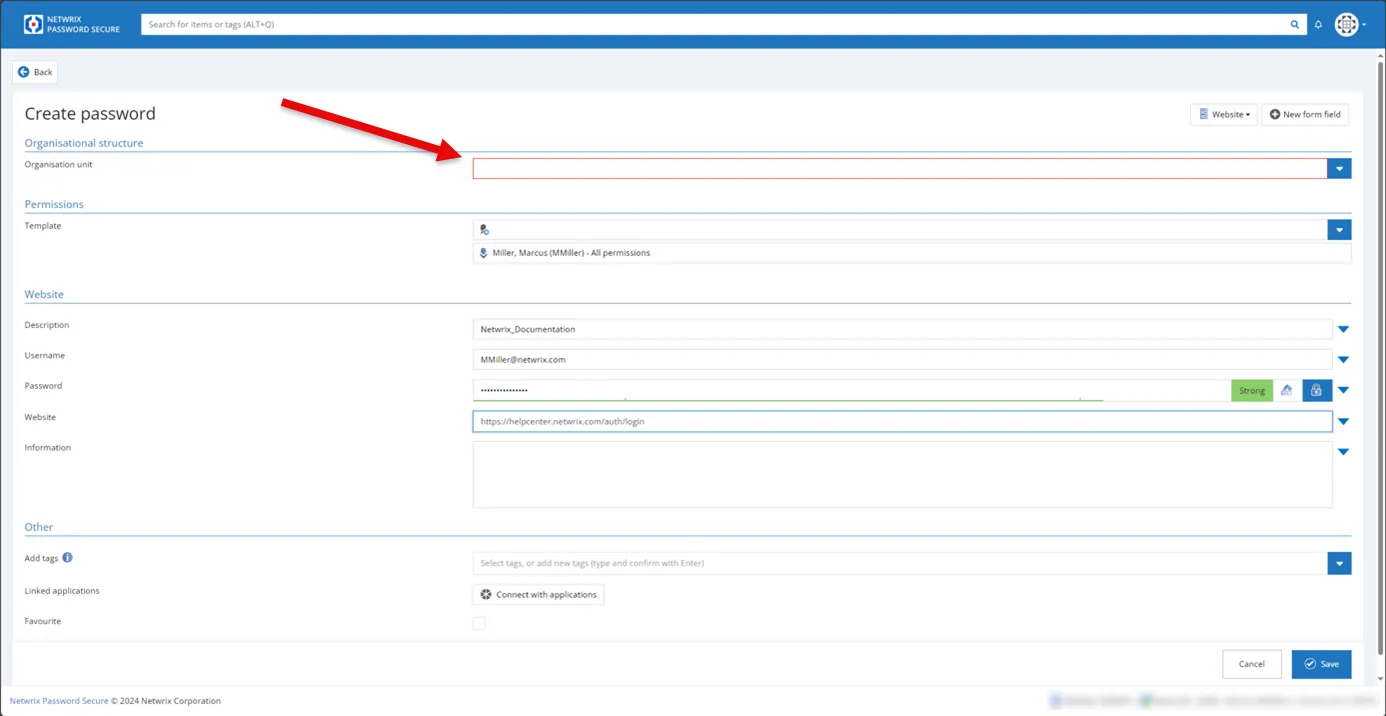
Step 3 – Choose an organizational unit in which you want to save it and give your new data set a meaningful name to find it again quickly. (You now also have the option to add further information and tags.) Now click Save. See the box to the right of Organizational unit in the previous screenshot.
Check for Weak Passwords
Your passwords don't automatically become secure after they have been transferred to Netwrix Password Secure. No matter how well protected a password is - if it is easy for a hacker to guess, they don't need access to the password manager to use it. This is why the solution automatically checks the strength of your password and much more.
Step 1 – Paste your password in the password field. See the box to the right of the Password field in the following screenshot.
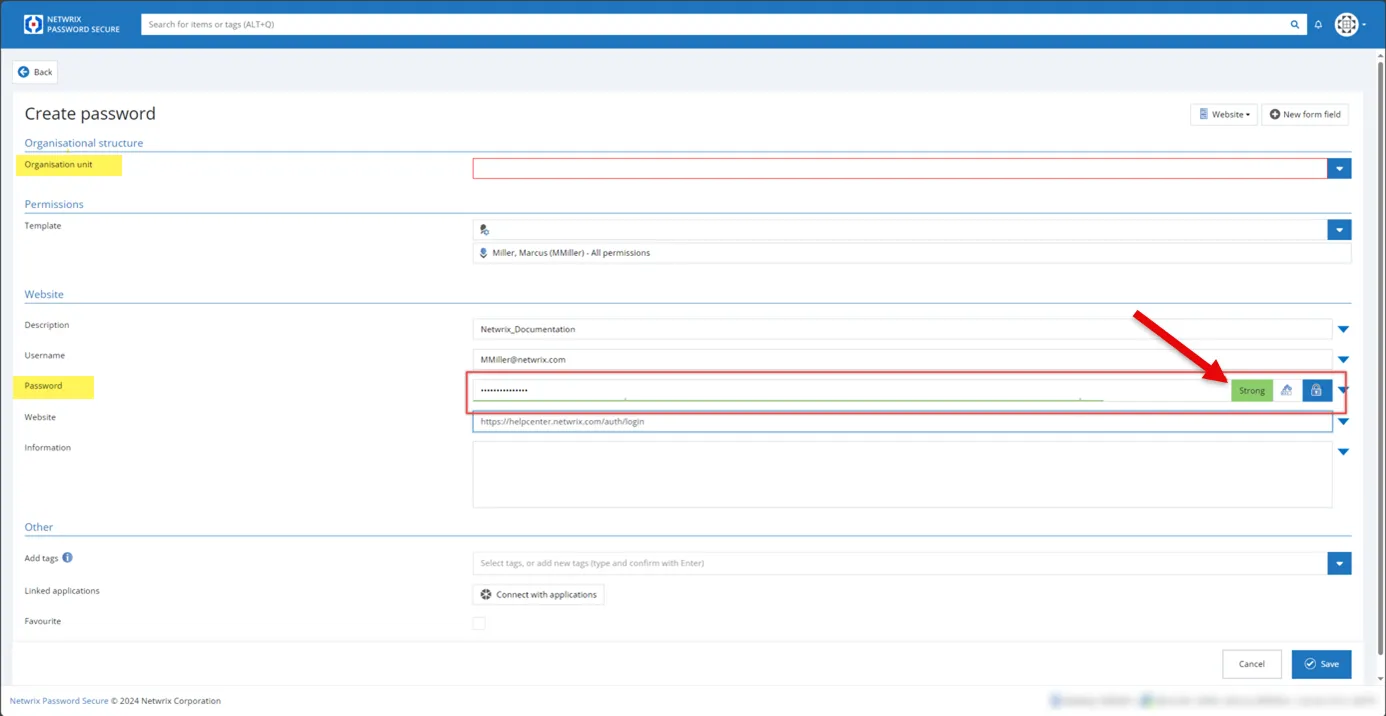
Step 2 – If it isn't classified as "strong" (green), Netwrix strongly recommends using the integrated password generator to assign a new, secure password: Click the white password generator icon to the right of the password field. See the Strong button in the previous screenshot.
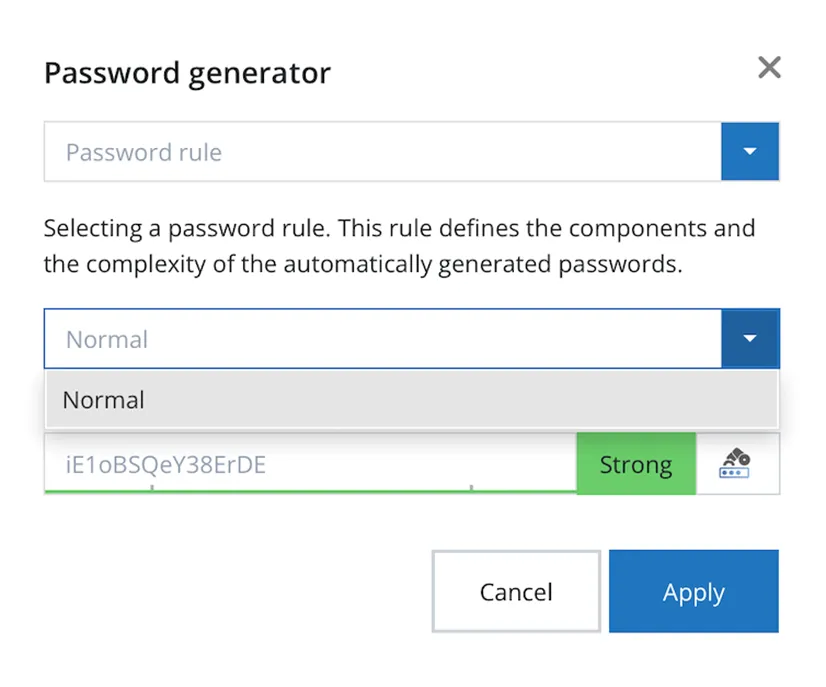
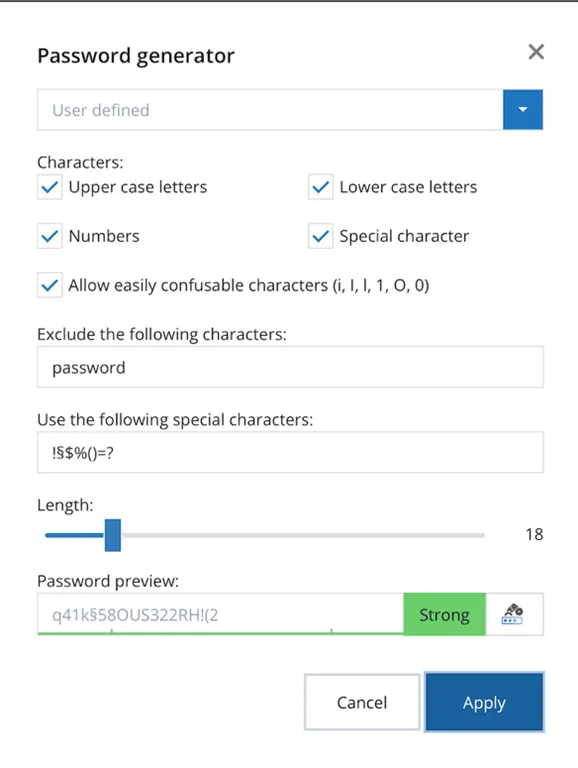
Step 3 – The password generator opens. A secure password is created automatically. Click “Apply”. (See the next chapter for password manager capabilities.)
Step 4 – Now don't forget to replace your password in the target application as well.
Side effect: The access data stored in your browser is no longer up to date and therefore no longer a danger. You should also think about deleting these passwords from your browser permanently.
Create Strong Passwords
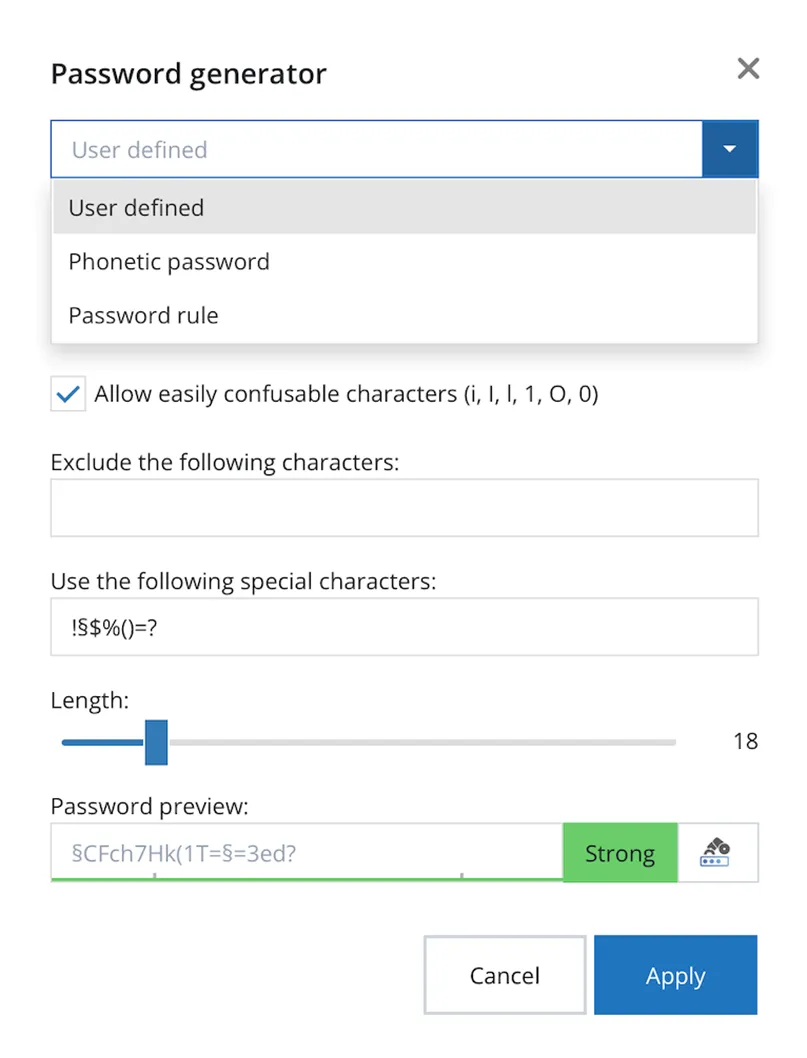
The password generator offers three possibilities to create a secure password. To open it, click “Create password” and then on the password generator icon right to the password field.
Step 1 – Create a user defined password which gives you the most options such as including and excluding special characters or defining the length of the password.
Step 2 – Create a phonetic password that is easier to pronounce, but still complex.
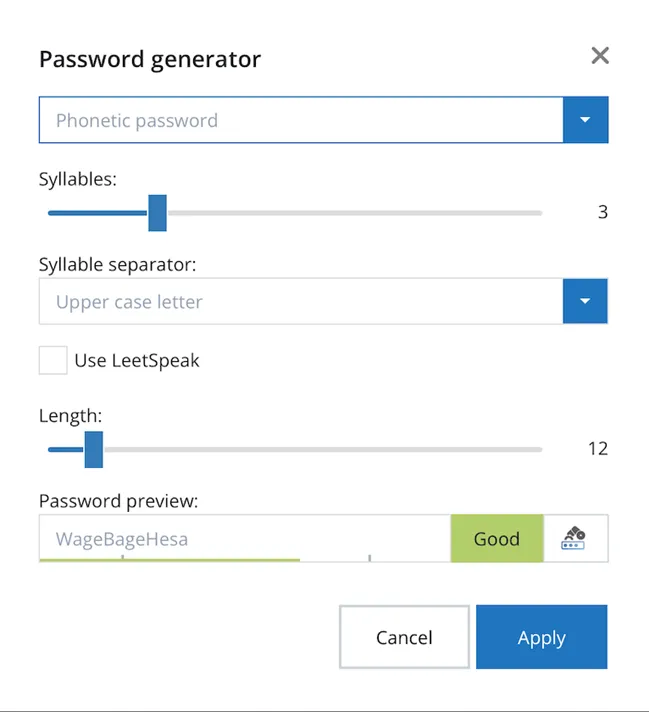
This option is best suited for passwords that must be read and typed in, such as operating machines without an internet connection.
Step 3 – Create a password according to a set password rule in your company: If your IT has already stored password guidelines for you, you can select them here and click apply.