Linking the database
First, an existing database must be linked to the Netwrix Password Secure app to finally synchronize the data. During linking, an encrypted database is created on the mobile device, which provides the data even without a network connection.
There are two ways to create a link.
Manual linking
If the database is to be linked manually, the dialog for creating the link is first opened via the + in the top right-hand corner. Here the address of the Web Application is entered and confirmed with a click Connect.

In the next step, all available databases are displayed. The desired one can be selected by clicking on it.

Finally, the login with user name and password takes place. In addition, a meaningful name can be assigned.

Link via QR code
Fulluser
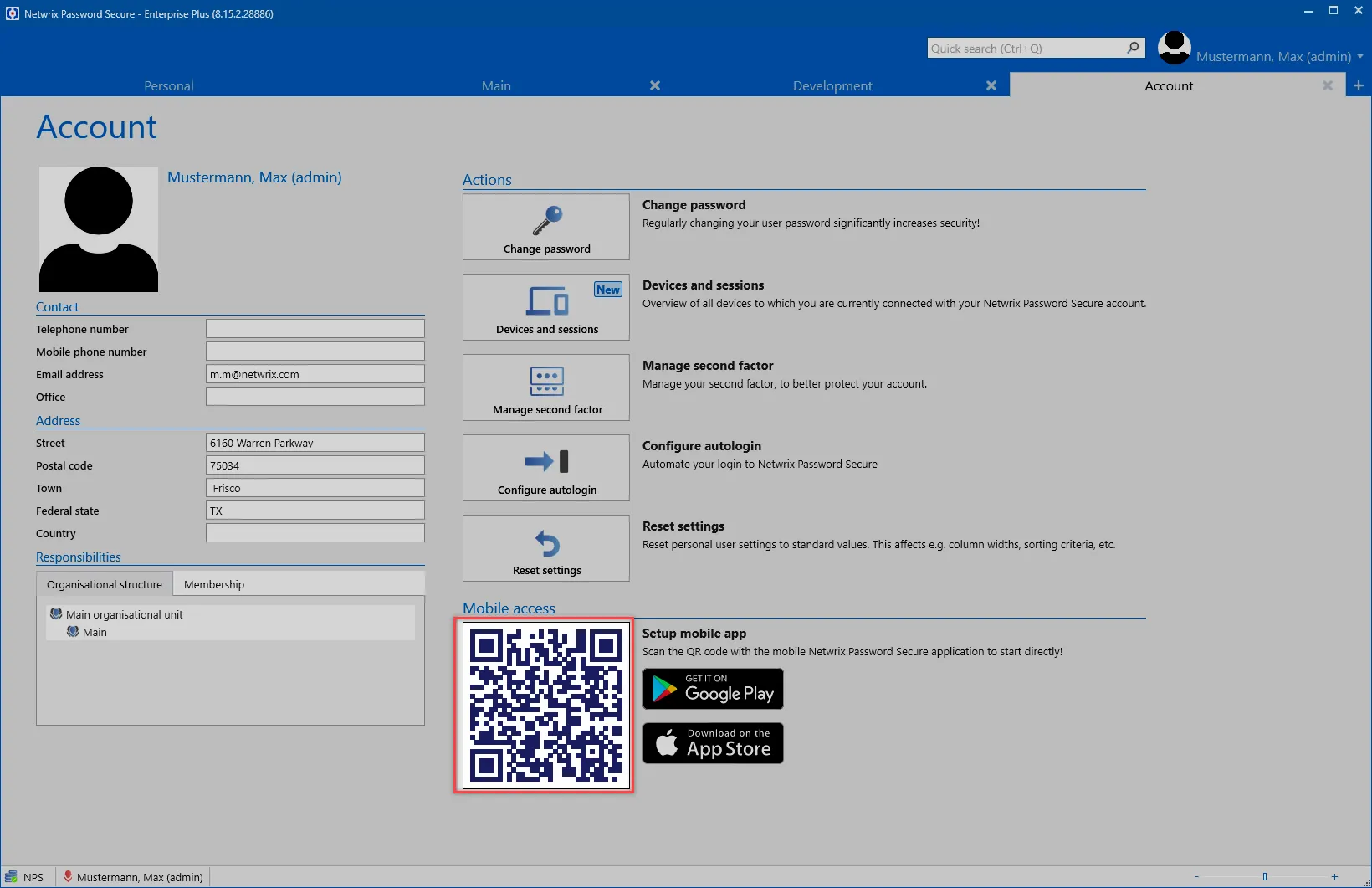
The quickest way to create a link is via a QR code. To do this, first log in to the client. You will find the corresponding QR code in the Backstage under Account:
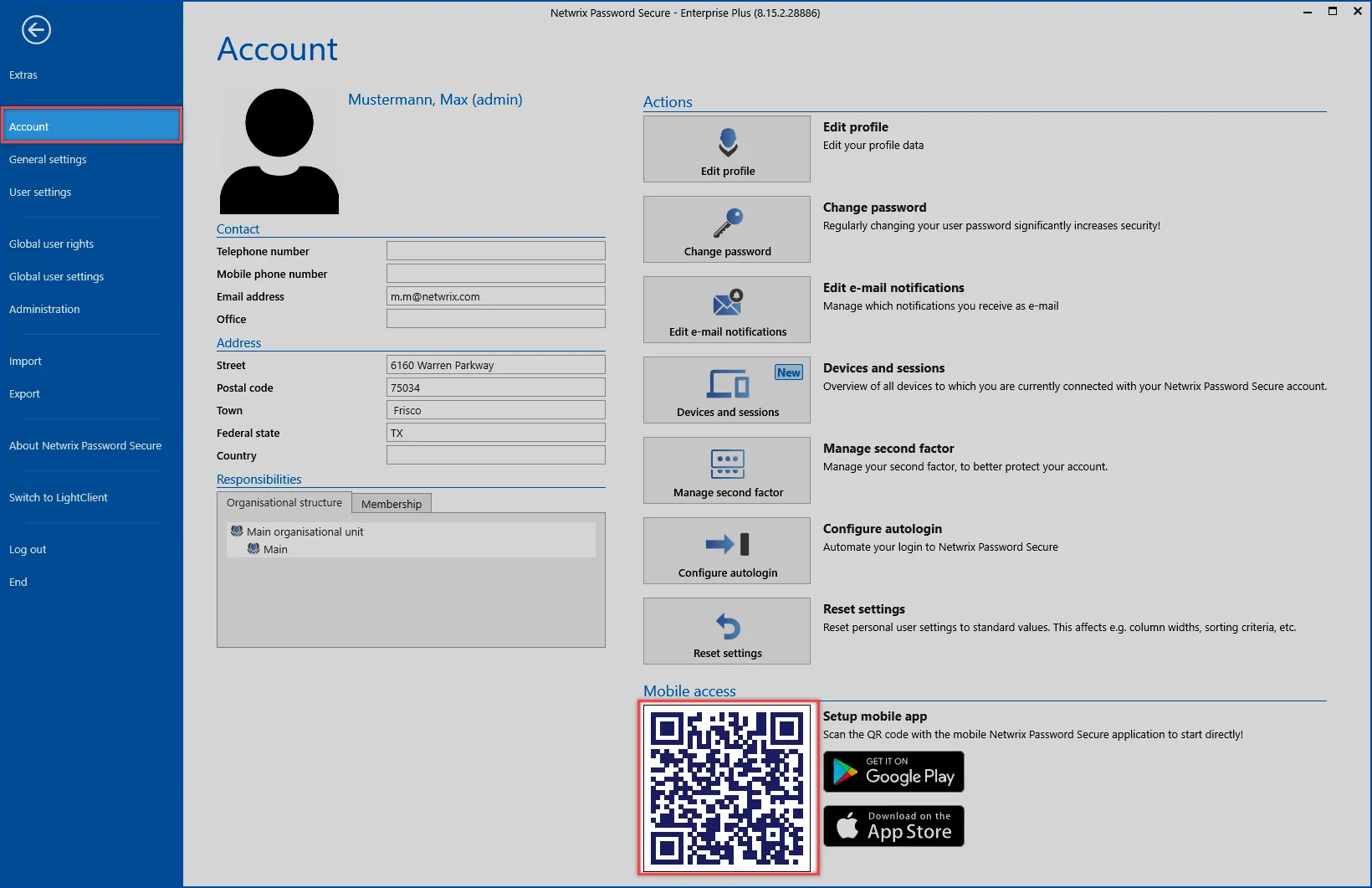
Then click the button for the QR code in the app. In the following dialog, photograph the QR code from the monitor. The mobile database is now created directly in the background and linked to the database on the server. In the next step, you can give the database profile a meaningful name and log in directly:
LightUser
Using the Light view, the user must click their user account and click the Account option

This opens a window where you can use the QR code to scan the database.