Account
Account overview
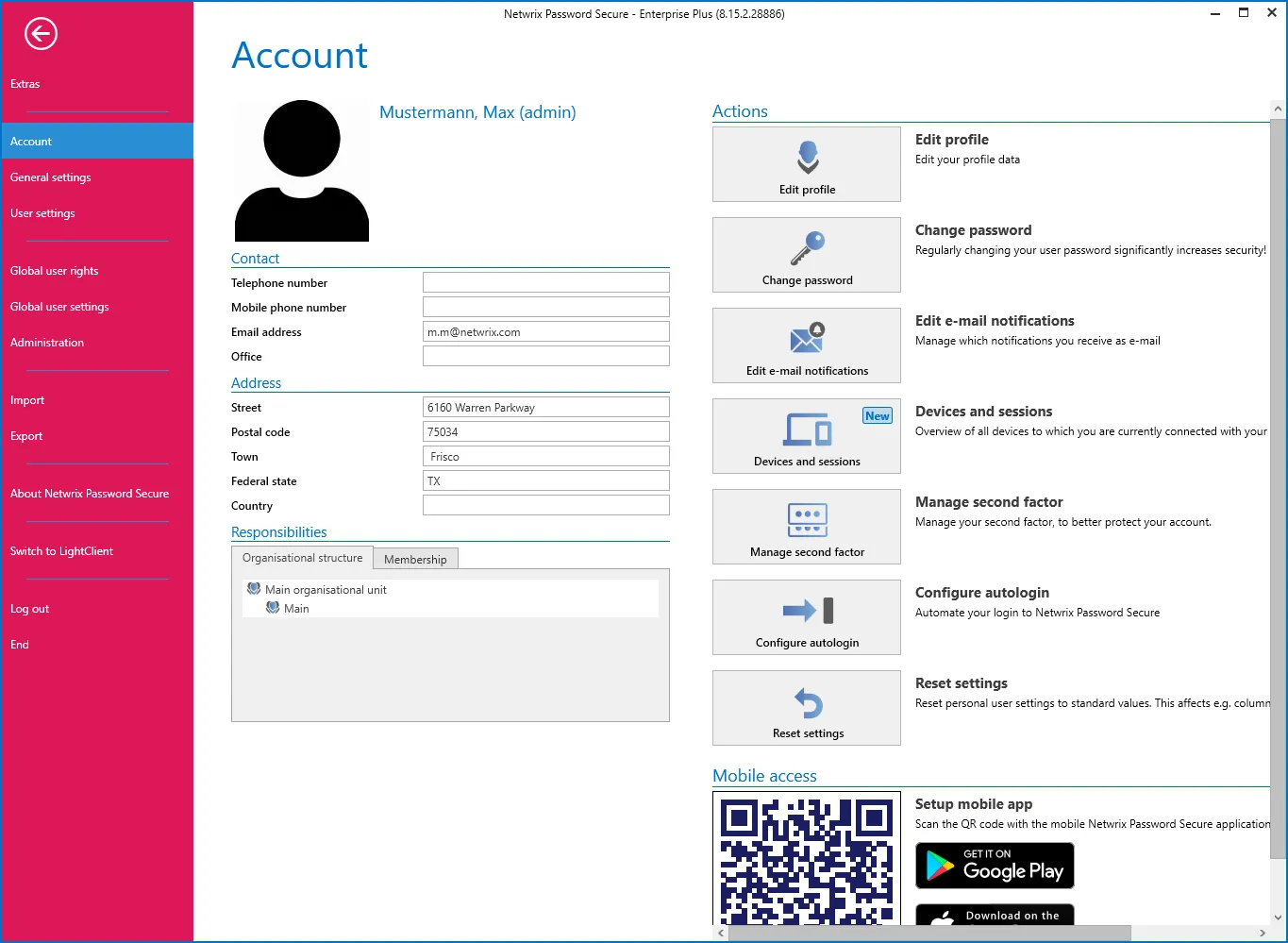
Users can configure all user-specific information in their account. if the Masterkey mode process is used, user data is always taken from Active Directory – editing this information in Netwrix Password Secure is thus not possible.
Edit profile
All of the information in the contact and address sections can be defined under “Edit profile”. Some areas of the profile overlap with the management of users. This information is explained in Managing users.
No changes can be made to users that were imported from AD using Master Key mode. In this case, all information is imported from AD.
Editing user image
A new image can be added or the existing one replaced or deleted by clicking on the profile image.
No changes can be made to users that were imported from AD with the aid of Master Key mode. If an image has been saved in AD, it is used here.
Change password
Netwrix recommends that the user password is changed on a regular basis. To use a new password, you must enter the existing password in advance. The strength of the password is directly displayed.
Users who were imported from AD with the aid of Master Key mode log in with the domain password. Therefore, no password can be configured in this case.
The strength of the user password can be stipulated by administration through the issuing of password rules.
If a user changes his or her password, all sessions that are still open are automatically terminated.
Multifactor authentication
Multifactor authentication provides additional protection through a second login authentication using a hardware token. The configuration is performed via the ribbon in the “Security” section. See also in Multifactor authentication

Configure autologin
Use this option to automate the log in to Netwrix Password Secure. For setup, enter the password twice and save it.
The autologin is linked to the hardware and thus does not work on a different computer. If you change the hardware or the hardware ID, an existing autologin needs to be recreated.
Relevant right
Option to manage the autologin
User right
- Can manage autologin
The automatic login should be handled as a process critical to security. It is important to all data can be accessed, for example, if you forget to lock the computer.
For security reasons, the autologin is only valid for 180 days and then needs to be subsequently renewed.
Reset settings
Clicking on this button resets all user-specific settings such as the column width, colour scheme, etc. to the default values.
Start offline synchronization
If you have made changes to the database and don't want to wait for the next automatic synchronization, an offline synchronization can also be started manually. The synchronization runs in the background and is indicated by a status bar in the footer as well as by the icon. More…