Managing users
User management in Netwrix Password Secure
The way in which users are managed is highly dependent on whether Active Directory is connected or not. In Master Key mode, Active Directory remains the leading system. Accordingly, users are then also managed in the AD. If Netwrix Password Secure is the leading system, e.g. in end-to-end mode, users are managed in the organisational structures module. More details are provided in the relevant sections.
Relevant rights
The following options are required to add local users.
User rights
Can add new users -Display organisational structure module
Adding local users
In general, new users are added in the same way as creating a local organisational unit. Therefore, only the differences are covered in the following sections.
Creating users
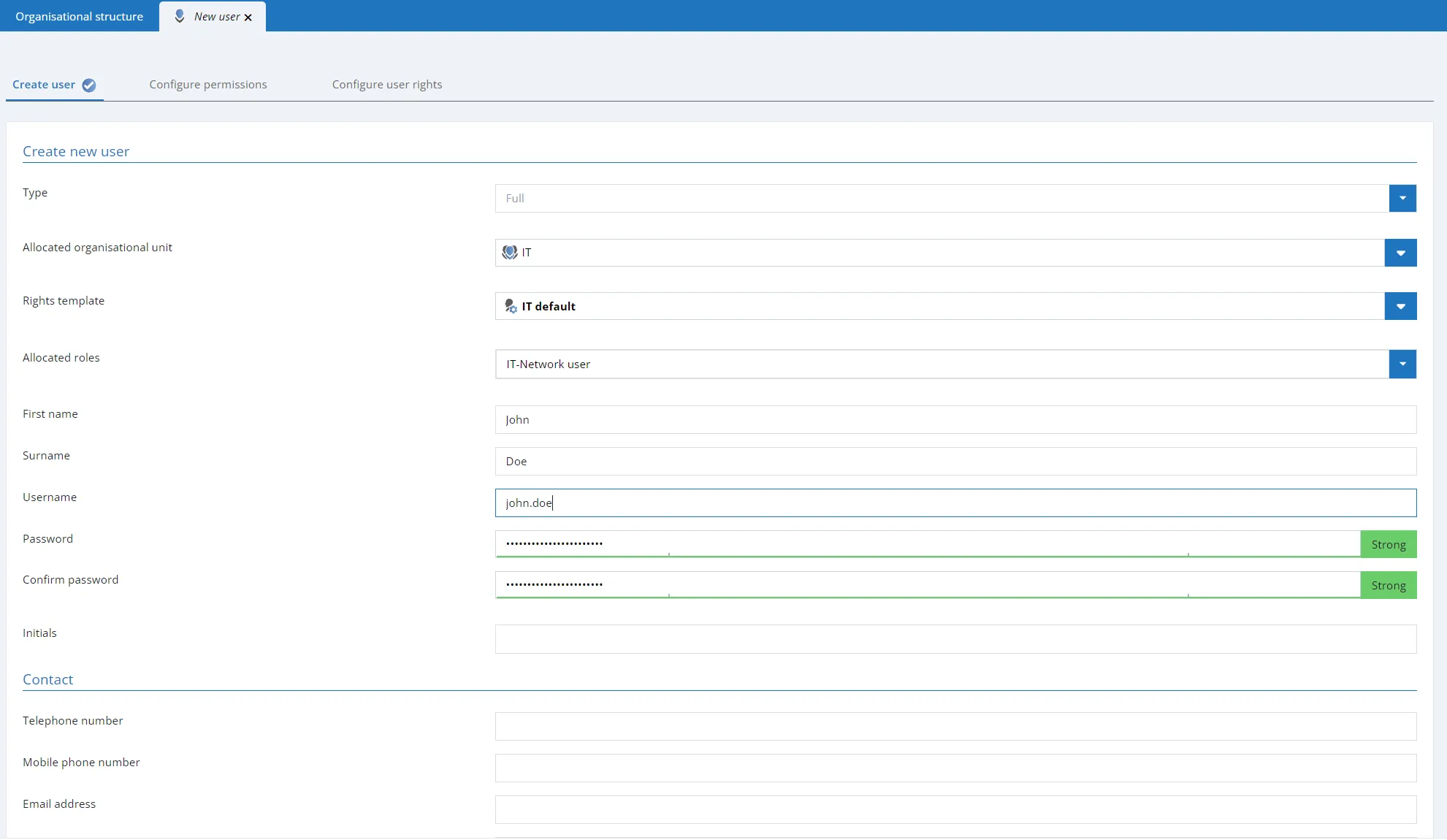
- Allocated roles: New users can directly be allocated one or more rolls when they are created
- Change password on next login: The user is requested to change their user password on the next login (obligatory)
- Account is deactivated: The user is created with the status "deactivated". The account is thus not useable. The write rights for a user can be set/removed with this option. In editing mode, the account can also be deactivated during ongoing operation.
- Restricted user: Controlling entities exist in many companies that are only tasked with checking the integrity and hierarchies of various pieces of information with one another but are not required to productively work with the information themselves. This could be a data protection officer or also an administrator in some cases. This would be the case if an administrator was responsible for issuing permissions to other people but shouldn't be able to view the data themselves. The property restricted user is used to limit the visibility of the password field. It thus deals with purely administrative users or controlling entities.
Restricted users can't view any passwords
Configuring rights
The second tab of the wizard lets you define the permissions for the newly created user. If an allocated organisational unit or a rights template group was defined in the first tab, the new user inherits its permissions. Here, these permissions can be adapted if desired.
Configuring user rights
Users always receive their user rights via role, which is either user-specific or global (see user rights). If no role is defined in the first tab "Create user", the third tab will thus contain globally defined user rights.
Importing users
Importing from Active Directory can be performed in two ways that are described in a separate section.
User licenses
There are two different types of licenses, Advanced view and Basic view licenses. In all other editions you can only purchase Advanced view licenses. Licensed Basic view users aren't able to use the Advanced view. However, Advanced view Users can also switch to the Basic view.
For licensing reasons, it isn't intended to switch from a Advanced view user to a Basic view user.
The sales team will be happy to answer any questions you may have about licensing.
Display data to which the user is authorized to display the data to which a user is authorized, you must right-click the corresponding user in the organisational structure. In the context menu that opens, you find the following options under displaying data records:
Password -Documents -Forms -Rolls -Uses -Password Reset -System Tasks -Seal templates
All authorizations for a data record are taken into account, regardless of whether you are authorized by a role or the user.