Learning the applications
Applications that require learning
As already indicated in the previous section, RDP, and SSH applications are completely embedded in Netwrix Password Secure. These applications thus don't need to be specially learned. All other applications in Windows need to be learned once.
Learning overview
The record contains the user name and password. Learning involves defining the steps required. The result is equivalent to a script that defines where precisely the login data should be entered. In Netwrix Password Secure, the completed instructions themselves are also known as an "application".
Relevant rights
The following options are required.
User right
- Can add new RDP applications
- Can add new SSH applications
- Can add new SSO applications
- Can add new web applications
Configuration
First, a new SSO application is created via the ribbon.

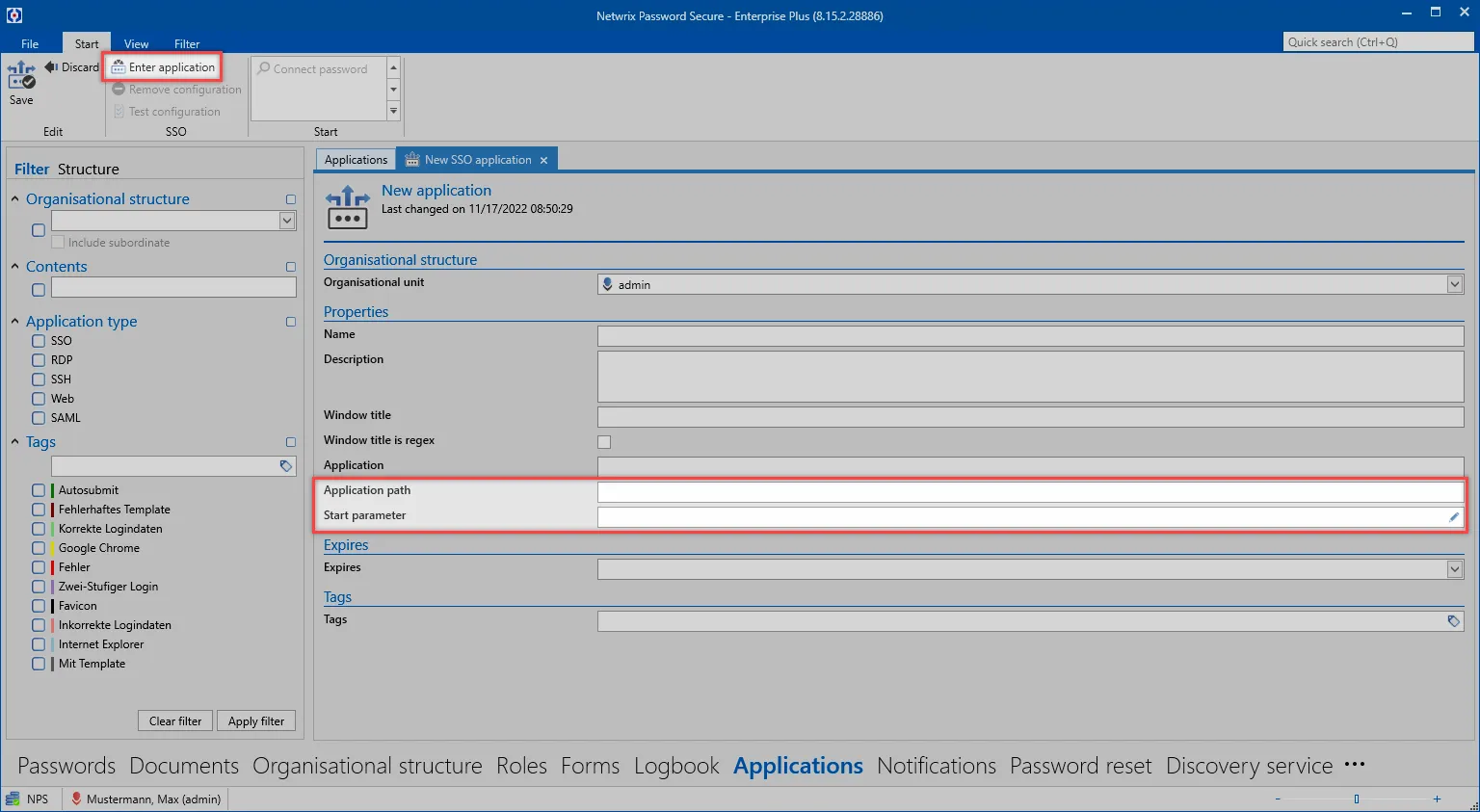
Various properties for the application can now be defined in the tab that opens. The fields Window title, Application and Application path aren't manually filled. This is done via the Create application button in the ribbon:
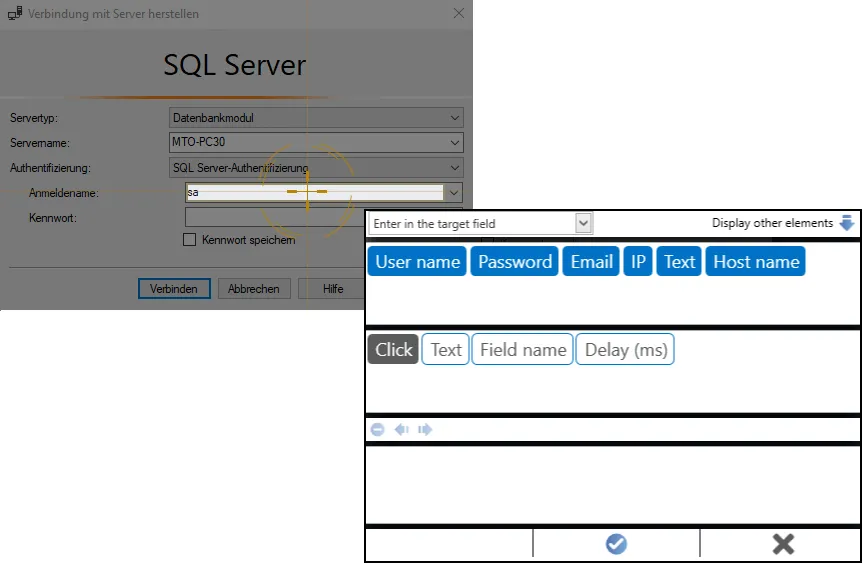
A crosshair cursor now appears. It enables the actual "mapping" or assignment of the target fields. The following example shows the field assignment for the user name using a log in to an SQL server as an example. All of the other fields that should be automatically entered are assigned in the same way. The process is always the same. You select the field that needs to be automatically filled and then decide which information should be used to fill it.
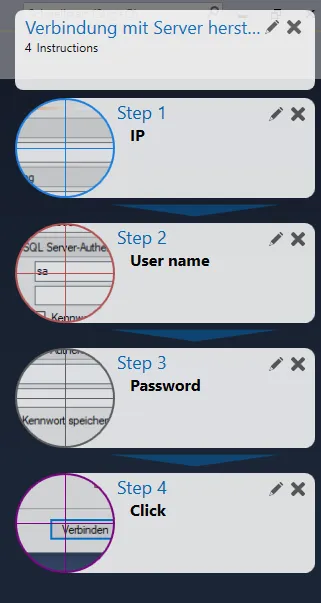
In parallel to the previous step, all of the already assigned fields are displayed on the right edge of the screen. In this example, the VMware vSphere Client has a total of 4 assigned fields: IP, user name, password, and clicking the button to subsequently confirm the login.
"Graphical recognition:" The graphical recognition function provides additional protection. It lets you define other factors for the SSO. An area is defined that then serves as the output for the comparison (e.g. for login masks with an image). To activate the graphical recognition function, click the eye at the top right after assigning the fields. The area that serves as the output point is then marked.
After you have assigned all of the fields, you can exit the application process using the enter button. The fields "Window title", "Application" and "Application path" mentioned at the beginning are now automatically filled.

As you can see, the .exe file is directly referenced. If the application is saved to the same storage location for all users, it can then also be accessed by all other users.
Linking records with applications
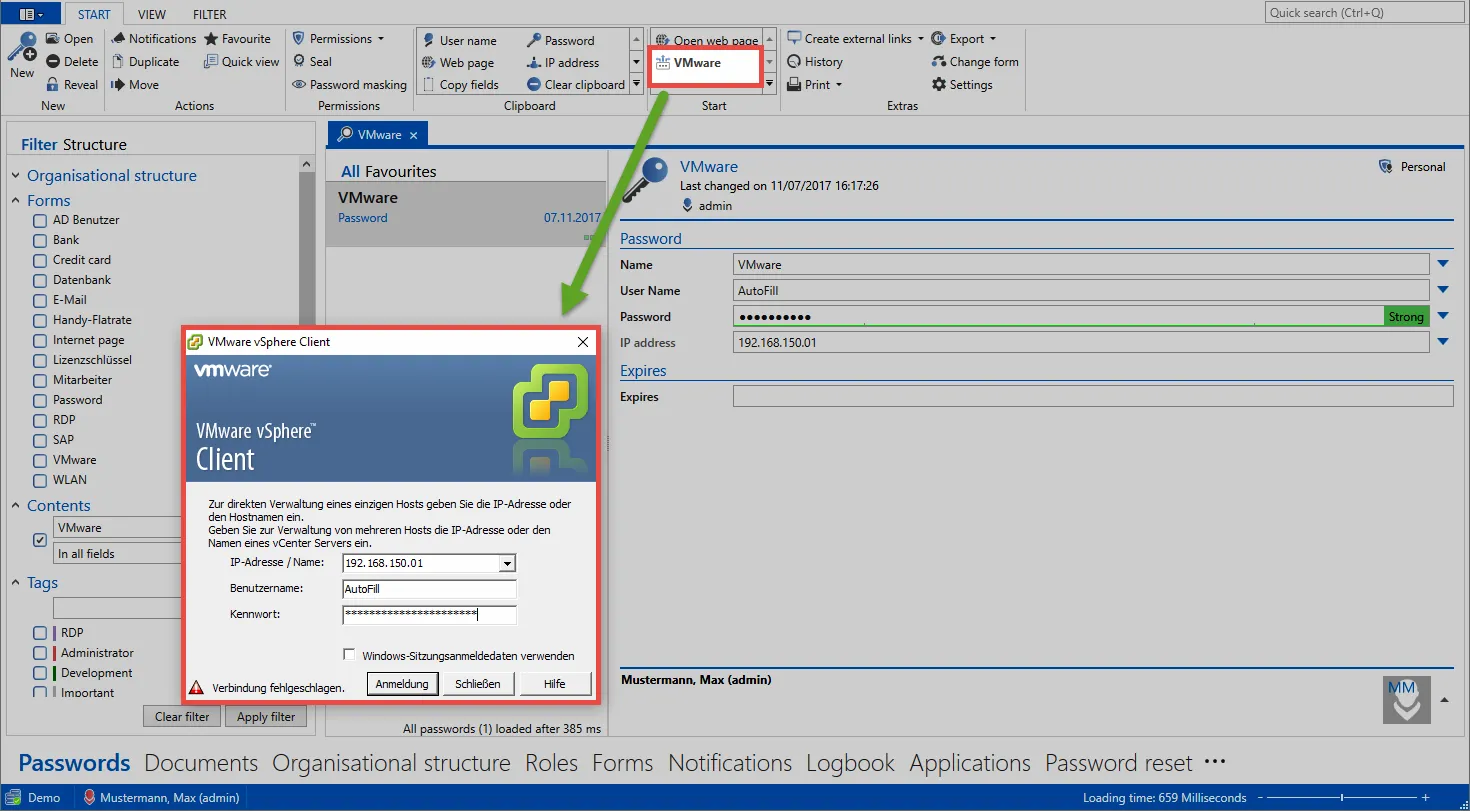
In the Passwords, the newly created application can now be directly linked. To do this, mark the record to be linked and open the "Connect application" menu in the "Start" tab via the ribbon. This opens a list of all the available applications. It is now possible here to link to the previously created application "VMware".
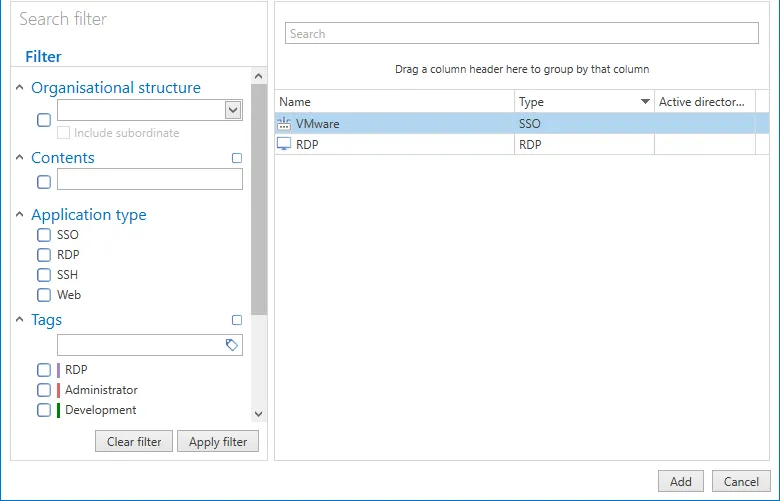
When the link has been established, this application can then be directly started via the ribbon in future. Pressing the button directly opens the linked application.
With respect to permissions, applications are subject to the same rules as for passwords, roles, or documents. You can separately define which group of users is permitted to use each application.