Install the Password Policy Client
The Password Policy Client (PPC) is an optional component that helps users choose a compliant password. It shows users which rules they need to comply with while they enter their new password. The PPC also displays a detailed rejection reason message if Password Policy Enforcer (PPE) rejects the new password. You typically install the PPC on users' computers, virtual desktops, and Remote Desktop Session Hosts. The list of supported operating systems is in the introduction.
The Password Policy Client doesn't store or send passwords or password hashes over the network. The protocol is encrypted for additional security, but even if an attacker compromised the encryption, it wouldn't reveal any passwords or password hashes.
PPE only enforces the Similarity rule if the user changes their password from the PPC, PPE Web, or Netwrix Password Reset.
Manual installation
To manually install the Password Policy Client:
-
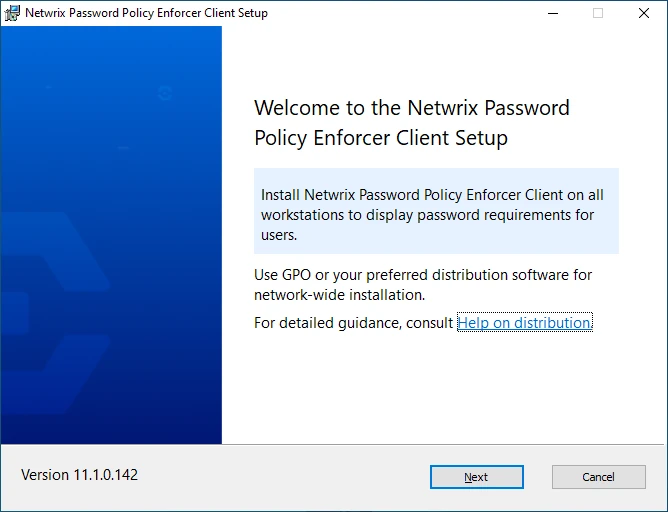
Run Netwrix_PPE_Client_11.2.0.148_x64.msi (64-bit) or Netwrix_PPE_Client_11.2.0.148_x86.msi (32-bit). The Setup wizard opens.
-
Click Next.
-
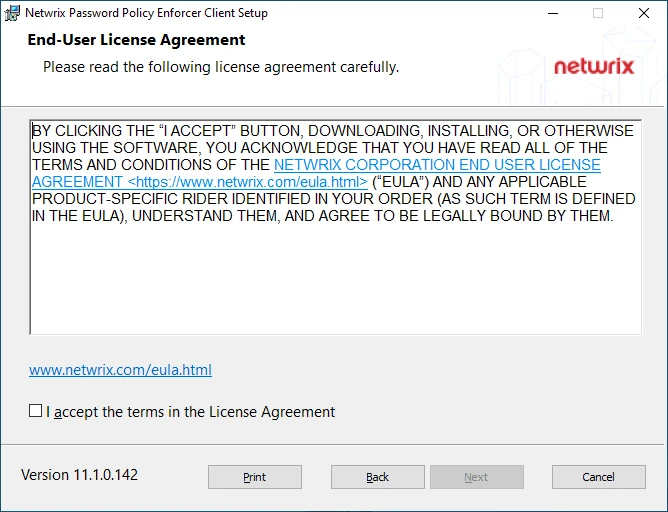
Review the End-User License Agreement, select the checkbox to accept the Agreement, then click Next.
-
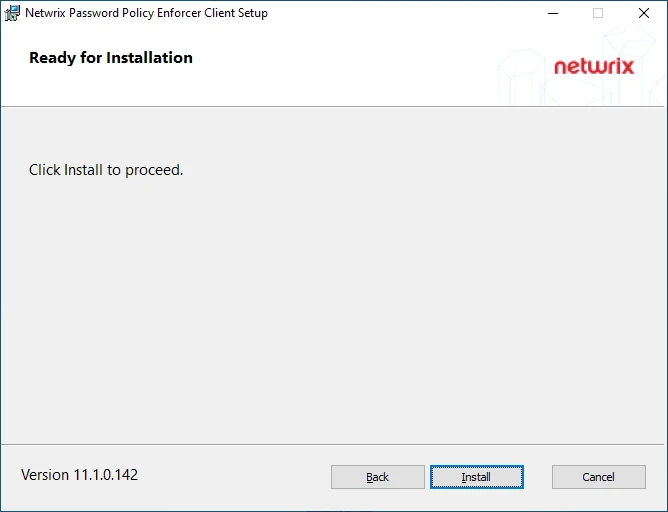
Click Install.
-
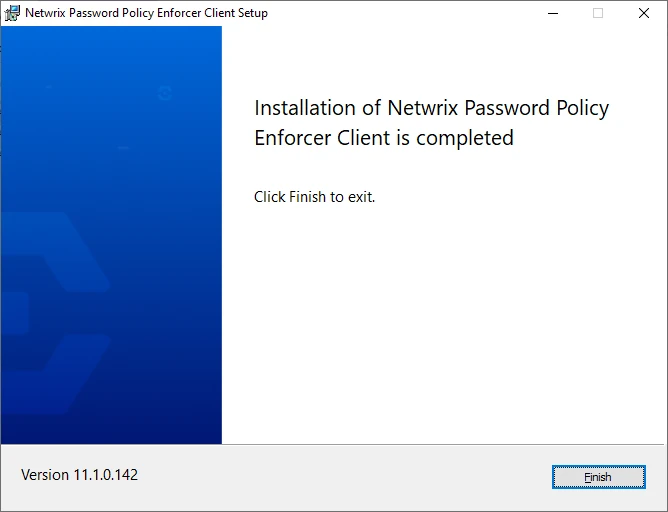
Click Finish when installation is complete. You don't typically need to restart the computer.
The Password Policy Client runs automatically during a password change. There is no associated desktop icon or start menu item.
Automated deployment
Use a software deployment tool or Group Policy to automate deployment across many computers. You can also run msiexec to install from the command line. For example, run this command with elevated permissions to silently install the 64-bit Password Policy Client:
msiexec /i Netwrix_PPE_Client_11.2.0.148_x64.msi /q
Add an exclusion for %ProgramFiles%\Netwrix\Password Policy Enforcer\PPEClt.DLL to exclude the client from antivirus or other security software. This is optional.
Testing the Password Policy Client
Test the Password Policy Client by logging on to a computer, pressing Ctrl+Alt+Del, and clicking Change a password. You should see the password policy rules on the password change screen. If you don't see the rules, then ensure that:
- The Password Policy Server (PPS) is installed on all domain controllers in the domain.
- You restarted all domain controllers after installing the PPS.
- A PPE policy is assigned to the logged on user account.
Uninstalling
You can uninstall the Password Policy Client from the Installed apps page in Windows Settings, or the Uninstall or change a program page in Control Panel. You can also run msiexec to uninstall from the command line. For example, run this command with elevated permissions to silently uninstall the 64-bit Password Policy Client:
msiexec /x Netwrix_PPE_Client_11.2.0.148_x64.msi /q