Disable Windows rules
Windows has its own password policy rules for password history, age, length, and complexity. If you enable both Password Policy Enforcer (PPE) rules and Windows rules, users must comply with both the PPE and Windows rules.
PPE has its own rules for password history, minimum age, maximum age, length, and complexity. While it's possible, and sometimes beneficial, to use PPE and Windows rules together, it can also be confusing when testing PPE. Netwrix therefore recommends disabling the Windows password policy rules while you experiment with and test your PPE configuration.
To disable the Windows password policy rules:
- Start the Group Policy Management Console (
gpmc.msc). - Expand the Forest and Domains items, then expand your domain in the left pane.
- Right-click the Default Domain Policy GPO (or whichever GPO you use for your domain password policy), then click Edit.
- Expand Computer Configuration > Policies > Windows Settings > Security Settings > Account Policies > Password Policy.
- Double-click Enforce password history in the right pane.
- Enter 0 in the text box, then click OK.
- Repeat step 6 for Maximum password age, Minimum password age, and Minimum password length.
- Double-click Password must meet complexity requirements in the right pane.
- Select Disabled, then click OK.
- Close the Group Policy Management Editor.
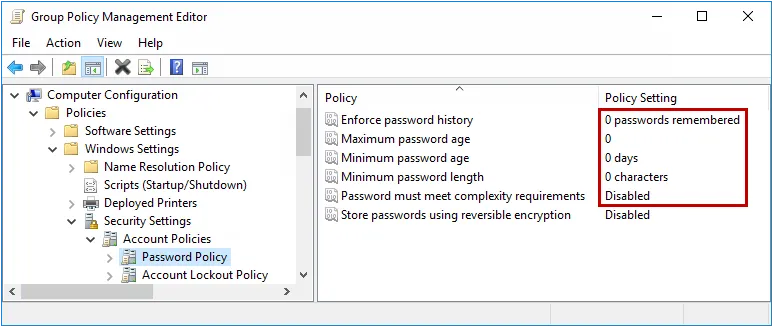
Don't set the Windows policies to Not Configured as that leaves the previously enforced value in place and doesn't disable the rule. Instead, follow the preceding steps to explicitly set each numeric policy to 0 and set the complexity policy to Disabled.
You don't have to disable the Windows password policy rules to use PPE. A password must comply with both the Windows and PPE policies to be accepted.
Fine-Grained Password Policies (FGPP) override the domain password policy. If your organization uses FGPP, you'll also need to remove or modify any Password Settings Objects (PSOs) that apply to your users. To do that, open Active Directory Administrative Center, navigate to System > Password Settings Container, and remove or modify the relevant PSOs.