Settings
Most Password Policy Enforcer (PPE) settings are policy-specific, but there are also some global settings. Click Settings in the upper-right corner of the home page to view and edit the global settings. Click Save in the upper-right corner of the Settings page to apply any changes, or click Discard to restore settings to their last saved state. Clicking these buttons saves or discards settings in all tabs, not just the current tab.
General
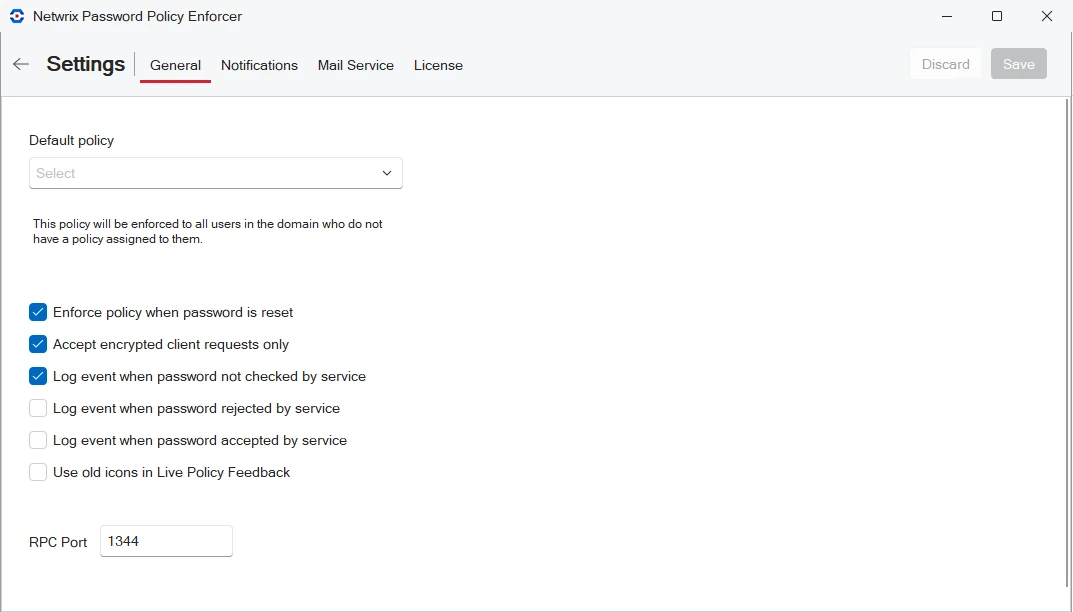
Default policy. Select the policy to use as the default from the dropdown. Users must comply with the default password policy if you haven't assigned another policy to them. See Set the default policy to learn how PPE uses the default policy and how to exempt specific users from it.
If Password Policy Enforcer has only one policy, and that policy is also the default policy, then PPE enforces the policy for all users. If you want to deploy a single policy gradually, don't make it the default until the deployment is complete.
Use the Test Policy by User feature to see which policy PPE enforces for a particular user. You can also review the Policy selection flowchart to see how PPE selects a policy for a user.
Enforce policy when password is reset. Select this option to enforce the assigned password policy whenever someone resets a password or creates a new user account. This option doesn't change the behavior of the Minimum Age rule, as PPE never enforces this rule during a reset. PPE only enforces the History rule during a reset if you select this checkbox, and also select the History Rule's Enforce this rule when a password is reset checkbox.
Accept encrypted client request only. Select this option to have Password Policy Enforcer reject any unencrypted requests from very old versions of the Password Policy Client, Netwrix Password Reset, and PPE Web. These requests don't contain passwords or password hashes, but Netwrix still recommends requiring encryption for all requests. This setting applies only to the legacy UDP protocol. The newer RPC protocol always uses encryption.
Log event when password not checked by service. Select this option to log an event to the Windows Application Event Log whenever PPE doesn't check a password. This can happen if:
- PPE is disabled.
- The policy assigned to a user is disabled.
- No policy is assigned to a user, or an error occurs when determining the assigned policy, and a default policy isn't specified.
- Someone resets a password, and Enforce policy when password is reset isn't selected.
Log event when password rejected by service. Select this option to log an event to the Windows Application Event Log whenever PPE rejects a password. The logged event includes the username, event source (client or server), and the rules the password doesn't comply with. This option doesn't log an event when Windows rejects a password.
The Password Policy Client and the Password Policy Server each enforce most PPE rules, but neither enforces all of them. If the PPE Client is installed, it often rejects a non-compliant password before Windows sends the password to the domain controller. If this happens, the logged event might not show all the rules the password doesn't comply with, because the Password Policy Server enforces some rules exclusively. For example, consider a password that doesn't comply with the Length, Complexity, and Compromised rules. If the PPE Client is installed, the event only shows the Length and Complexity rules. This happens because only the server enforces the Compromised rule, and the client rejects the password before it reaches the server. PPE logs all three rules if you use the same password and the PPE Client isn't installed.
Log event when password accepted by service. Select this option to log an event to the Windows Application Event Log whenever PPE accepts a password. The logged event includes the username. If you have other password filters installed, they can reject a password after PPE accepts it, so the logged event doesn't guarantee the password changed. Windows enforces its own rules before PPE, so the presence of the event indicates that the password complies with any Windows password rules.
Use old icons in Live Policy Feedback. Select this option if you don't want to use the new, colored icons on the change password screen when the Password Policy Client is installed.
RPC Port. The Password Policy Client communicates with the server over a Remote Procedure Call (RPC) port. Enter a different port number if another service uses the default port in your environment. The default port number is 1344. You must also configure the Password Policy Client to use the new port.
Notifications
Password Policy Enforcer sends notification emails to users and administrators. Use the settings in the Notifications tab to configure your mail delivery settings. PPE can send email directly to a mail server or a pickup folder.
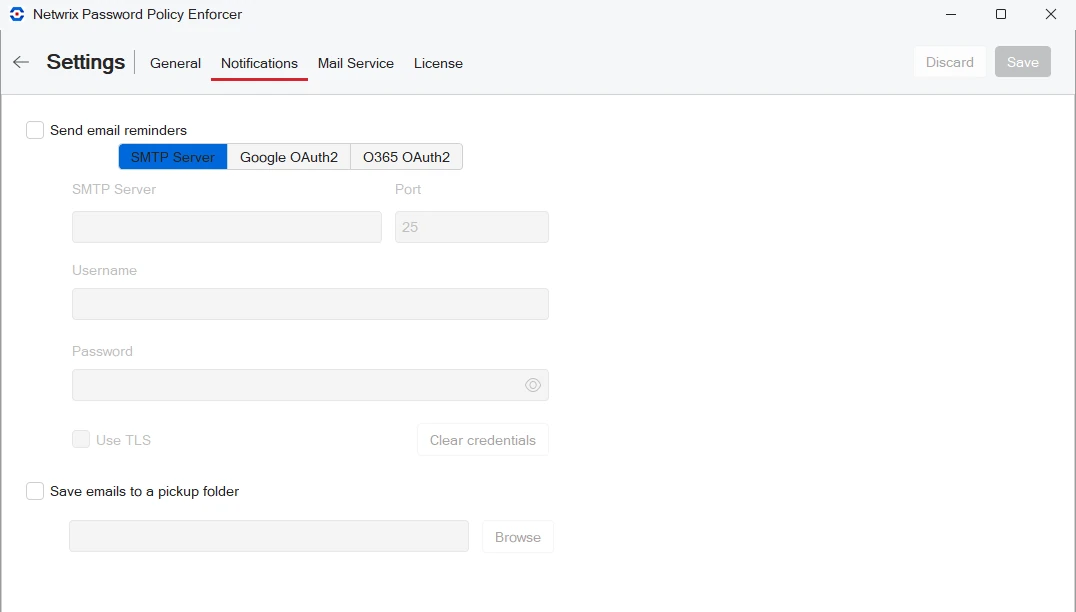
Send email reminders. Select this option if you want PPE to send email notifications directly to a mail server. Select your mail server type, SMTP Server, Google OAuth2, or O365 OAuth2, then enter the requested information for the mail server. If you select Google OAuth2, click Update credentials to complete authorization in a web browser. Finally, click Send test email to ensure that the PPE Mailer can deliver email to your mail server.
Save email to a pickup folder. Select this option if you want PPE to send email notifications to a pickup folder for collection and delivery by a mail server. Configure the mail server to monitor this folder. Enter the path to the pickup folder, or click Browse to select it.
Notification settings are only available when you're connected to a domain configuration.
The PPE Mailer sends emails at 2:00 AM every day (local server time). Check the Windows Application Event Log to monitor it. You can also run %ProgramFiles%\Netwrix\Password Policy Enforcer\PPEMail.exe to troubleshoot problems. Run it without arguments to simulate a run without delivering email. If there are no warnings or errors, then run it again with the /send argument to conduct a full run with delivery. Use /send judiciously to avoid sending duplicate emails to users.
The default Google OAuth2 timeout is 60 seconds. You can change this by setting Configuration.GoogleOAuthTimeout in %ProgramFiles%\Netwrix\Password Policy Enforcer\PPEConfiguration.json.
Mail service
Install the Password Policy Enforcer Mailer Service on one server in the domain. Use the settings in the Mail Service tab to allow PPE to locate the mailer service.
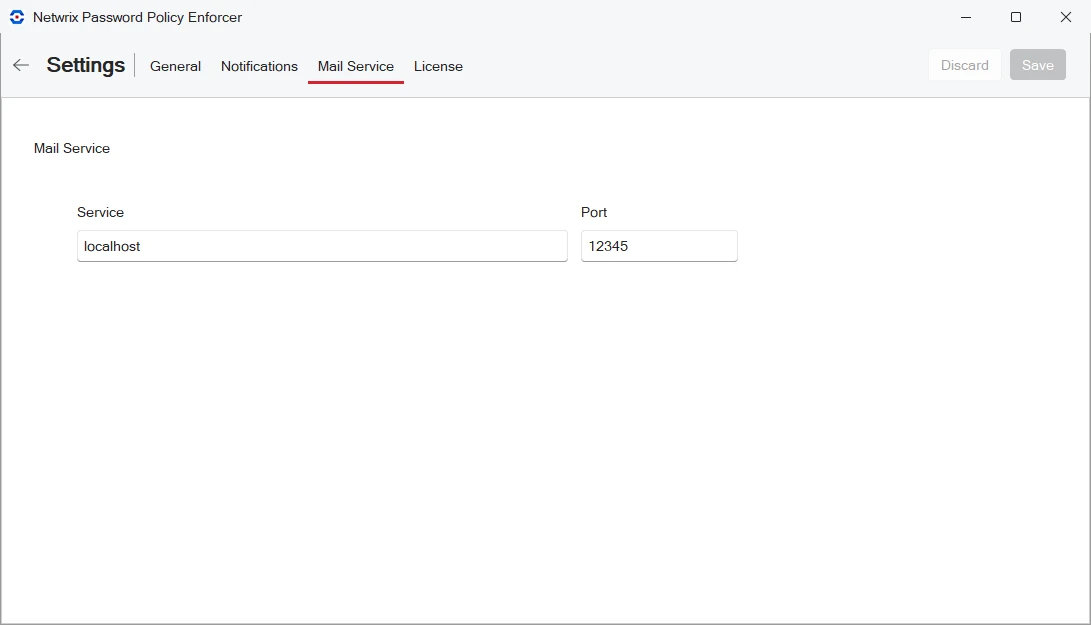
Service. Enter the hostname or IP address of the server that hosts the mailer service.
Port. Enter a different port number if another service uses the default port in your environment. The default port number is 12345. You must also configure the mailer service to use the new port. Make this change on the server that hosts the mailer service. Set MailService.Port in %ProgramFiles%\Netwrix\Password Policy Enforcer\PPEMailService.json to the new port number, then restart the Netwrix Password Policy Enforcer Mail Service.
License
Use the License tab to view and update your license key.
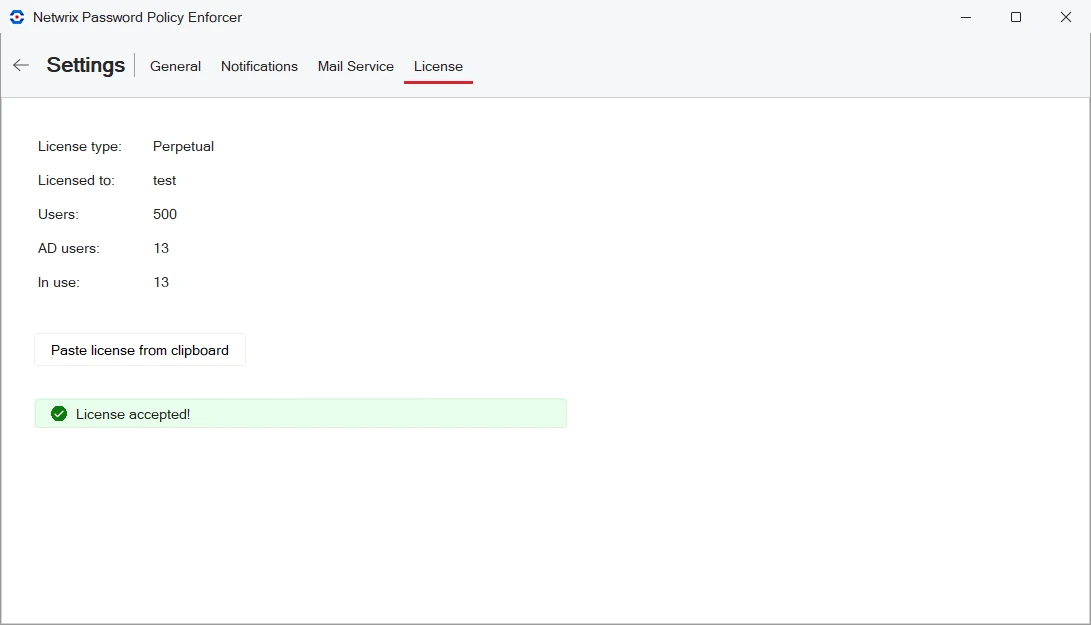
Paste license from clipboard. Copy your new license key to the clipboard, then click Paste license from clipboard to update the license key.
The Users number on this tab shows how many users are licensed to use PPE with the installed license key. AD Users is the total number of Active Directory user accounts in the domain, and the In use number is the total number of user accounts, excluding disabled accounts.