Age (Max) rule
The Maximum Age rule forces users to change their passwords regularly. This decreases the likelihood of an attacker finding a password that is still in use. Only domain policies can enforce this rule.

Select the Age (Max) checkbox to enable the Maximum Age rule.
Select a value from the first days dropdown to specify how many days must elapse before passwords expire.
You can encourage users to choose longer passwords by extending the lifetime of long passwords. To enable this feature, select a higher value from the second days dropdown, and a minimum length from the contains dropdown. Passwords that contain at least the required number of characters won't expire until the second (higher) days value. If the days values are identical, then passwords expire after the specified number of days, irrespective of length.
When you configure this rule to delay the expiry of longer passwords, Password Policy Enforcer (PPE) creates an Active Directory security group called "PPE Extended Maximum Age Users". PPE uses this group to track which users are eligible for a delayed password expiry. PPE adds and removes users from the group automatically. You can move and rename this group, but don't change its pre-Windows 2000 name. Contact Netwrix support if you must change the pre-Windows 2000 name.
PPE caches the group information in memory. If you move or rename the group, then change any PPE configuration setting to trigger a cache refresh. PPE recreates the group if you delete it. Ensure the two days values are equal in all policies if you don't want PPE to recreate the group.
Select a value from the Mode dropdown to specify how PPE handles expired passwords. The Standard mode is the default. It forces users to change their expired password during their next logon. The Transitional modes are similar, but they only force a percentage of users with expired passwords to change them during their next logon. The Warning mode warns users that their password is expired without forcing them to change it.
Use the Warning and Transitional modes to gradually introduce a new password policy. These modes reduce the number of forced password changes, allowing the help desk to manage any additional support calls from the policy change. Switch to the Standard mode after most users have had a chance to change their password.
It takes approximately 50 days for PPE to force all users with expired passwords to change them in the 2% Transitional mode (2% every day). The 5% Transitional mode reduces this to 20 days, and the 10% Transitional mode further reduces it to 10 days. PPE selects users randomly, so these are estimates only. You must eventually switch to the Standard mode to ensure that all old passwords expire. Don't leave PPE in the Transitional or Warning modes permanently as this won't give you predictable, forced password expirations.
PPE always prompts users with expired passwords to change them, even in the Transitional and Warning modes. Users can ignore the prompt to change their password unless PPE forces them to change it. Windows clients display the prompt even if the Password Policy Client isn't installed. Windows displays the prompt five days before passwords expire by default. You can change this value with Group Policy: Interactive logon: Prompt user to change password before expiration.
PPE expires passwords at 1:00 AM every day on the domain controller holding the PDC emulator operations master role. It sets "User must change password at next logon" for users whose password expired, or is due to expire on that day. PPE doesn't expire passwords if the Maximum Age rule is in Warning mode, or for users with "Password never expires" set in Active Directory. Some passwords won't expire immediately when the Maximum Age rule is in a Transitional mode.
Select Send email reminders at if you want PPE to send email reminders to users before their passwords expire. PPE can send up to three email reminders before a password expires. Use the days before password expiration dropdowns to choose when PPE sends each email. If you want to send fewer than three emails, then select the first, empty item from the dropdown.
Click Set up email to edit the email template for the email reminders.
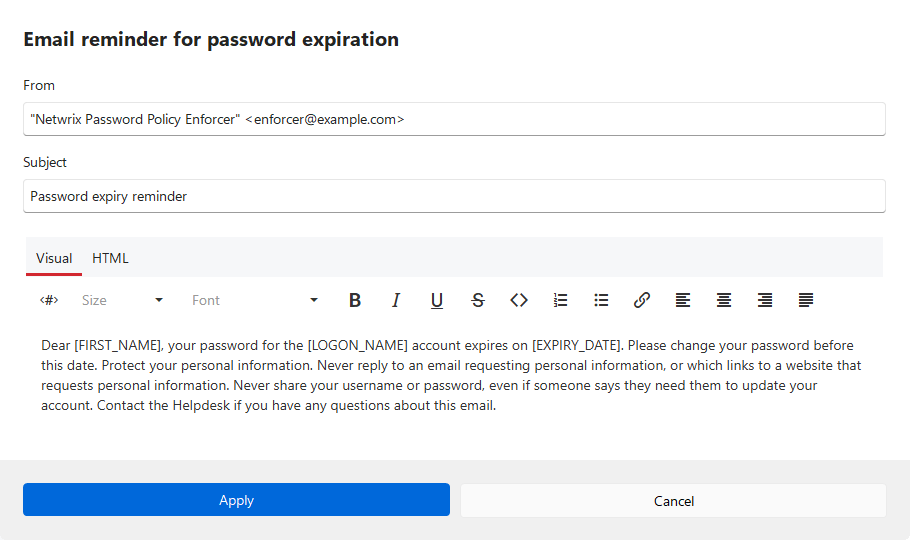
The correct format for the From text box is "Display Name" <mailbox@domain.com>. You can edit the email body with a visual editor or raw HTML editor by clicking Visual or HTML.
If the email body is too long to fit in the text box, then enter a file path with the "file:" prefix in the body text box: file:C:\<path>\<filename>.ext. The file path can include environment variables like %ProgramFiles%. Don't use quotes for long filenames and don't include any other text. The Mailer Service reads the email body from the specified file.
If users aren't receiving their email reminders, then ensure the From address is a valid sending address for your mail server.
The email's subject and body can contain various macros. Click <#> when in the Visual mode to display the list of macros. Click the name of a macro from the list to insert it in the email body at the current cursor position.
| Macro | Replaced with |
|---|---|
| [LOGON_NAME] | User's logon name |
| [FIRST_NAME] | User's first name |
| [LAST_NAME] | User's last name |
| [DAYS_TO_EXPIRY] | Days until password expires |
| [EXPIRY_DATE] | Expiry date in short format |
| [EXPIRY_DATE_LONG] | Expiry date in long format |
| [EXPIRY_DAY] | Expiry day (1 to 31) |
| [EXPIRY_DAY_NAME] | Expiry day (Monday, Tuesday, ...) |
| [EXPIRY_MONTH] | Expiry month (1 to 12) |
| [EXPIRY_MONTH_NAME] | Expiry month (January, February, ...) |
| [EXPIRY_YEAR] | Expiry year (2026, 2027, ...) |
Click Set up SMTP to configure your mail delivery settings.
Click Log event for every expired password if you want PPE to log an event to the Windows Application Event Log whenever it expires a password.