Characters (Granular) rules
Selecting the Characters (Granular) item in the rules pane displays the settings for nine related rules. Unlike the Complexity rule, these rules offer granular control over which characters to require or reject, and can even require certain character types at specific character positions. Use these rules to increase password strength or to ensure password compatibility with other systems.
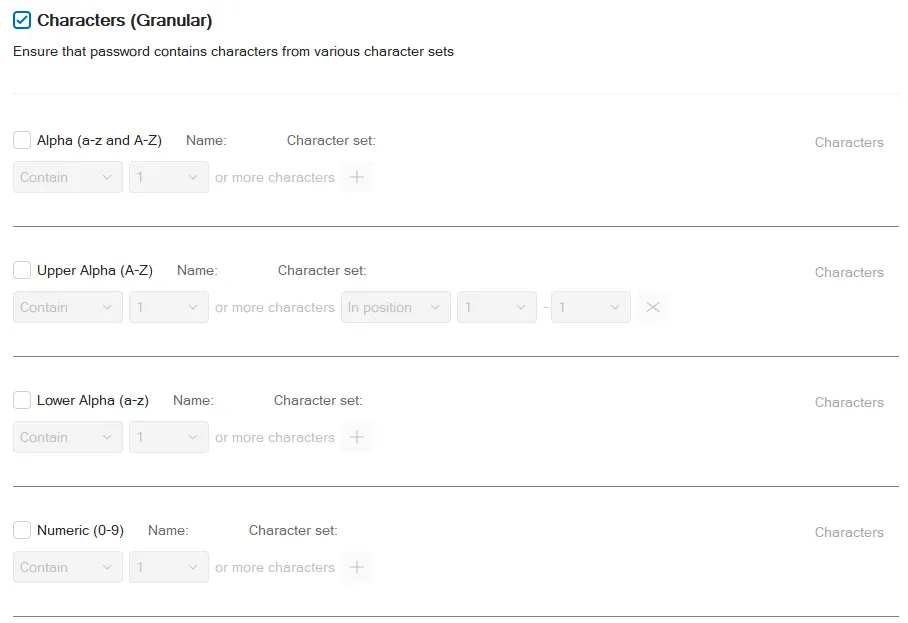
You must select the Characters (Granular) checkbox at the top of the page before you can enable any of the other rules on the page.
Character set rules
The first seven rules work identically; they differ only in their default character set. A character set is the collection of characters that each rule searches for when checking a password. The first seven rules are named after their default character set: Alpha, Upper Alpha, Lower Alpha, Numeric, Special, High, and Custom.
A description of the default character set appears beside each rule's name. For example, the Alpha set's description is (a-z and A-Z). This description is for the Password Policy Enforcer (PPE) default character set. The default characters will be different if you configure the policy to use the Windows character set. The Policy Properties page has more information about character sets.
Select the Characters (Granular) checkbox at the top of the page, then select the checkbox beside a rule's name to enable that rule.
These rules require passwords to contain certain characters by default. The word Contain below the rule's name indicates this. If you want the rule to stop users from using certain characters in passwords, then select Not contain from the dropdown.
When you select Contain, PPE defaults to requiring at least one character from this character set. If you want to require more than one character, select the required number from the dropdown beside Contain. For example, you might want to specify that passwords must contain at least two special characters.

Click + to add more specific positional requirements for this rule. Two options appear: In position and Embedded.
Select In position to specify the character positions where the characters must (or must not) appear in the password. For example, you might have a legacy system that requires a special character in the first three characters of a password. You can configure PPE to enforce this rule by selecting In position, then selecting 1 and 3 in the next two dropdowns.

Select the same number for the start and end position if you want the rule to only check one character position.
Select Embedded to specify that the characters must (or must not) be embedded within the password. For example, the passwords 12hello, 1hello, and hello$987 don't contain any embedded numeric characters because the numeric characters are all at the beginning or end of the password. These passwords all contain embedded numeric characters (shown in bold): he7llo, 4he3llo, 23hello7$45. Embedded numeric and special characters can protect passwords from cracking attacks because users often put these characters at the beginning or end of a password if a policy requires them. This predictability reduces the attacker's search space.
Click Characters if you want to redefine the character set.
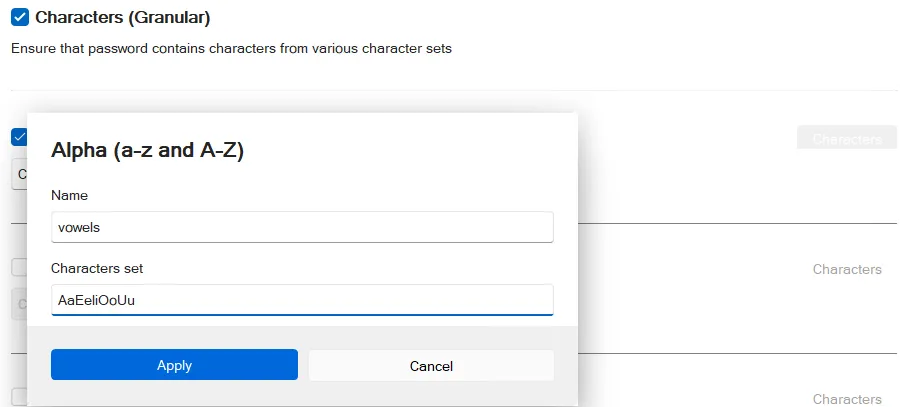
Enter a Name for the character set, then enter the characters making up the set in the Characters set text box. Don't enter any delimiters, just the characters. For example, AaEeIiOoUu for vowels. Your custom character set name doesn't appear throughout the user interface — it only appears in the Policy and Rejection messages. Clear one or both of these text boxes, then click Apply to revert them to their default values.
You can combine Character rules to enforce complex password requirements. For example, you might need to enforce a policy such as "passwords must contain a numeric character, but not in the first two positions" to ensure compatibility with some other system. Use two rules to enforce this requirement:
- Configure the Characters (Complexity) rule to require a numeric character.
- Configure the Numeric character set rule to Not contain numeric characters in positions 1 to 2.
Other rules use custom character set names and character sets even if you disable the corresponding granular rule. You can redefine character sets even if you don't need to use the granular rules.
The character set rules are flexible, but reserve them for cases where the Complexity and First and Last Character rules can't enforce your desired policy. These other rules are easier to configure and easier for users to understand.
First and Last Character rules
The First and Last Character rules reject passwords that don't begin or end with an allowed character.
Select the Characters (Granular) checkbox at the top of the page, then select Characters (First) or Characters (Last) to enable that rule.
These rules require passwords to begin or end with certain characters by default. Begin (First Character rule) or End (Last Character rule) below the rule's name indicates this. If you don't want certain characters to appear at the beginning or end of a password, select Not begin or Not end from the dropdown.
Select the character set names to enable them. A checkmark appears next to the selected character sets. For example, selecting Not end with Numeric and Special rejects passwords that end with a numeric or special character:

The First and Last Character rules use custom character set definitions defined by the granular character rules. If you haven't defined custom character sets, these rules use the default character sets.