Rules
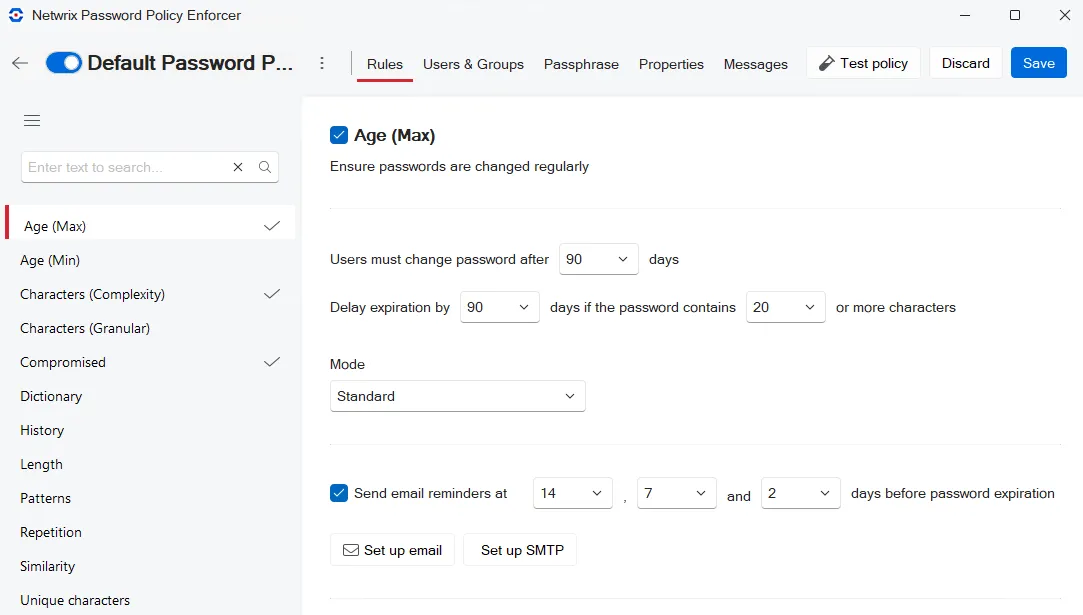
Password Policy Enforcer (PPE) uses rules to accept or reject passwords. Each policy has rules that you configure independently of the rules in other policies. To configure the rules for a policy:
- Open the PPE configuration console.
- Click the name of a policy in the policy list. The Rules tab opens by default.
The left pane of the policy editor lists the available rules. A check mark appears beside enabled rules. Click a rule to configure its settings in the right pane. The first setting is always a checkbox with the same name as the rule. Select the checkbox to enable the rule.
Click Save in the upper-right corner of the policy editor to apply your changes. The toggle switch in the upper-left corner of the policy editor enables and disables the entire policy.
Several PPE rules have Detect character substitution and Tolerance settings. Understanding how these settings work helps you fine-tune your policies.
Detecting character substitution
Character substitution is a technique that some users apply to improve password quality. They replace some alphabetic characters with non-alphabetic characters that have a similar appearance. For example, sold becomes $old. Many of these substitutions are well known and do little to improve password strength.
Some rules have a Detect character substitution checkbox. PPE tests passwords with and without character substitution when you select this checkbox. This stops users from circumventing the rule by substituting some characters. PPE detects these common substitutions:
| Original | Substituted |
|---|---|
| A a | ^ @ |
| B b | 8 |
| C c | ( { < [ |
| D d | ) } > ] |
| E e | 3 |
| G g | 6 9 |
| I i | ! | 1 |
| O o | 0 (zero) |
| S s | $ 5 |
| T t | + 7 |
| Z z | 2 |
Tolerance
Some rules have a Tolerance dropdown. The tolerance controls how strictly PPE enforces the rule.
Tolerance typically refers to the maximum allowable number of consecutive matching characters in the password and some other parameter. Password Policy Enforcer rejects a password if it exceeds the specified tolerance. For example, the logon name "maryjones", and the password "Jonestown" contain five consecutive matching characters (shown in bold). Password Policy Enforcer rejects this password if the tolerance for the User Logon Name rule is four or lower, and accepts it if the tolerance is five or higher.
Some rules have an Auto tolerance option. Setting the tolerance to Auto tells Password Policy Enforcer to reject only passwords that contain the entire comparison parameter. This is useful when the length of the comparison parameter is unknown. For example, if you want PPE to reject passwords that contain the user's entire logon name, then you can't specify a fixed tolerance unless all logon names are the same length. Setting the tolerance to Auto lets Password Policy Enforcer calculate an appropriate tolerance during the password change.
Password Policy Enforcer sets the tolerance to the length of the comparison parameter minus one. The following table shows some parameter values and the calculated tolerance. PPE rejects a password if it contains all the text in the Value column (or a derivative of it if you enable Detect character substitution or Detect words typed backwards).
| Rule | Parameter | Value | Tolerance |
|---|---|---|---|
| User Logon Name | Logon name | maryjones | 8 |
| User Display Name | Display name | Mary Jones | 9 |
| Similarity | Current password | oldpass | 6 |
| Character Pattern | Character pattern | abcdefgh | 7 |
Password Policy Enforcer's Auto tolerance calculation has a minimum limit that stops PPE from rejecting passwords when the comparison parameter is short. The limit defaults to two characters, so PPE accepts passwords containing the parameter value if the comparison parameter only has one or two characters. Contact Netwrix Support if you need to change the minimum limit.