Adjusting Event Log Size and Retention Settings
If the event log size is insufficient, overwrites may occur before Netwrix 1Secure writes data to the Long-Term Archive and the Audit Database, and some audit data may be lost.
To prevent overwrites, you can increase the maximum size of the event logs and set retention method for these logs to "Overwrite events as needed". This refers to the following event logs:
- Application
- Security
- Setup
- System
- Applications and Services logs > Microsoft>Windows > TaskScheduler > Operational
- Applications and Services logs > Microsoft > Windows > DNS-Server > Audit (only for DCs running Windows Server 2012 R2 and above)
- Applications and Services logs > AD FS > Admin log (for AD FS servers )
See the Microsoft article about recommended event log settings.
The following procedure explains one way to specify the event log settings manually. For multiple target computers, consider configuring these settings via Group Policy as described in the next section.
Configure the Event Log Size Manually
To configure event log size and retention settings:
Step 1 – On a target server, navigate to Start > Windows Administrative Tools > Event Viewer.
Step 2 – Navigate to Event Viewer tree > Windows Logs, right-click Security and select Properties.
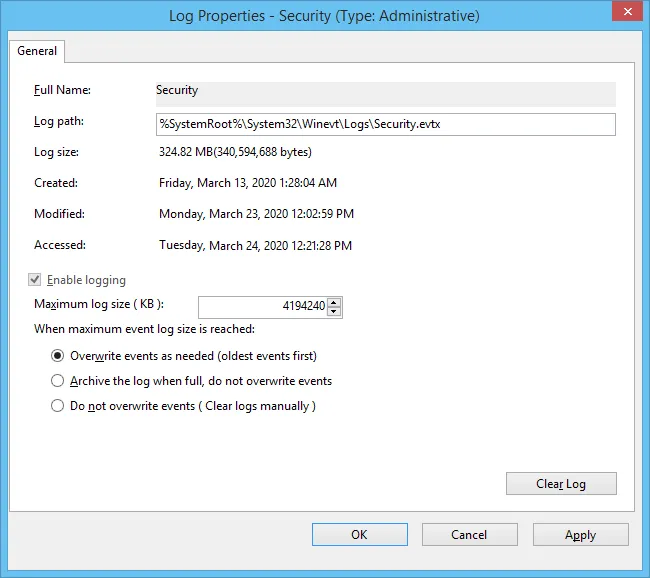
Step 3 – Ensure Enable logging is selected.
Step 4 – In the Maximum log size field, specify the log size you want.
Step 5 – Ensure the retention method is set to Overwrite events as needed (oldest events first). If Clear logs manually is selected, change it to that option.
Ensure the Maximum security log size group policy doesn't overwrite your log settings. To check this, start the Group Policy Management console, proceed to the GPO that affects your server, and navigate to Computer Configuration > Policies > Windows Settings > Security Settings > Event Log.
Repeat these steps for the following event logs:
-
Windows Logs > Application
-
Windows Logs > System
-
Applications and Services Logs > Microsoft > Windows > TaskScheduler > Operational
To monitor scheduled tasks, configure the TaskScheduler/Operational log setting.
-
Applications and Services Logs > Microsoft > Windows > DNS-Server > Audit
To monitor DNS changes, configure the DNS-Server/Audit log setting. The log is available on Windows Server 2012 R2 and above and isn't enabled by default. See Microsoft documentation for information on how to enable this log.
-
Applications and Services Logs > AD FS > Admin
Applies to the AD FS servers.
Configure the Event Log Size Using Group Policy
Personnel with administrative rights can use Group Policy Objects to apply configuration settings to multiple servers in bulk.
To configure settings for Application, System, and Security event logs:
Step 1 – Open the Group Policy Management Editor on the domain controller and go to Computer Configuration > Policies > Administrative Templates > Windows Components > Event Log Service.
Step 2 – Select the log you need.
Step 3 – Edit Specify the maximum log file size setting; the value is usually set to 4194240 KB.
Step 4 – Specify retention settings for the log; usually it is Overwrite as needed.
To configure settings for other logs:
Step 1 – Open the registry editor and go to HKEY_LOCAL_MACHINE\SYSTEM\CurrentControlSet\Services\EventLog<log_name>. For example: HKEY_LOCAL_MACHINE\SYSTEM\CurrentControlSet\Services\EventLog\Directory Service
Step 2 – Set the MaxSize to the required decimal value (in bytes).
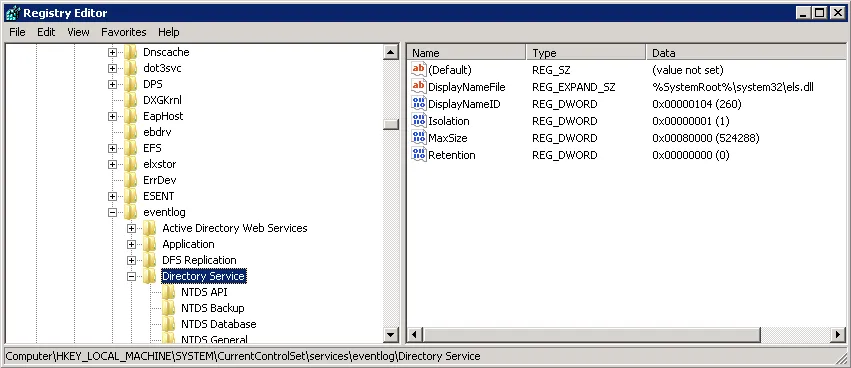
You can configure Group Policy Preferences to push registry changes to the target domain computers. To apply this for the Directory Service Log, follow these steps.
Step 1 – In Group Policy Management Console on the domain controller go to Computer > Preferences > Windows Settings > Registry.
Step 2 – Right-click Registry and select New > Registry Item.
Step 3 – In the Properties window on the General tab select the following:
- Action > Create
- Hive > HKEY_LOCAL_MACHINE
- Key Path – browse to MaxSize value at the SYSTEM\CurrentControlSet\Services\EventLog\Directory
Service
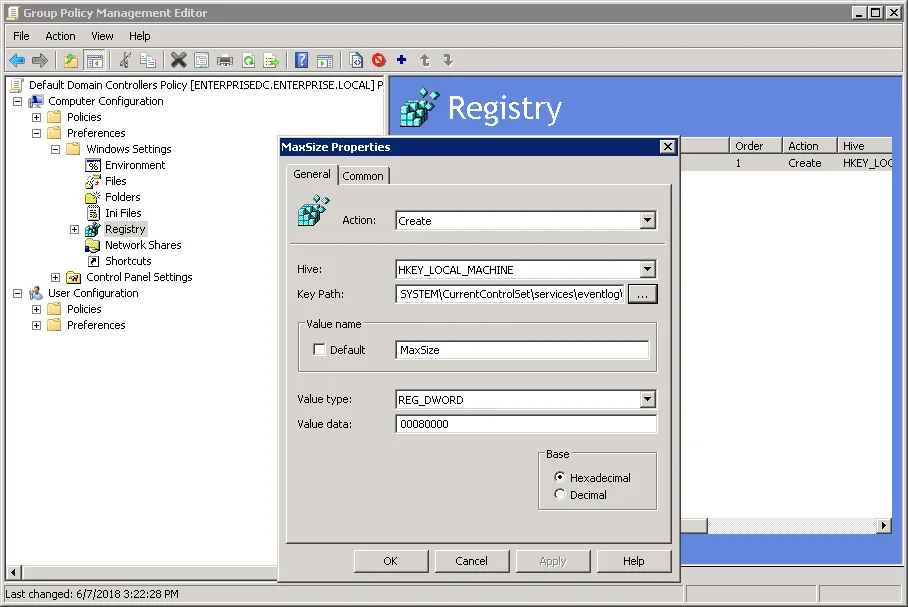
Step 4 – Change the MaxSize REG_DWORD to the required decimal value (in bytes).
Step 5 – Save the preferences and link them to the necessary servers (OUs).
When finished, run the gpupdate /force command to force group policy update.