Configure Advanced Audit Policies
Configure advanced audit policies instead of local policies to capture the "Who" and "When" values for changes to the following monitored system components:
- Audit policies
- File shares
- Hardware and system drivers
- General computer settings
- Local users and groups
- Services
- Scheduled tasks
- Windows registry
- Removable storage media
Configure Security Options
Setting up both basic and advanced audit policies may lead to incorrect audit reporting. To force basic audit policies to be ignored and prevent conflicts, enable the Audit: Force audit policy subcategory settings policy.
To enforce advanced policies:
Step 1 – On the audited server, open the Local Security Policy snap-in and navigate to Start > Windows Administrative Tools > Local Security Policy.
Step 2 – Navigate to Security Settings > Local Policies > Security Options and locate the Audit: Force audit policy subcategory settings policy.
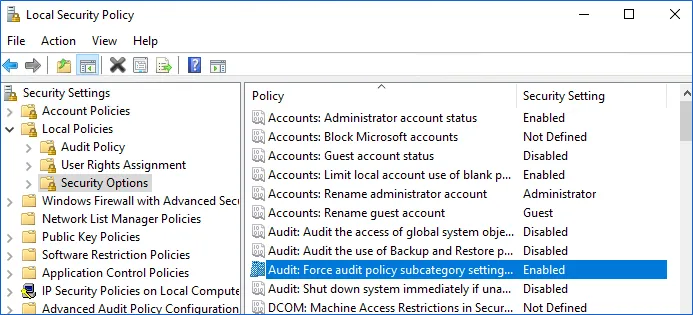
Step 3 – Double-click the policy and enable it.
Configure Advanced Audit Policy on Windows Server 2016
In Windows Server 2016, audit policies aren't integrated with Group Policies and can only be deployed using logon scripts generated with the native Windows auditpol.exe command line tool. Therefore, these settings aren't permanent and are lost after server reboot.
The following procedure explains how to configure Advanced audit policy for a single server. If you audit multiple servers, you may want to create logon scripts and distribute them to all target machines via Group Policy. See the Create System Startup / Shutdown and User Logon / Logoff Scripts Microsoft article for instructions.
Step 1 – On an audited server, navigate to Start > Run and type "cmd".
Step 2 – Disable the Object Access, Account Management, and Policy Change categories by executing the following command in the command line interface:
auditpol /set /category:"Object Access" /success:disable /failure:disable
auditpol /set /category:"Account Management" /success:disable /failure:disable
auditpol /set /category:"Policy Change" /success:disable /failure:disable
Step 3 – Enable the following audit subcategories:
| Audit subcategory | Command |
|---|---|
| Security Group Management | auditpol /set /subcategory:"Security Group Management" /success:enable /failure:disable |
| User Account Management | auditpol /set /subcategory:"User Account Management" /success:enable /failure:disable |
| Handle Manipulation | auditpol /set /subcategory:"Handle Manipulation" /success:enable /failure:disable |
| Other Object Access Events | auditpol /set /subcategory:"Other Object Access Events" /success:enable /failure:disable |
| Registry | auditpol /set /subcategory:"Registry" /success:enable /failure:disable |
| File Share | auditpol /set /subcategory:"File Share" /success:enable /failure:disable |
| Audit Policy Change | auditpol /set /subcategory:"Audit Policy Change" /success:enable /failure:disable |
Disable all other subcategories unless you need them for other purposes. You can check your current effective settings by executing the following commands:
auditpol /set /category:"Object Access"
auditpol /set /category:"Account Management"
auditpol /set /category:"Policy Change"
Configure Advanced Audit Policy on Windows Server 2016 and Above
In Windows Server 2016 and above, Advanced audit policies are integrated with Group Policies, so they can be applied via Group Policy Object or Local Security Policies. The following procedure describes how to apply Advanced policies via Local Security Policy console.
Step 1 – On the audited server, open the Local Security Policy snap-in and navigate to Start > Windows Administrative Tools >Local Security Policy.
Step 2 – In the left pane, navigate to Security Settings > Advanced Audit Policy Configuration > System Audit Policies.
Step 3 – Configure the following audit policies.
| Policy Subnode | Policy Name | Audit Events |
|---|---|---|
| Account Management |
| "Success" |
| Object Access |
| "Success" |
| Policy Change |
| "Success" |