Configure Advanced Audit Policies
You can configure advanced audit policies instead of basic domain policies to collect Logon Activity changes with more granularity.
To configure security options:
Using both basic and advanced audit policies settings may lead to incorrect audit reporting. To force basic audit policies to be ignored and prevent conflicts, enable the Audit: Force audit policy subcategory settings to override audit policy category settings option.
Step 1 – Open the Group Policy Management console on any domain controller in the target domain: navigate to Start > Windows Administrative Tools> Group Policy Management.
Step 2 – In the left pane, navigate to Forest: <forest_name> > Domains > <domain_name> >
Domain Controllers. Right-click the effective domain controllers policy (by default, it is the
Default Domain Controllers Policy), and select Edit from the pop-up menu.
Step 3 – In the Group Policy Management Editor dialog, expand the Computer Configuration node on the left and navigate to Policies > Windows Settings > Security Settings > Local Policies > Security Options.
Step 4 – Locate the Audit: Force audit policy subcategory settings to override audit policy category settings and ensure that policy setting is set to "Enabled".
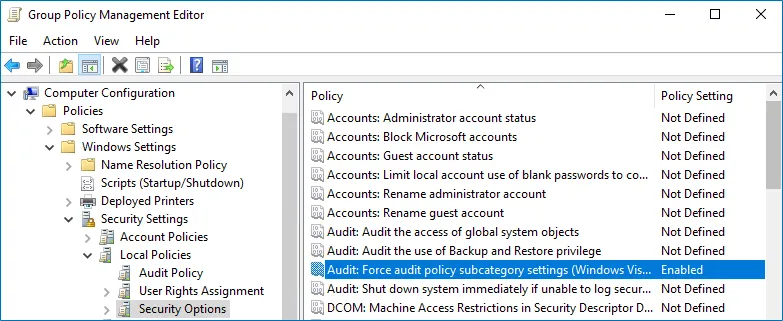
Step 5 – Navigate to Start > Run and type "cmd". Input the gpupdate /force command
and press Enter. The group policy updates.
To configure advanced audit policies:
Step 6 – Open the Group Policy Management console on any domain controller in the target domain: navigate to Start > Windows Administrative Tools> Group Policy Management.
Step 7 – In the left pane, navigate to Forest: <forest_name> > Domains >
<domain_name> > Domain Controllers. Right-click the effective domain controllers policy
(by default, it is the Default Domain Controllers Policy), and select Edit from the pop-up
menu.
Step 8 – In the Group Policy Management Editor dialog, expand the Computer Configuration node on the left and navigate to Policies > Windows Settings > Security Settings > Advanced Audit Policy Configuration > Audit Policies .
Step 9 – Configure the following audit policies.
| Policy Subnode | Policy Name | Audit Events |
|---|---|---|
Account Logon
|
| "Success" and "Failure" |
| "Success" and "Failure" | |
Logon/Logoff |
| "Success" |
| "Success" and "Failure" | |
System |
| "Success" |
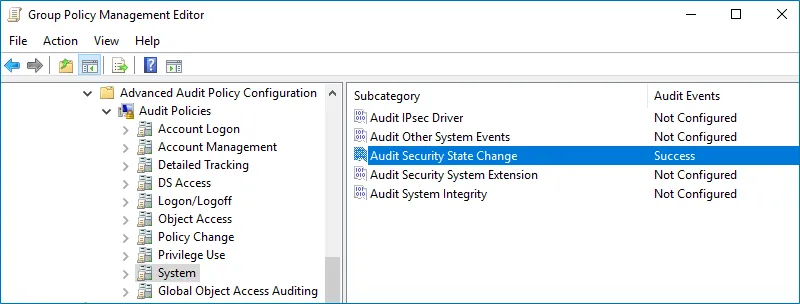
Step 10 – Set the following advanced audit policies to "Success" and "Failure":
- Audit Kerberos Service Ticket Operations
- Audit Kerberos Authentication Service
- Audit Credential Validation
Step 11 – Set the Audit Security State Change advanced audit policy to "Success".
Step 12 – Navigate to Start > Run and type "cmd". Input the gpupdate /force command
and press Enter. The group policy updates.