Configure Event Log Size and Retention Settings
The following procedure describes one way to adjust event log settings. If you have multiple target computers, perform this procedure on each of them.
If you move security log files from the default system folder to a non-default one, you must reboot your target server for the reports and search functionality to work properly.
To configure event log size and retention settings:
Step 1 – On a target server, navigate to Start > Windows Administrative Tools > Event Viewer.
Step 2 – Navigate to Event Viewer tree > Windows Logs, right-click Security and select Properties.
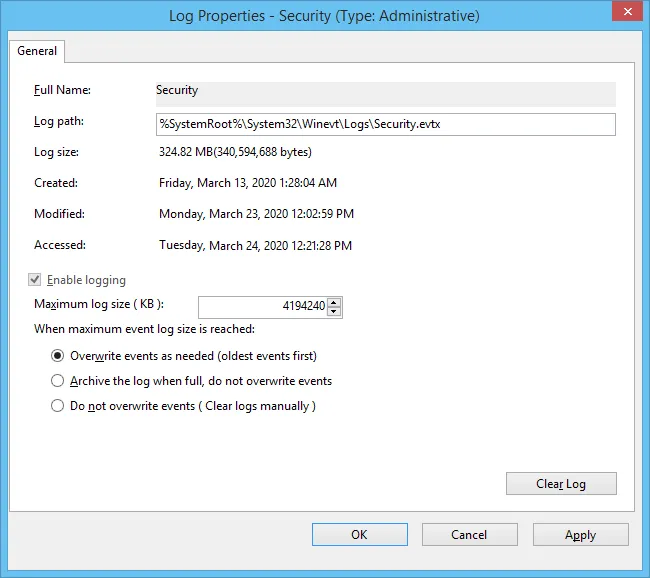
Step 3 – Ensure Enable logging is selected.
Step 4 – In the Maximum log size field, specify the log size you want.
Step 5 – Ensure the retention method is set to Overwrite events as needed (oldest events first). If Clear logs manually is selected, change it to that option.
Ensure the Maximum security log size group policy doesn't overwrite your log settings. To check this, start the Group Policy Management console, proceed to the GPO that affects your server, and navigate to Computer Configuration > Policies > Windows Settings > Security Settings > Event Log.