Configure Object-Level Auditing
Object-level auditing must be configured for the Domain partition if you want to collect information on user activity in the domain. You must also enable object-level auditing for Configuration.
Auditing of the Configuration partition is enabled.
To configure object-level auditing for the Domain partition:
Step 1 – Open the Active Directory Users and Computers console on any domain controller in the target domain: navigate to Start > Windows Administrative Tools (Windows Server 2016 and higher) or Administrative Tools (Windows 2012) > Active Directory Users and Computers.
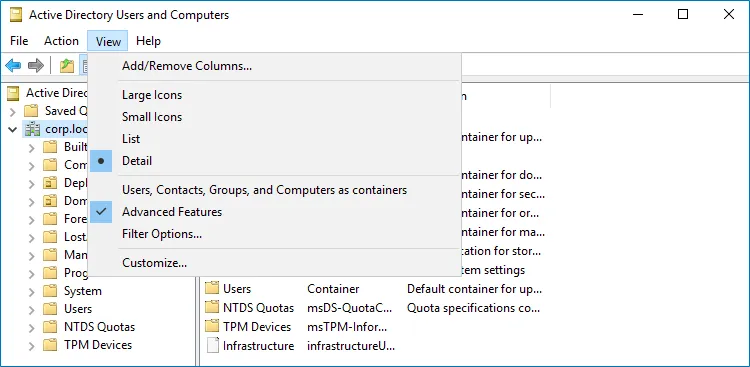
Step 2 – In the Active Directory Users and Computers dialog, click View in the main menu and ensure that the Advanced Features are enabled.
Step 3 – Right-click the <domain_name> node and select Properties. Select the
Security tab and click Advanced. In the Advanced Security Settings for <domain_name>
dialog, select the Auditing tab.
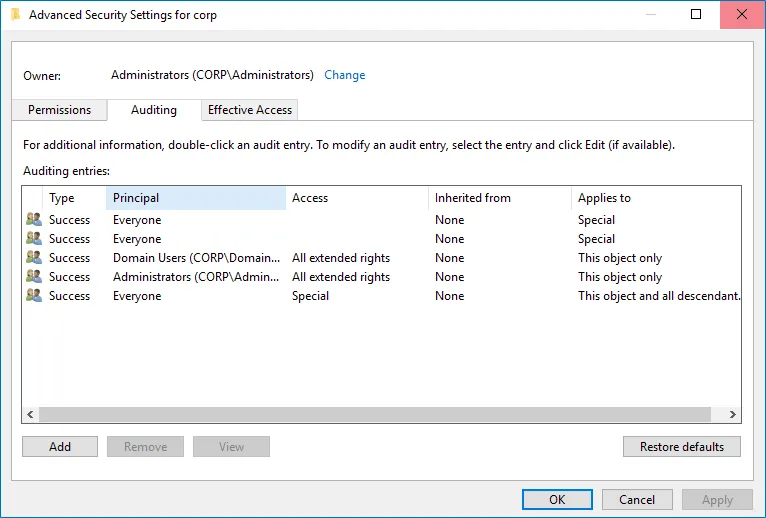
Step 4 – Do one of the following depending on the OS:
-
On pre-Windows Server 2012 versions:
-
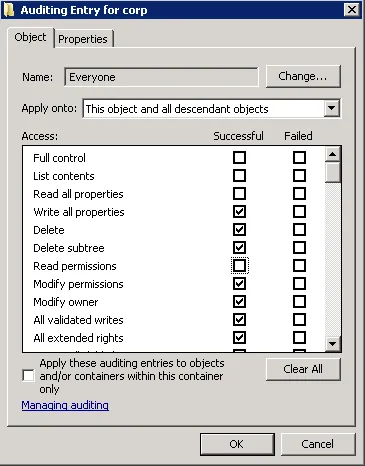
Click Add. In the Select user, Computer, Service account, or Group dialog, type "Everyone" in the Enter the object name to select field.
-
In the Audit Entry dialog that opens, set the "Successful" flag for all access entries except the following: Full Control, List Contents, Read All Properties and Read Permissions.
-
Ensure that the Apply these auditing entries to objects and/or containers within this container only checkbox is cleared. Also, ensure that the Apply onto parameter is set to "This object and all descendant objects".
-
Click Ok.
-
-
On Windows Server 2012 and above
-
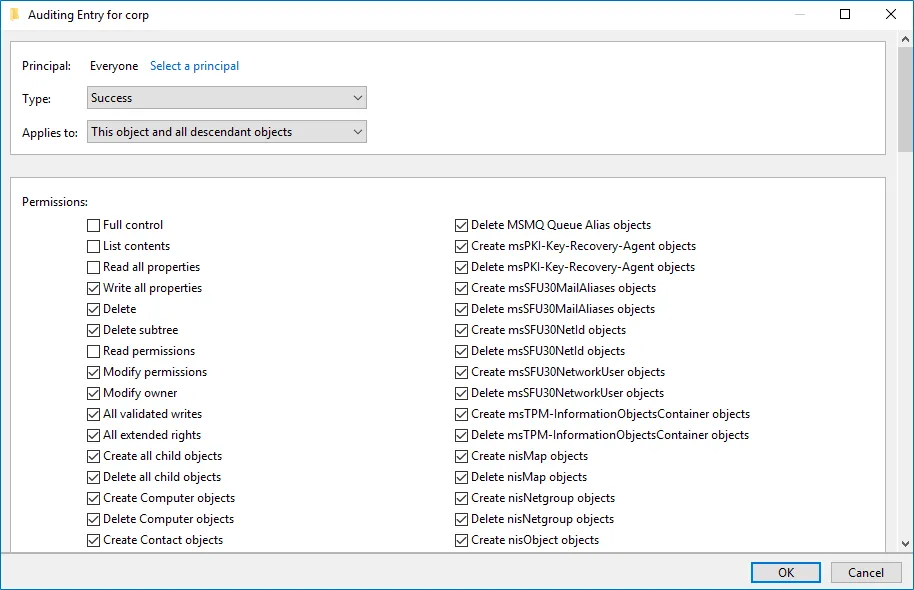
Click Add. In the Auditing Entry dialog, click the Select a principal link.
-
In the Select user, Computer, Service account, or Group dialog, type "Everyone" in the Enter the object name to select field.
-
Set Type to "Success". In the Applies to field, select "This object and all descendant objects".
-
Under Permissions, select all checkboxes except the following: Full Control, List Contents, Read All Properties and Read Permissions.
-
Scroll to the bottom of the list and ensure that the Only apply these auditing settings to objects and/or containers within this container checkbox is cleared.
-
Click Ok.
-
To enable object-level auditing for the Configuration partition:
This procedure requires the ADSI Edit utility. In Windows Server 2008 and above, this component installs with the AD DS role, or you can download and install it with Remote Server Administration Tools. See the Install ADSI Edit topic for additional information.
Step 1 – On any domain controller in the target domain, navigate to Start>Windows Administrative Tools (Windows Server 2016 and higher) or Administrative Tools (Windows 2012) > ADSI Edit.
Step 2 – Right-click the ADSI Edit node and select Connect To. In the Connection Settings dialog, enable Select a well-known Naming Context and select Configuration from the dropdown list.
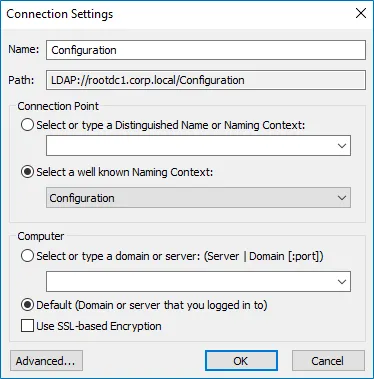
Step 3 – Expand the Configuration <Your_Root_Domain_Name> node. Right-click the
CN=Configuration, DC=<name>,DC=<name>… node and select Properties.
Step 4 – In the CN=Configuration, DC=<name>, DC=<name> Properties dialog select the
Security tab and click Advanced. In the Advanced Security Settings for Configuration
dialog, open the Auditing tab.
Step 5 – Do one of the following depending on the OS:
-
On pre-Windows Server 2012 versions:
-
Click Add. In the Select user, Computer, Service account, or Group dialog, type "Everyone" in the Enter the object name to select field.
-
In the Audit Entry dialog that opens, set the "Successful" flag for all access entries except the following: Full Control, List Contents, Read All Properties and Read Permissions.
-
Ensure that the Apply these auditing entries to objects and/or containers within this container only checkbox is cleared. Also, ensure that the Apply onto parameter is set to "This object and all descendant objects".
-
Click Ok.
-
-
On Windows Server 2012 and above
-
Click Add. In the Auditing Entry dialog, click the Select a principal link.
-
In the Select user, Computer, Service account, or Group dialog, type "Everyone" in the Enter the object name to select field.
-
Set Type to "Success". In the Applies to field, select "This object and all descendant objects".
-
Under Permissions, select all checkboxes except the following: Full Control, List Contents, Read All Properties and Read Permissions.
-
Scroll to the bottom of the list and ensure that the Only apply these auditing settings to objects and/or containers within this container checkbox is cleared.
-
Click Ok.
-