Export a Report or Investigation Results
You can export the results of a new investigation or a report to a file for easier review. The exported report or investigation is sent to you as an .xlsx file by email.
Export a Report
To export a report:
Step 1 – Navigate to any of the following:
- Reports > Activity tab
- Reports > Compliance tab
- Reports > Risks tab
- Reports > System tab
Step 2 – Select an organization from the dropdown menu at the top of the left pane to access its reports. An organization is selected by default, but you can choose a different one if needed.
Step 3 – In the left pane, click a category to view its reports.
Step 4 – Click a report to open it. Reports without a filter are automatically generated when you open them. Click Search to generate reports with a predefined filter set.
Step 5 – Click Export. The report is sent to you as an .xlsx file by email.
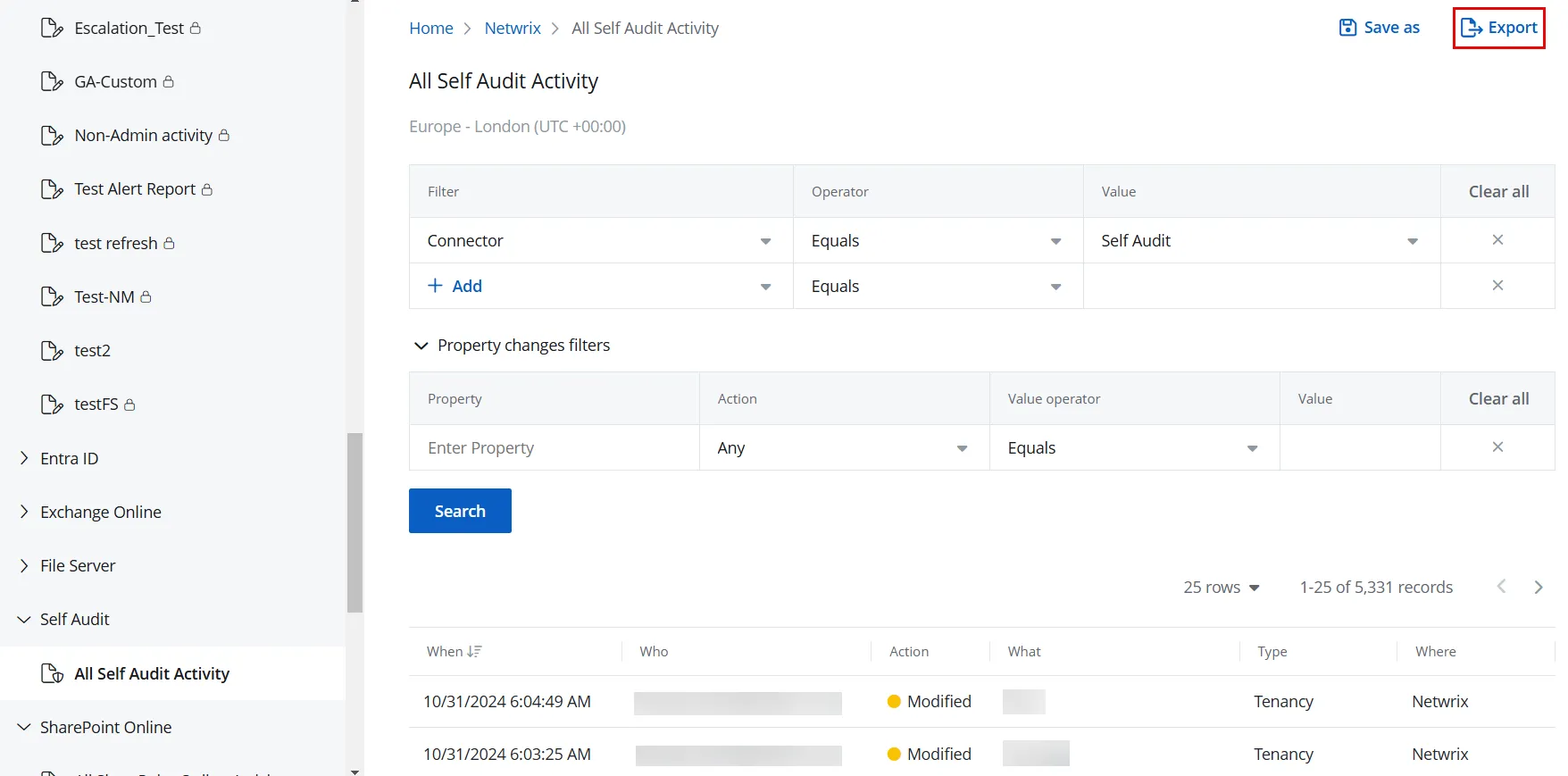
A report can't be exported if no data is available for it. In this case, the Export button remains disabled.
Export an Investigation
To export the results of an investigation:
Step 1 – Click Reports in the top bar to navigate to the Reports page. By default, the page opens to the Activity tab with New Investigation selected in the left pane.
Step 2 – Select an organization from the dropdown menu at the top of the left pane to access its reports. An organization is selected by default, but you can choose a different one if needed.
Step 3 – Define a filter criteria, then click Search to generate the investigation results based on it. See the Apply Filters topic for additional information.
Step 4 – Click Export. The investigation results report is sent to you as an .xlsx file by email.